How to fix VMware Converter error “FAILED: The VSS snapshots cannot be stored”

While moving some VM’s from Hyper-V to VMware using VMware Converter a VM failed to convert with the error: FAILED: The VSS snapshots cannot be stored.

FAILED: The VSS snapshots cannot be stored because there is not enough space on the source volumes or because the source machine does not have any NTFS volumes. Error code: 2147754783 (0x8004231F).

Come to find out the System Reserved partition was full. Our soon to be retired Appassure backup application was nice enough to fill up the volume.

Luckily Appassure is being replaced by Veeam and fixing the above VMware Converter error is an easy fix.

Steps on how-to fix VMware Converter “FAILED: The VSS snapshots cannot be stored” error message

  1. Open Computer Management by pressing Windows Key+R and typing in compmgmt.msc, then go to Disk Management.
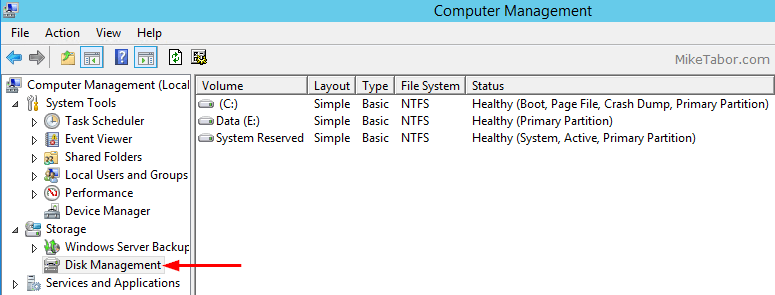
    computer management
  2. Right click on the System Reserved partition and select Properties.
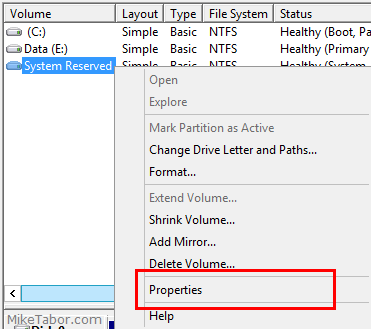
    system reserved properties
  3. Then click on the Shadow Copies tab and ensure Shadow Copies are disabled for each volume and then close the Properties window.
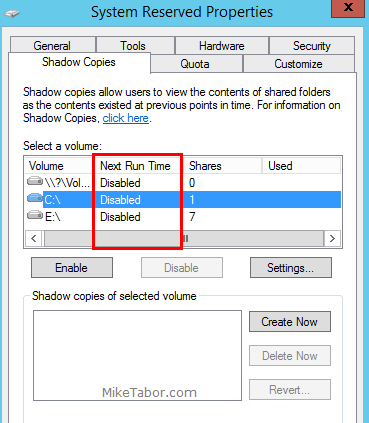
    system reserved shadow copies
  4. Again, right click on the System Reserved partition and then select “Change Drive Letter and Path…” and assign the partition a drive letter (I’ll be using letter Z).
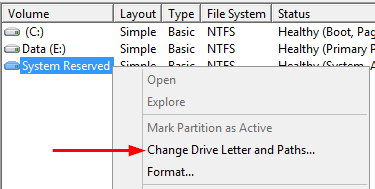
    system reserved drive letter
  5. Next open the Z: drive in File Explorer and right click on System Volume Information folder and select Properties.
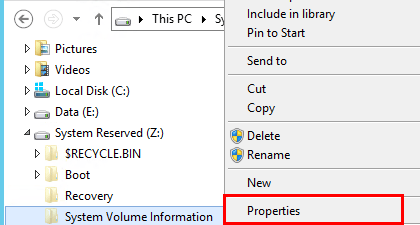
    system reserved z drive
  6. In the System Volume Information Properties window, click on the Security tab then click on Advanced to open the Advanced Security Setting dialog box.
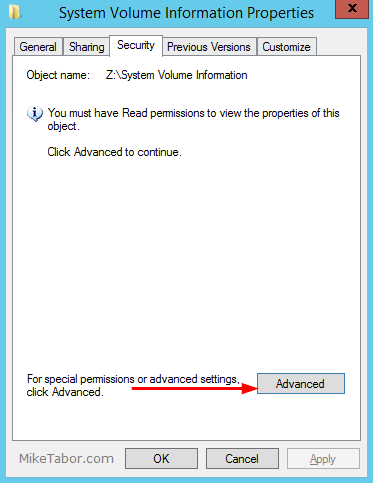
    system volume information advanced
  7. Now add the Everyone group Full control to the folder, subfolders and files.
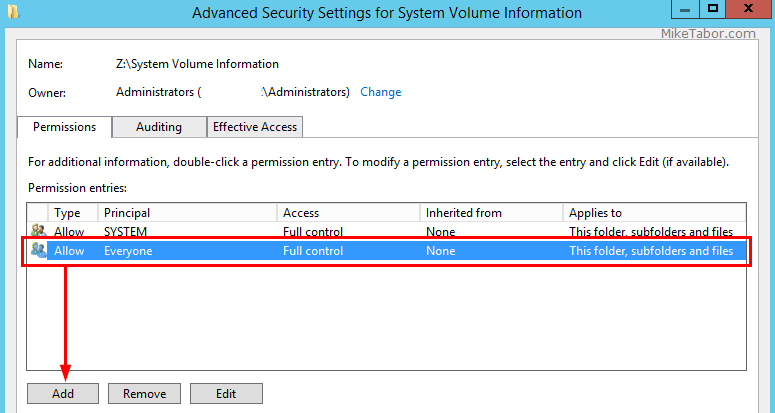
    advanced security settings
  8. Right click on Start Menu icon and select Command Prompt (Admin) to open a Command Prompt as Administrator.
    command prompt as admin
  9. Now type in the following commands:
    
    Z:
    fltmc unload aafsflt
    cd "System Volume Information"
    del aalog_*
    cd ..
    fltmc load aafsflt
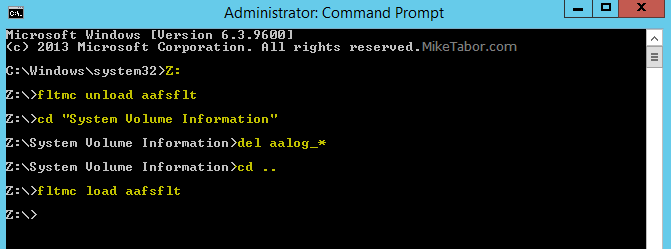
    

    delete logs commands
    Then exit the command prompt.

  10. Finally be sure to remove the Everyone access from the System Volume Information folder (steps 6 & 7) and remove the drive letter (step 4).

Now re-run your VMware Converter task again and the migration should work without issue!

Similar Posts

  • vSphere 5.1 currently not compatible with any VMware View version

    Before you go updating your vSphere to the new 5.1 version that was just released, VMware had just released this alert yesterday (9/12) that vSphere 5.1 is currently NOT compatible with any version of VMware View.

    vSphere 5.1 is in the process of being certified against VMware View. We recommend that you do not upgrade vSphere above the supported versions listed in the VMware View 5.1 Release Notes.

    For further updates and more information on this alert, refer to KB article:
    vSphere 5.1 is not compatible with any versions VMware View (2035268).

    If you don’t use VMware View, and are ready to upgrade to vSphere 5.1 be sure to check out the Installing vCenter Server 5.1 best practices from VMware.

  • Clone VMware ESXi USB boot drive to another USB flash drive

    A few days ago one of my hosts in my home lab was displaying an alarm message:

    Lost connectivity to the device

    Lost connectivity to the device mpx.vmhbaXX:XX:XX:XX backing the boot filesystem /vmfs/devices/disks/mpx.vmhbaXX:XX:XX:XX. As a result, host configuration changes will not be saved to persistent storage.

    The last part of the message (“persistent storage”) made me think it might have something to do with the USB drive due to the fact that a similar message appeared when setting up the home lab on the Intel NUC’s. After some research it appears my assumption was correct and that the USB flash drive I was using to boot from was indeed starting to fail.

    Read More “Clone VMware ESXi USB boot drive to another USB flash drive”

  • VMUG EVALExperience, the new VMware VMTN

    VMUG EVALExperience

    Long ago VMware offered a program called VMware Technology Network (VMTN) which was very similar to Microsoft’s TechNet, which allowed you to download and run various VMware software within your home lab for a small yearly fee. Just like the Microsoft TechNet, the VMware VMTN program was eventually closed. From the time the VMTN program closed many people have begged and pleaded with VMware to bring the program back, there is even a long forum thread asking VMware to bring VMTN back. Though it never did… until now.

    Read More “VMUG EVALExperience, the new VMware VMTN”

  • My VMware View Windows 7 Optimization Guide

    These are the few steps I do when creating a new "Golden" image. Luckily I don’t have to do these steps all the time as I’ll create the "Golden" image when there is a new upgrade such as when we went from View 4.6 to View 5.0.1. I like to have a new fresh machine using new virtual hardware from the start. You could certainly just upgrade the virtual hardware on the "Golden" image, I just prefer to start clean.

    At any rate, here’s my list. Hopefully someone might find it somewhat useful and maybe even others can improve upon it.

    Preparing a new virtual machine

    1. Create New Virtual Machine – FILE > NEW > VIRTUAL MACHINE (CTRL+N)
    2. Under Configuration select CUSTOM.
    3. Select a Name, Folder, Host, Cluster, and Storage.
    4. Under Guest Operating System select Windows and then Windows 7 32bit under the Version drop down.
    5. Select which Network (VLAN) and under Adapter select VMXNET 3.
    6. Configure disk size to 30GB THIN provisioned.

    Read More “My VMware View Windows 7 Optimization Guide”

  • VMware Recertification Policy

    VMware certified

    Starting today, March 10 2014, new VCP certifications must be re-certified within two years of it’s earned date. Anyone who currently has their VCP certification prior to March 10 2013 has until March 10, 2015 to re-certify.

    The new policy gives you three options to re-certify:

    1. Take the current exam for your existing VCP certification solution track. For example, if you are a VCP3, you could take the current VCP5-Data Center Virtualization (VCP5-DCV) exam.
    2. Earn a new VCP certification in a different solution track. For example, if you are a VCP-Cloud, you could recertify by earning VCP5-Desktop (VCP5-DT) certification.
    3. Advance to the next level by earning a VMware Certified Advanced Professional (VCAP) certification. For example, if you are a VCP5-DCV you could earn VCAP5-DCA certification.

    I can understand why they are doing this but I don’t agree with the changes. As per the announcement if you let your certification expire, “Your certification will be revoked,and you will no longer be entitled to use the certification logo or represent yourself as VMware certified“. Really? You mean everything that was done prior and after taking the exam means nothing?

    Read More “VMware Recertification Policy”

  • How to install VMware Workstation 10 on Linux Mint 17.1

    vmware workstation 10 linux mint

    Two goals that I would like to achieve this year is to learn how to program (likely Python) as well as learn more about Linux. So last week I completely wiped my HP laptop that used to run Windows 7 Pro and installed Linux Mint 17.1. However, I had a nested ESXi lab within VMware Workstation when I was running Windows and wanted to do the same on my new Linux install.

    I found this wasn’t just as simple as downloading an .exe and running the file, like it is in Windows. There are a few dependiences that are needed first, below is the steps I took to install VMware Workstation 10 on Linux Mint 17.1.

    Read More “How to install VMware Workstation 10 on Linux Mint 17.1”

Leave a Reply

Your email address will not be published. Required fields are marked *

2 Comments

  1. I resolved this issue another way. I assigned a drive letter to the recovery partition in preparation to remove suspected journal files, however that was not the problem. Opening the drive letter for the recovery partition revealed an installation of Kaspersky anti-virus taking up 73 mb. Removed that , removed the drive letter and I no longer get the Vss shadow copy error. I would recommend people assign a drive letter and see if they see data on the recovery drive which should not be there. Do not delete stuff if you do not know what it is for, such as any files with the word “boot” in them. Also, if you see only a few files which do not add up to 100 mb, google for how to remove journal files. That might be the problem.

  2. If you cannot acces to the system reserved you can open this partition by linux mint live cd. when I opened partition and I delete all recovery folder ( becouse I don’t need this folder. I made backup by acronis wd). after this operation I have 400 MB free space and I can convert machine now. Best regards. Pawel from Poland