VMware Recertification Policy

VMware certified

Starting today, March 10 2014, new VCP certifications must be re-certified within two years of it’s earned date. Anyone who currently has their VCP certification prior to March 10 2013 has until March 10, 2015 to re-certify.

The new policy gives you three options to re-certify:

  1. Take the current exam for your existing VCP certification solution track. For example, if you are a VCP3, you could take the current VCP5-Data Center Virtualization (VCP5-DCV) exam.
  2. Earn a new VCP certification in a different solution track. For example, if you are a VCP-Cloud, you could recertify by earning VCP5-Desktop (VCP5-DT) certification.
  3. Advance to the next level by earning a VMware Certified Advanced Professional (VCAP) certification. For example, if you are a VCP5-DCV you could earn VCAP5-DCA certification.

I can understand why they are doing this but I don’t agree with the changes. As per the announcement if you let your certification expire, “Your certification will be revoked,and you will no longer be entitled to use the certification logo or represent yourself as VMware certified“. Really? You mean everything that was done prior and after taking the exam means nothing?

I realize many others do have a re-certification policy in place but in my opinion VMware already did too… It was VCP3, VCP4, VCP5, etc. I have a VCP5 but when VCP6 (or whatever version) comes out it would be up to me if I wanted to take the most current exam or not. With this new policy after March 10 2015 I’m no longer a VCP at all as my certification, per VMware, is being revoked.

The VCP to me and others is a badge of honor, after all the time, work, and studying you’re proud of it and want to show it off and even keep it. With the new policy, after two years none of the means nothing and it’s as if you never took it – the cert is revoked.
Similar Posts

  • Install ESXi 5.1 from a USB Flash Drive

    Many servers already come with a DVD/CD-ROM drive or some kind of ability to virtually mount an ISO image from a network share onto your server to then install ESXi. However, not all do or you just want to have your ESXi image readily available. Here’s a quick step by step instructions on how to use a USB flash drive to install ESXi.

    1. Download ESXi 5.1 from VMware (if you haven’t already) as well as UNettbootin.
    2. Plug in your USB Flash Drive.
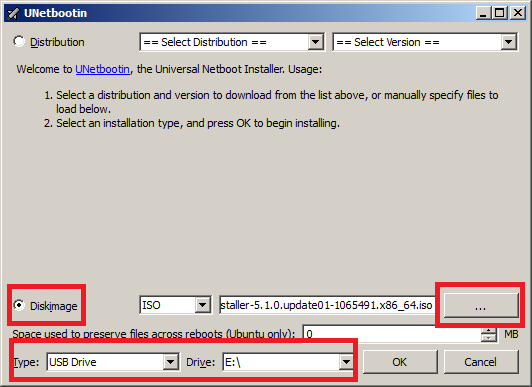
    3. Open UNetbootin and select “Diskimage”, set Type to “USB Drive”, select Drive letter of your USB flash drive, and set the path of your ESXi 5.1 ISO image. Then click on “OK”.
      unetbootin setup
    4. Read More “Install ESXi 5.1 from a USB Flash Drive”

  • Increase incremental backup speed by enabling CBT

    In a recent VMware environment I was working in, we noticed that our incremental backups was taking a long time (like up to 7-8 hours) to complete. After digging around it was found that VMware actually has a feature built-in since version 4 called Change Block Tracking (CBT). CBT will track any blocks that were changed since the last backup and tag them and stores the information in a -CTK file. The obvious benefit is that now the third party software only backs up the changed block and not the entire VM each time, reducing the amount of data being backed thus speeding up backups and even lowers the CPU utilization on the VM host.

    CBT is disabled by default though there are some backup tools that will enable it automatically or you can enable it manually which can easily be done following these steps:

    Read More “Increase incremental backup speed by enabling CBT”

  • ESXi 5.5 free edition removes 32GB memory limit

    There have been a ton of exciting announcements coming out of VMword 2013, one of which is vSphere 5.5 and all of it’s improvements and additions. Along that note, VMware has changed ESXi 5.5 free version to remove the physical RAM limit which was limited to only 32GB in version 5.1.

    The new virtual hardware, version 10, we can now grow our home labs into more powerful VM’s as most all configuration maximums have been doubled:

    Read More “ESXi 5.5 free edition removes 32GB memory limit”

  • VMware Site Recovery Manager 8.2 – No more Windows

    VMware has just announced the release of Site Recovery Manager 8.2. There are a number of new items in SRM 8.2, such as enhancements to the HTML5 user interface, support for vSphere 6.7 Update 2, but most notably is Site Recovery Manager 8.2 virtual appliance!

    No more Microsoft Windows license needed! The SRM 8.2 virtual appliance runs on the Photon OS distro, which is similar to what the vCenter virtual appliance has been running on for years now.

    Read More “VMware Site Recovery Manager 8.2 – No more Windows”

  • Installing Windows 10 on VMware Workstation 10

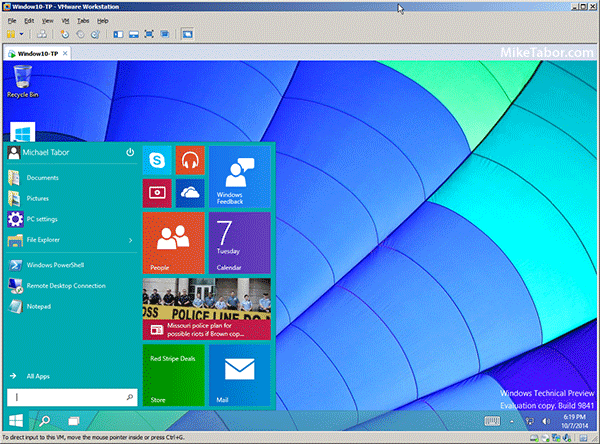
    windows 10 on vmware workstation 10

    VMware just announced VMware Workstation 11, which includes support for Windows 10 Tech Preview along with several other latest version operating systems, but you don’t have to wait until December when Workstation 11 is released. You can install Windows 10 on VMware Workstation 10 now!

    Installation is simple and everything seems to function just fine, VMware tools installs too.

    Read More “Installing Windows 10 on VMware Workstation 10”

  • Thank you VMware Community!

    VMware vExpert 2014

    So far, 2014 has been a very rewarding year for a number of reasons, two of which has happened in just a week or two span. First, Eric Siebert (@ericsiebert) announced on March 27th, this years results of the 2014 Top VMware & Virtualization Blog voting. My first year entered into voting and made it to 71st place! A huge thanks goes out to not only Eric but just as much so to everyone who voted for me!

    To top it off, yesterday VMware announced 2014’s first quarter VMware vExpert list. While vExpert isn’t a technical certification or even a general measure of VMware expertise. The VMware judges selected people who were engaged with their community and who had developed a substantial personal platform of influence in those communities. There were a lot of very smart, very accomplished people, even VCDXs, that weren’t named as vExpert this year. VMware awarded this title to 754 people this year and on that list of many impressive names you’ll find yours truly, Michael Tabor!

    I’m both honored and humbled by both lists. It’s a great feeling to be recognized by not only my peers through the voting in the Top vBlog but also by VMware themselves through the vExpert title.

    So again THANK YOU very much to the entire VMware community, a spectacular community indeed, and congratulations to everyone else that made the Top vBlog and vExpert lists!

Leave a Reply

Your email address will not be published. Required fields are marked *

One Comment