Another CBT bug found in VMware ESXi 6.0
VMware

VMware just published KB 2136854 regarding a new bug found in ESXi 6.0 that causes virtual machine backups, which use Changed Block Tracking (CBT), to be inconsistent. VMware says the cause of the issue is this:

This issue occurs due to an issue with CBT in the disklib area, this causes the change tracking information of I/Os that occur during snapshot consolidation to be lost. The main backup payload data is never lost and it is always written to the backend device. However, the corresponding change tracking information entries which occur during the consolidation task are missed. Subsequent QueryDiskChangedAreas() calls do not include these missed blocks, hence a backup based on this CBT data is inconsistent.

Unfortunately at the moment VMware do not have a fix for the issue and the “workarounds” really are not all the much better either:

  • Downgrade your hosts to ESXi 5.5 as well as downgrade the virtual machine hardware version from 11 to 10.
  • Power down the virtual machine before doing an incremental backup.
  • Do a full backup on the virtual machine rather than an incremental backup.

Hopefully VMware is able to knock out a fix for this bug sooner rather than later. Once a fix has been released I’ll be sure to update this post as well.

Updated 11/29: VMware has released a fix for this bug now, VMware ESXi 6.0, Patch Release ESXi600-201511001 (2137545)
Similar Posts

  • Shrink a thin provisioned VMDK disk

    When maintaining a Horizon View environment I like to keep my parent images as small as possible and over time a thin provision disk can start to grow on you if you don’t watch it – be it from downloading installers, updates, or even running disk defrag. While there isn’t a simple, one click button in the View Administrator Console there is a fairly easy manual method using vmfkstools.

    Before we can use “vmkfstools” to shrink the VMDK file we must zero out any unused space on the thin provisioned disk. A simple way of doing this is by using a free utility called SDelete from Sysinternals.

    Read More “Shrink a thin provisioned VMDK disk”

  • Edit Virtual Hardware 10 VM’s with vSphere 5.5 U2 client

    When ESXi 5.5 came out so did a new virtual hardware version, 10, as well. However the ability to edit virtual machines have have been upgraded to virtual hardware 10 was restricted to only the vSphere web client. In some cases people have put off upgrading to virtual hardware 10 either for dislike of the web client or knowing you cannot edit the VM in the event of the web client being down.

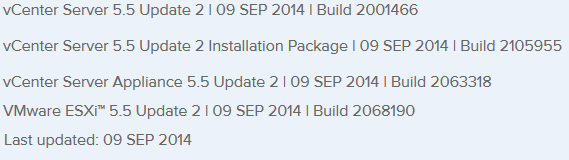
    That all changes today, VMware has just released vCenter 5.5 Update 2 today and one of the “resolved issues” in today’s release notes is the ability to now edit virtual machines with Virtual Hardware 10 using the vSphere thick (C#) client.

    edit virtual hardware 10

    Read More “Edit Virtual Hardware 10 VM’s with vSphere 5.5 U2 client”

  • VMUG EVALExperience, the new VMware VMTN

    VMUG EVALExperience

    Long ago VMware offered a program called VMware Technology Network (VMTN) which was very similar to Microsoft’s TechNet, which allowed you to download and run various VMware software within your home lab for a small yearly fee. Just like the Microsoft TechNet, the VMware VMTN program was eventually closed. From the time the VMTN program closed many people have begged and pleaded with VMware to bring the program back, there is even a long forum thread asking VMware to bring VMTN back. Though it never did… until now.

    Read More “VMUG EVALExperience, the new VMware VMTN”

  • My VMware ESXi Home Lab Upgrade

    Although the focus in my career right now is certainly more cloud focused in Amazon Web Services and Azure, I still use my home lab a lot.

    For the last 5+ years my home lab had consisted of using 3x Intel NUC’s (i5 DC53427HYE), a Synology NAS for shared storage and an HP ProCurve switch. This setup served me well for most of those years. It has allowed me to get many of the certifications I have, progress in my career and have fun as well.

    At the start of this year I decided it was time to give the home lab an overhaul. At first I looked at the newest generation of Intel NUC’s but really wasn’t looking forward to dropping over $1,300 on just partial compute (I’d still need to be RAM for each of the 3 NUC’s). I also wanted something that just worked, no more fooling around with network adapter drivers or doing this tweak or that tweak.

    I also no longer needed to be concerned about something that had a tiny footprint. I also questioned if I really needed multiple physical ESXi hosts. My home lab isn’t running anything mission critical and if I really wanted I could always build additional nested VMware ESXi hosts on one powerful machine if I needed.

    So in the end, the below is what I settled on. Replacing all of my compute, most of my networking and adding more storage!

    Read More “My VMware ESXi Home Lab Upgrade”

  • Altaro VM Backup Setup Step-by-Step

    Altaro VM Backup

    Altaro VM Backup is a company who offers a backup solution for small to medium sized businesses and have been around for a while that started out offering backup software for Hyper-V, but has now expanded to VMware as well. Altaro asked if I would be interested in trying for free as part of the vExpert program in my home lab.

    I help out a few small companies here in town so having another backup solution to possibly suggest certainly wouldn’t hurt, so I decided to give it a try and below are my steps to setting it up and thoughts about the software so far.

    Read More “Altaro VM Backup Setup Step-by-Step”

  • VMware View client now availabe for Android!

    VMware has announced that they have released a View Client for Android tablets available on the Android Market now. Here are just a few of the features found on the new client.

    • A new look and feel – The View Client for Android features the NEW blue look and feel of the VMware View clients!
    • Multiple broker support – If you have more than one VMware View broker in your organization, you can can easily access your desktop from all of them via the Android client
    • Desktop Shortcuts – Quickly connect with as many as four recent desktop via shortcuts
    • Virtual trackpad – Control your desktop on a granular level just like you would control the mouse on a laptop
    • Custom keyboard toolbar – Super easy access to all of the special keys not found on the Android default keynboard
    • Honeycomb 3.x support – Made from the ground up for the new generation of Android tablets
    • Custom gestures – Invoke keyboard, scrolling, etc are as easy as ever and simple to use
    • VMware View Security Server support (best experience) – No need to have VPN when you use VMware View Security Server
    • Background tasking – Switch between apps on your tablet and come right back

Leave a Reply

Your email address will not be published. Required fields are marked *