vSphere 5.5 Update 1 has been released, includes VSAN.
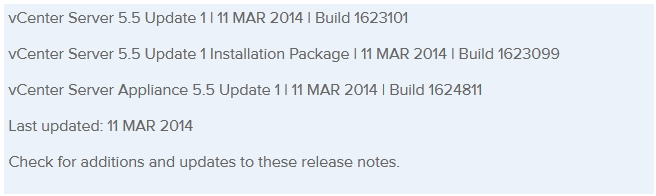
VMware vSphere 5.5 update 1

VMware has officially released vSphere 5.5 U1 which includes a number of improvements, fixes, and most excitedly the production ready version of VSAN!

What’s new

  • vCloud Hybrid Service vSphere Client Plug-in, is now available in vSphere Web Client.
  • vCenter Server is now supported on Windows Server 2012 R2.
  • A number of resolved issues

What products have been updated?

  • ESXi 5.5 U1
  • VMware vCenter Server 5.5 U1
  • vSphere Replication 5.5.1
  • vSphere Data Protection 5.5.6
  • VMware vCenter Orchestrator appliance 5.5.1
  • VMware vCloud Director 5.5.1
  • VMware vCenter Operataions Manager Advanced 5.8.1
  • VMware vCentere Hyperic 5.8.1 Server (and agent)
  • VMware vCenter Site recovery manager 5.5.1
  • VMware vCloud Application Director 6.0.1

The most exciting part of this update is VSAN! VMware VSAN, if you haven’t already heard, is a built-in the hypervisor storage feature that uses locally attached disk and SSD drives to create a storage pool across the entire cluster. No need for external NAS/SAN, appliances, or tools required!
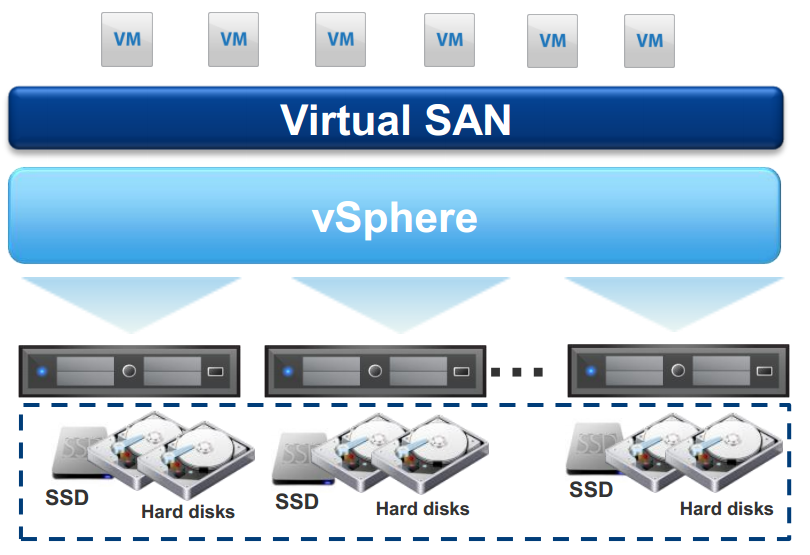

VMware VSAN

Similar Posts

  • Setup Synology Syslog server for VMware ESXi

    After performing my home lab upgrade, ESXi now runs from a USB stick and because of that vSphere would complain that the system logs where on non-persistent storage:

    ESXi syslog error

    If I wanted I could have ran the vCenter Server Appliance (vCSA) as it comes with it’s own syslog server, or I could have used something like KIWI or Splunk to be my syslog server. I instead went the route of my Synology NAS as it too has the ability to act as a syslog server and these are the steps I performed to setting it up.

    Read More “Setup Synology Syslog server for VMware ESXi”

  • Increase incremental backup speed by enabling CBT

    In a recent VMware environment I was working in, we noticed that our incremental backups was taking a long time (like up to 7-8 hours) to complete. After digging around it was found that VMware actually has a feature built-in since version 4 called Change Block Tracking (CBT). CBT will track any blocks that were changed since the last backup and tag them and stores the information in a -CTK file. The obvious benefit is that now the third party software only backs up the changed block and not the entire VM each time, reducing the amount of data being backed thus speeding up backups and even lowers the CPU utilization on the VM host.

    CBT is disabled by default though there are some backup tools that will enable it automatically or you can enable it manually which can easily be done following these steps:

    Read More “Increase incremental backup speed by enabling CBT”

  • How to upgrade vCenter server appliance

    Prior to VMware vCenter Server Appliance 6.x, upgrading or patching vCSA was as simple as a few button clicks in the appliance UI. Gone are those days, as VMware has replaced the appliance UI with a DCUI and the web based install wizard during setup.

    The good news is, upgrading or patching the vCSA 6.x is still pretty simple via the command line!

    Read More “How to upgrade vCenter server appliance”

  • How to upgrade vCenter Server Appliance 6.7 to 7.0

    VMware vCenter 7.0 has been released for several months now and figured it was about time I upgraded my home lab to the latest version.

    This post will detail all the steps needed to upgrade vCenter Server Appliance 6.7 to 7.0 without any issues.

    Getting Started

    Before beginning, I HIGHLY recommended you first check the VMware Interoperability Matrix before performing any upgrade to check compatibility of other VMware products.

    Then go download the VCSA 7.0 ISO if you haven’t already and lets get started with the upgrade!

    Read More “How to upgrade vCenter Server Appliance 6.7 to 7.0”

  • VMware ESXi 5 fails to install on Intel NUC, “No Network Adapters” error

    If you use the VMware ESXi 5 ISO image and try to install it on an Intel NUC you’ll receive the following error during the install.

    No Network Adapters

    No network adapters were detected. Either no network adapters are physically connected to the system, or a suitable driver could not be located. A third party driver my be required.

    Ensure that there is at least one network adapter physically connected to the system before attempting installation. If the problem persists, consult the VMware Knowledge Base.

    The “No Network Adapters” on the Intel NUC error message during the ESXi install is because VMware removed a number of drivers (non-enterprise drivers) from their ESXi 5.x image and in order to use the Intel NUC as an ESXi host you need to create a customized ESXi image with the NIC drivers added to the image.

    Read More “VMware ESXi 5 fails to install on Intel NUC, “No Network Adapters” error”

  • VMware View client now availabe for Android!

    VMware has announced that they have released a View Client for Android tablets available on the Android Market now. Here are just a few of the features found on the new client.

    • A new look and feel – The View Client for Android features the NEW blue look and feel of the VMware View clients!
    • Multiple broker support – If you have more than one VMware View broker in your organization, you can can easily access your desktop from all of them via the Android client
    • Desktop Shortcuts – Quickly connect with as many as four recent desktop via shortcuts
    • Virtual trackpad – Control your desktop on a granular level just like you would control the mouse on a laptop
    • Custom keyboard toolbar – Super easy access to all of the special keys not found on the Android default keynboard
    • Honeycomb 3.x support – Made from the ground up for the new generation of Android tablets
    • Custom gestures – Invoke keyboard, scrolling, etc are as easy as ever and simple to use
    • VMware View Security Server support (best experience) – No need to have VPN when you use VMware View Security Server
    • Background tasking – Switch between apps on your tablet and come right back

Leave a Reply

Your email address will not be published. Required fields are marked *

One Comment