Become a VMware Certified Associate for FREE!

During the San Francisco VMworld 2013, VMware announced the start of their new VMware Certified Associate certifications.

There’s no training class requirement for the new exams although VMware offers a free self-paced e-learning course which is recommended to help you prepare for the exams. The exams normally run $120.00 but VMware is currently running a $60.00 discount for those who take the exam in 2013. NTPRO.nl has an additional coupon code (VCA13ICS) to take the remaining $60.00 off making the exam FREE!

VCA Exam for free

The VCA13ICS coupon code expires on October 30, 2013!

Update:
Global Knowledge also has a coupon code (VCA13GKN) which does not expire until January 31, 2014. Limit one free exam per individual!

Similar Posts

  • VMUG EVALExperience, the new VMware VMTN

    VMUG EVALExperience

    Long ago VMware offered a program called VMware Technology Network (VMTN) which was very similar to Microsoft’s TechNet, which allowed you to download and run various VMware software within your home lab for a small yearly fee. Just like the Microsoft TechNet, the VMware VMTN program was eventually closed. From the time the VMTN program closed many people have begged and pleaded with VMware to bring the program back, there is even a long forum thread asking VMware to bring VMTN back. Though it never did… until now.

    Read More “VMUG EVALExperience, the new VMware VMTN”

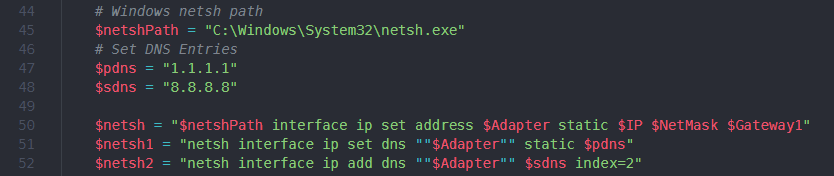
  • How to update VMware Windows VM’s DNS using PowerCLI

    This post will show you how to update a VMware Windows virtual machine’s DNS IP addresses using PowerCLI.

    You’ll also see how I went from a starting point to a fully working script – all thanks to the awesome #vCommunity!

    Here at work we’ve been doing a number of networking, AD, and DNS changes. In doing so, our DNS IP address have changed. Changing the DNS settings for our workstations was easy, simply edit the DHCP scope.

    The servers on the other hand all had static IP’s and static DNS IP’s entered, each of which needed to be updated.

    Read More “How to update VMware Windows VM’s DNS using PowerCLI”

  • VMware View client now availabe for Android!

    VMware has announced that they have released a View Client for Android tablets available on the Android Market now. Here are just a few of the features found on the new client.

    • A new look and feel – The View Client for Android features the NEW blue look and feel of the VMware View clients!
    • Multiple broker support – If you have more than one VMware View broker in your organization, you can can easily access your desktop from all of them via the Android client
    • Desktop Shortcuts – Quickly connect with as many as four recent desktop via shortcuts
    • Virtual trackpad – Control your desktop on a granular level just like you would control the mouse on a laptop
    • Custom keyboard toolbar – Super easy access to all of the special keys not found on the Android default keynboard
    • Honeycomb 3.x support – Made from the ground up for the new generation of Android tablets
    • Custom gestures – Invoke keyboard, scrolling, etc are as easy as ever and simple to use
    • VMware View Security Server support (best experience) – No need to have VPN when you use VMware View Security Server
    • Background tasking – Switch between apps on your tablet and come right back
  • HTML5 Embedded Host Client, this looks promising

    It’s no secret many people have really disliked the vSphere web client, it’s very sluggish, clunky, and based on flash (flash comes with it’s own security issues). It was rumored and highly hoped that vSphere 6 might be re-written in HTML5, but sadly this didn’t and hasn’t happened yet. While vSphere 6 did improve a bit on the web client the issues many people have had with it in the past still remain today.

    Enter the VMware HTML5 Embedded Host Client fling. I’ve been using and following this fling for a while now and have really enjoyed it and with each release it keeps getting better and better.

    The Embedded Host Client fling is based on HTML5 which allows it works great across all kinds of platforms, it’s fast, responsive, and doesn’t require any plug-ins – YES the VM console works great. If this happens to be a look of what’s to come in a new VMware vSphere web client, then a client is looking very promising!

    If you haven’t tried it yet, you should. It’s extremely easy to install and doesn’t even require a reboot just follow these simple instructions.

    Read More “HTML5 Embedded Host Client, this looks promising”

  • How to convert VMDK to OVF file format

    Here is a quick and easy way to convert a VMDK to OVF file format using the OVF Tool from VMware.

    1. First download and install the VMware OVF Tool for your operating system.
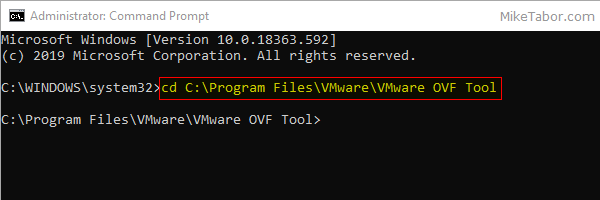
    2. Open a command prompt as Administrator and navigate to the OVF Tool install directory:
      
      cd C:\Program Files\VMware\VMware OVF Tool
      

      vmdk to ovf command prompt

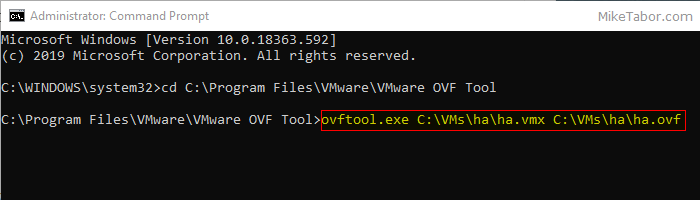
    3. Next, type in the following command to convert VMDK to OVF:
      
      ovftool.exe \virtualmachine.vmx \virtualmachine.ovf
      

      convert vmdk to ovf command

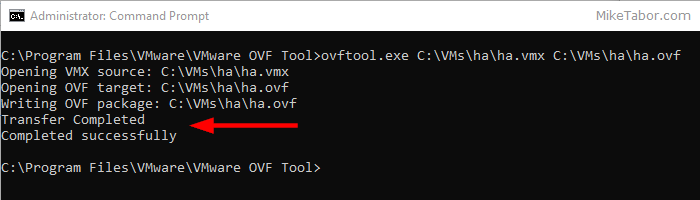
    After a few minutes time you should you should see a “Transfer Completed, Completed successfully” message and your VMDK to OVF file conversion is complete and ready for use.
    convert vmdk to ovf complete

  • Set default printer for View floating desktop and Persona Management

    Sometime ago I asked a question over at the VMware forum about how to set default network printers on a VMware View 5.0 floating pool that used Persona Management as Persona Management wasn’t keeping this user setting on it’s own. The printers would be added to the VM just not remember the default printer setting. I’ll admit I forgot to update the thread, but a work around was devised which I’ll share below.

    Read More “Set default printer for View floating desktop and Persona Management”

Leave a Reply to Michael Cancel reply

Your email address will not be published. Required fields are marked *

10 Comments

    1. The first 50% is from VMware for taking the exam in 2013. During checkout, step 3 of the Pearson VUE “enter payment” screen, click on “Add voucher or Promo Code” and enter: VCA13ICS

    1. The initial coupon code (VCA13ICS) you would have been able to take all the VCA exams for free as it could be used more than once. That code however has expired. The new code (VCA13GKN) doesn’t expire until Jan 31, 2014 but can only be used once.

  1. Hi Mihail.. I am getting 50% discount on this voucher. Any chances to get a 100% discounted code ? Trying my luck… :)

  2. Hye Mike …. I want to give the exam of VCA-DCV . Pls give me the exam voucher code of this . Is there any discount