Clone VMware ESXi USB boot drive to another USB flash drive

A few days ago one of my hosts in my home lab was displaying an alarm message:

Lost connectivity to the device

Lost connectivity to the device mpx.vmhbaXX:XX:XX:XX backing the boot filesystem /vmfs/devices/disks/mpx.vmhbaXX:XX:XX:XX. As a result, host configuration changes will not be saved to persistent storage.

The last part of the message (“persistent storage”) made me think it might have something to do with the USB drive due to the fact that a similar message appeared when setting up the home lab on the Intel NUC’s. After some research it appears my assumption was correct and that the USB flash drive I was using to boot from was indeed starting to fail.

After rebooting the host, more warning messages also appeared…

warning message

Typically I would recommend just re-installing ESXi on a new USB flash drive, but I haven’t yet created an ESXi 5.5 U1 customized ISO with the needed NIC drivers as I did with ESXi 5.0 and I figured I’d try cloning the original USB flash drive to a new Lexar USB drive instead.

How to clone ESXi USB install to new USB drive

  1. Download a linux distro of your choice and boot your PC from the CD. (I was already playing with the newly released Ubuntu 14.04 LTS in VMware Workstation, so I’ll be using that)
  2. Plug in the new USB flash drive and get the device address (/sdb).
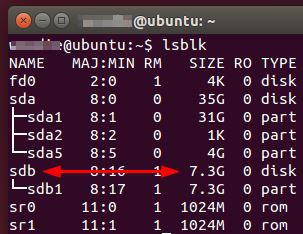
    new usb drive
  3. Plug in the original USB flash drive and get that device address as well (/sdc).
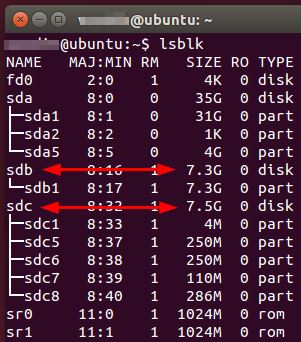
    original usb drive
  4. Remove all the partitions on the NEW USB flash drive (I used Disks Utility)
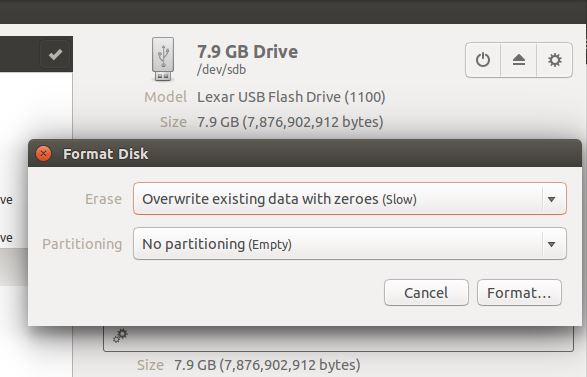
    Format new USB and remove all partitions
  5. Use the dd command to perform a block copy from the original USB flash drive to the new USB flash drive. Type the following command:
    dd if=/dev/sdc of=/dev/sdb
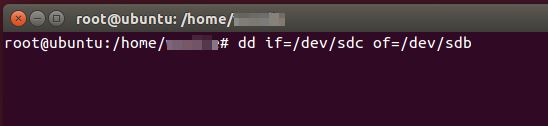
    dd command to clone usb drives

That’s it, the imaging took about 10-15 minutes and the new USB drive was ready to be used as an ESXi boot drive.

Similar Posts

  • Thank you VMware Community!

    VMware vExpert 2014

    So far, 2014 has been a very rewarding year for a number of reasons, two of which has happened in just a week or two span. First, Eric Siebert (@ericsiebert) announced on March 27th, this years results of the 2014 Top VMware & Virtualization Blog voting. My first year entered into voting and made it to 71st place! A huge thanks goes out to not only Eric but just as much so to everyone who voted for me!

    To top it off, yesterday VMware announced 2014’s first quarter VMware vExpert list. While vExpert isn’t a technical certification or even a general measure of VMware expertise. The VMware judges selected people who were engaged with their community and who had developed a substantial personal platform of influence in those communities. There were a lot of very smart, very accomplished people, even VCDXs, that weren’t named as vExpert this year. VMware awarded this title to 754 people this year and on that list of many impressive names you’ll find yours truly, Michael Tabor!

    I’m both honored and humbled by both lists. It’s a great feeling to be recognized by not only my peers through the voting in the Top vBlog but also by VMware themselves through the vExpert title.

    So again THANK YOU very much to the entire VMware community, a spectacular community indeed, and congratulations to everyone else that made the Top vBlog and vExpert lists!

  • Setup Synology Syslog server for VMware ESXi

    After performing my home lab upgrade, ESXi now runs from a USB stick and because of that vSphere would complain that the system logs where on non-persistent storage:

    ESXi syslog error

    If I wanted I could have ran the vCenter Server Appliance (vCSA) as it comes with it’s own syslog server, or I could have used something like KIWI or Splunk to be my syslog server. I instead went the route of my Synology NAS as it too has the ability to act as a syslog server and these are the steps I performed to setting it up.

    Read More “Setup Synology Syslog server for VMware ESXi”

  • VMUG EVALExperience, the new VMware VMTN

    VMUG EVALExperience

    Long ago VMware offered a program called VMware Technology Network (VMTN) which was very similar to Microsoft’s TechNet, which allowed you to download and run various VMware software within your home lab for a small yearly fee. Just like the Microsoft TechNet, the VMware VMTN program was eventually closed. From the time the VMTN program closed many people have begged and pleaded with VMware to bring the program back, there is even a long forum thread asking VMware to bring VMTN back. Though it never did… until now.

    Read More “VMUG EVALExperience, the new VMware VMTN”

  • How to add Realtek R8168 to ESXi 5.5 Update 2 ISO

    Realtek

    Over the past weekend I was working on a whitebox ESXi host and wanted to upgrade it to ESXi 5.5 Update 2 from an older version of ESXi 5.1 using a realtek R8168 network card. While I could have performed an in place upgrade, such as via command line, a clean install was preferred. However, VMware has removed a number of NIC drivers from ESXi 5.x and trying to install with the base ESXi image would result in a “No Network Adapters” error during install.

    In order to do a clean install you have to re-add the Realtek R8168 NIC drivers back into the ESXi 5.5 image, otherwise a NIC will not be found and thus ESXi will not install. These are the steps to easily re-add the Realtek R8168 drivers into ESXi 5.5 ISO by making a custom ESXi 5.5 image.

    Read More “How to add Realtek R8168 to ESXi 5.5 Update 2 ISO”

  • VMware VCP exam coupons, save 50%!

    VMware

    Current VCPs save 25% off any VCP exam

    All current VMware Certified Professionals can save 25% on exams taken before January 1st, 2015 on the following VCP exams:

    VMware Certified Professional 5 – Data Center Virtualization

    • Exam Code: VCP550
    • Exam Code: VCP510

    VMware Certified Professional 5 – Desktop

    • Exam code: VCP510-DT
    • Exam code: VCPD510

    VMware Certified Professional – Cloud

    • Exam Code: VCPC550
    • Exam Code: VCPC510
    • Exam Code: VCPVCD510

    VMware Certified Professional – Network Virtualization

    • Exam Code: VCPN610

    Read More “VMware VCP exam coupons, save 50%!”

  • Edit Virtual Hardware 10 VM’s with vSphere 5.5 U2 client

    When ESXi 5.5 came out so did a new virtual hardware version, 10, as well. However the ability to edit virtual machines have have been upgraded to virtual hardware 10 was restricted to only the vSphere web client. In some cases people have put off upgrading to virtual hardware 10 either for dislike of the web client or knowing you cannot edit the VM in the event of the web client being down.

    That all changes today, VMware has just released vCenter 5.5 Update 2 today and one of the “resolved issues” in today’s release notes is the ability to now edit virtual machines with Virtual Hardware 10 using the vSphere thick (C#) client.

    edit virtual hardware 10

    Read More “Edit Virtual Hardware 10 VM’s with vSphere 5.5 U2 client”

Leave a Reply

Your email address will not be published. Required fields are marked *