VMware Workstation 12.5 and Fusion 8.5 Released
VMware Workstation 12.5

VMware announced VMware Workstation 12.5 and Fusion 8.5 during VMworld 2016 in Las Vegas. Well VMware Workstation 12.5 and Fusion 8.5 is now available for download!

Both Workstation 12.5 and Fusion 8.5 include a large number of fixes, security and performance improvements, but most noticibly both have added support for Windows 10 Anniversary Update as well as Server 2016 operating systems.

VMware Workstation 12.5 Features

VMware Workstation 12 Pro version 12.5 is a free upgrade for all VMware Workstation 12 Pro users and adds support for the following operating systems:

  • Windows 10 Anniversary Update
  • Windows Server 2016

In addition Workstation 12.5 also includes a number of bug fixes, security updates and performance improvements. Check the VMware Workstation 12.5 release notes here.

VMware Fusion 8.5 Features

VMware Fusion is also a free upgrade for all VMware Fusion 8 users and adds support for the following operating systems:

  • macOS Sierra (10.12)
  • Windows 10 Anniversary Update
  • Windows Server 2016

VMware Fusion 8.5 also contains numerous bug fixes, security updates and performance improvements. Check the VMware Fusion 8.5 release notes here.
Similar Posts

  • VMware Workstation 12 Pro Released

    VMware has just released a new version of Workstation in VMware Workstation 12 Pro. Workstation 12 Pro provides full support for Windows 10, including features such as Cortana and universal applications. As well as even larger virtual machines with up to 16 vCPU’s and 64GB of memory. Workstation 12 Pro even supports 4K displays and DirectX 10 and OpenGL 3.3

    You can even seamlessly drag and drop virtual machines between your PC and your internal cloud running vSphere, ESXi or another instance of Workstation. In addition, easily connect to vCloud Air and upload, run, and view virtual machines right from the Workstation 12 Pro interface.

    Read More “VMware Workstation 12 Pro Released”

  • My VMware View Windows 7 Optimization Guide

    These are the few steps I do when creating a new "Golden" image. Luckily I don’t have to do these steps all the time as I’ll create the "Golden" image when there is a new upgrade such as when we went from View 4.6 to View 5.0.1. I like to have a new fresh machine using new virtual hardware from the start. You could certainly just upgrade the virtual hardware on the "Golden" image, I just prefer to start clean.

    At any rate, here’s my list. Hopefully someone might find it somewhat useful and maybe even others can improve upon it.

    Preparing a new virtual machine

    1. Create New Virtual Machine – FILE > NEW > VIRTUAL MACHINE (CTRL+N)
    2. Under Configuration select CUSTOM.
    3. Select a Name, Folder, Host, Cluster, and Storage.
    4. Under Guest Operating System select Windows and then Windows 7 32bit under the Version drop down.
    5. Select which Network (VLAN) and under Adapter select VMXNET 3.
    6. Configure disk size to 30GB THIN provisioned.

    Read More “My VMware View Windows 7 Optimization Guide”

  • vSphere 5.1 Release Date leaked, maybe?

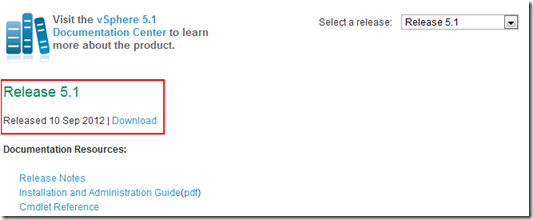
    Looks like Sammy Bogaert over at Boerlowie’s Blog has possibly found the release date of vSphere 5.1… maybe?

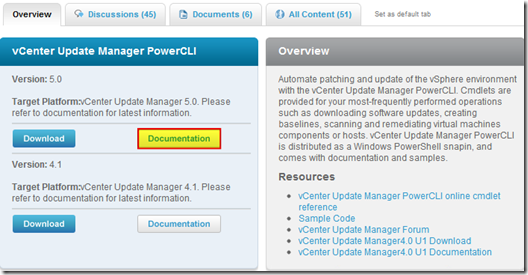
    I was about to download vSphere Update Manager PowerCLI 5.0.

    I followed the main site and wanted to check the documentation first. So I clicked the Documentation button.

    vmware update manager

    This lead me to the Docs of Update Manager PowerCLI 5.1! That’s right, 5.1! With a release date of 10 September 2012.

    vsphere5.1 release date

    None of the links for 5.1 work, so no news on any new features…

    Guess somebody at VMware was a bit too fast to update the website

    Nice find Sammy, guess time will tell if the Sept. 10th date is the actual release date or not.

  • Easy ESXi 5.5 upgrade via command line

    ESXi 5.5 was just released general availability (GA) on Sunday (9/22) and I’m itching to upgrade the home lab to run the latest version with all it’s goodies. I wanted to try upgrading my hosts without having to go through the same process that I followed setting up ESXi on the NUC in the first place, injecting custom NIC drivers, etc.

    Enter the command line…

    1. Move all VM’s from the host and then put the host into Maintenance Mode.
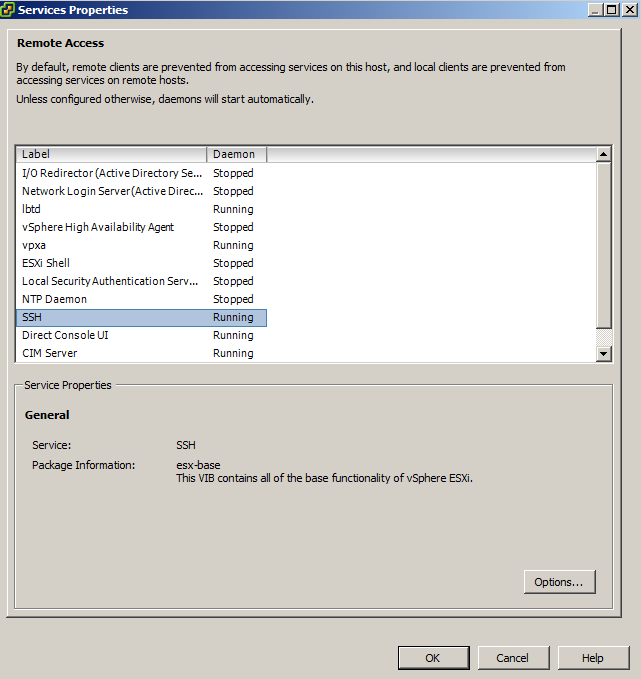
    2. Go to the Configuration tab > Security Profile and Enable SSH under Services.
      ssh enabled
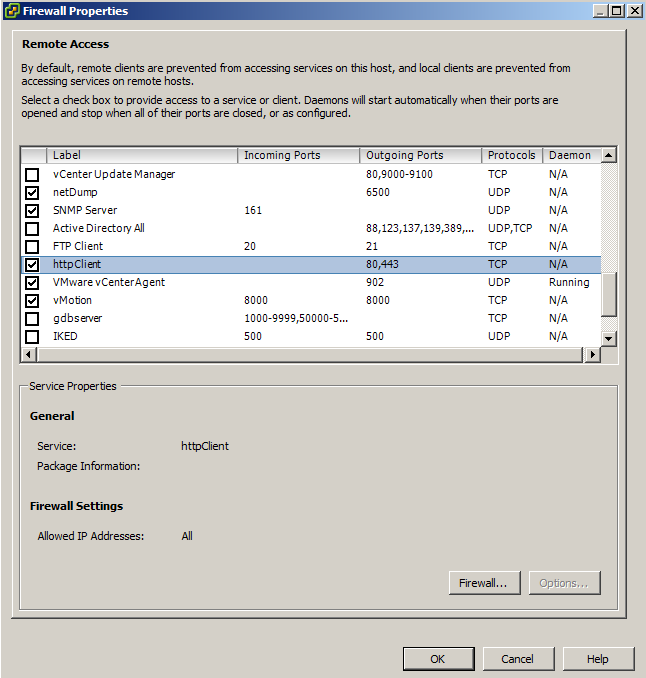
    3. Under Firewall, enable httpClient (outbound http).
      httpClient enable
    4. Open PuTTY (or other SSH client) and SSH into your host.
    5. Read More “Easy ESXi 5.5 upgrade via command line”

Leave a Reply

Your email address will not be published. Required fields are marked *