VMware Workstation 12 Pro Released

VMware has just released a new version of Workstation in VMware Workstation 12 Pro. Workstation 12 Pro provides full support for Windows 10, including features such as Cortana and universal applications. As well as even larger virtual machines with up to 16 vCPU’s and 64GB of memory. Workstation 12 Pro even supports 4K displays and DirectX 10 and OpenGL 3.3

You can even seamlessly drag and drop virtual machines between your PC and your internal cloud running vSphere, ESXi or another instance of Workstation. In addition, easily connect to vCloud Air and upload, run, and view virtual machines right from the Workstation 12 Pro interface.

VMware Workstation 12 Pro Features

  • Built for Windows 10 – Easily install Windows 10 in a virtual machines and test out features like Cortana the personal digital assistant, inking capabilities in the new Edge web browser, or even start building Universal Apps for Windows 10 devices. VMware Workstation 12 Pro also supports Ubuntu 15.04, Red Hat Enterprise Linux 7.1, Fedora 22, and many more. You can even create nested hypervisors to run Hyper-V or VMware ESXi and vSphere to build up the ultimate vSphere lab for training.
  • Powerful 3D Graphics – VMware Workstation 12 Pro supports DirectX 10 and OpenGL 3.3 to deliver more responsive and fluid user experience, even while running demanding 3D applications like AutoCAD or SOLIDWORKS.
  • 4K High Resolution Displays – Support for high resolution 4K UHD displays to provide crisp and detailed experience. VMware Workstation 12 Pro also now also supports multiple monitors on the host with different DPI settings, run your 4K display along your 1080P display.
  • Monster Virtual Machines – Create VM’s with up to 16 vCPUs, 8TB disks, 64GB of memory and even up to 2GB of video memory.
  • Latest Tablet Hardware – VMware Workstation 12 Pro allows you to take advantage of the latest Microsoft Surface tablets with Workstation’s virtual accelerometer, gyroscope, compass, and ambient light sensor to enable applications running in the virtual machines to respond when a user moves, rotates, and shakes their tablet.
  • Enhanced Connectivity – Workstation 12 Pro now supports USB 3.0 in Windows 7 besides Windows 8 for ultra-fast file transfers with external storage devices. In addition Workstation 12 Pro improves performance of Skype or Lync conference calls within guest virtual machines so you can conduct crystal clear conference calls from your virtual machines

Compare VMware Workstation 10 and 11 to Workstation 12 Pro
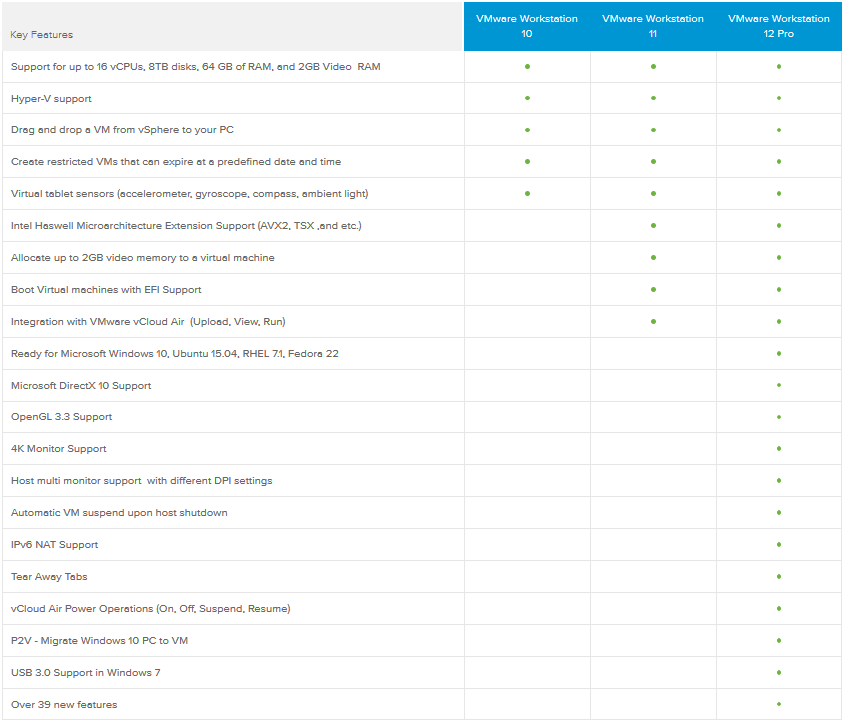
vmware workstation 12 comparison

VMware Workstation 12 Pro will cost $249.99.

Similar Posts

  • How to manually delete NetApp SnapMirror snapshots

    The other day, one of our volumes in the lab environment filled up. This volume has a couple large VM’s on it, coupled with a couple different Veeam backup jobs running using the native Veeam backup methods as well as using NetApp snap mirror to snapshot the volume and then using Veeam to ship it out to Azure.

    At any rate the volume filled up to the point where vCenter wasn’t allowing me to migrate VM’s off the datastore. I really didn’t want to expand the volume just so I could move VM’s off of it.

    Instead, I decided to delete some of the older proof of concept snapshots from SnapMirror. Below are the quick and easy steps to clear up some un-used snapshots and free up some space on the datastore.

    Read More “How to manually delete NetApp SnapMirror snapshots”

  • VMware Update Manager U3e upgrade failing? Un-install it!

    VMware Update Manager U3e error

    I was recently upgrading a VMware environment from vCenter Server Update 3b to Update 3e and during the scheduled change I had also planned on upgrading VMware Update Manager to Update 3e and ran into the following error:

    VMware Workstation unrecoverable error: (vthread-3)
    GetProcAddress: Failed to resolve ENGINE)load_aesni: 127
    You can request support.

    Looking for a possible solution at the VMware Knowledge Base came back with no results and to error message wasn’t overly useful either with “VMware Workstation unrecoverable error: (vthread-3)” as Workstation wasn’t installed on this server.

    Read More “VMware Update Manager U3e upgrade failing? Un-install it!”

  • VMware ESXi 5 home lab upgrade

    In the past I’ve been using a single server to run my VMware ESXi home lab. it was slow, old, big and loud. I’ve been meaning to upgrade my home lab for a while and just never got around to it, until now! When looking for new hardware I wanted the servers to be as compact as possible, quiet, and low energy usage as possible while still having some horsepower.

    I debated on going the whitebox solution as I build all my own desktops anyway, I also looked at several other solutions such as the HP ML310e server, Shuttle XH61V barebones machine, but ultimately decided to go with two Intel NUC i5’s.

    Intel NUC i5 and 16GB ram

    Intel NUC i5 DC53427HYE Features:

    • Uses very little energy
    • Completely quiet
    • Supports up to 16GB RAM
    • A dual core CPU that scores nearly 3,600 in PassMark benchmarking
    • Includes vPro which allows me to easily run both NUC’s headless
    • Extremely small, nearly 4 1/2″ inch square footprint

    Read More “VMware ESXi 5 home lab upgrade”

  • VMware Workstation 8.0.4 released

    VMware has just released it’s forth minor update for VMware Workstation 8, bringing it up to 8.0.4. The looks to contain mostly a few bug and security fixes.

    General Issues

    • Linux guests running the Linux kernel version 2.6.34 or later could not be pinged from the host via an IPv6 address.
    • On rare occasions, Linux guests would suddenly fail to Autofit or enter Unity.
    • Unity mode would exit if the title bar of an application contained certain non UTF-8 encoded extended ASCII characters.
    • On Windows hosts, the VMware Workstation user interface sometimes became unresponsive when minimized from full-screen mode if the suggestion balloon was being displayed.
    • On Windows hosts, the user interface sometimes became unresponsive if the application was rendered on an extended display that was abruptly disconnected.

    Read More “VMware Workstation 8.0.4 released”

  • Install ESXi 5.1 from a USB Flash Drive

    Many servers already come with a DVD/CD-ROM drive or some kind of ability to virtually mount an ISO image from a network share onto your server to then install ESXi. However, not all do or you just want to have your ESXi image readily available. Here’s a quick step by step instructions on how to use a USB flash drive to install ESXi.

    1. Download ESXi 5.1 from VMware (if you haven’t already) as well as UNettbootin.
    2. Plug in your USB Flash Drive.
    3. Open UNetbootin and select “Diskimage”, set Type to “USB Drive”, select Drive letter of your USB flash drive, and set the path of your ESXi 5.1 ISO image. Then click on “OK”.
      unetbootin setup
    4. Read More “Install ESXi 5.1 from a USB Flash Drive”

Leave a Reply

Your email address will not be published. Required fields are marked *