How to easily add an ESXi SSH login message banner
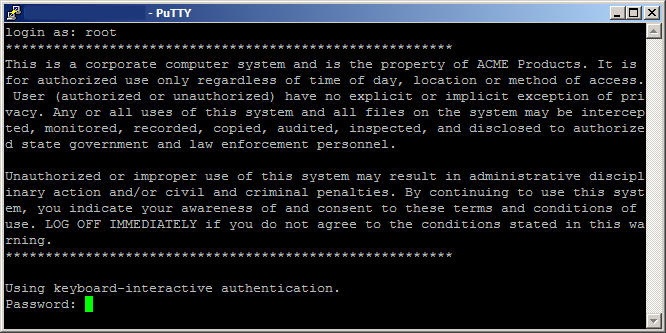
ESXi issues message

Preparing for some upcoming audits, I noticed one of the checkpoints was to ensure each ESXi host was configured with a warning banner stating the machine is being monitored and audited when someone logs into the ESXi host via SSH. This type of message is something you see on most any company or government computer before you login.

There are two message types that can be used to achieve this, the first being login banner (/etc/issue) and MOTD (/etc/motd). The difference between the two are where they are shown. The login banner is shown between the username and password inputs during login, while the MOTD is displayed after a user has successfully logged into SSH.

How to change ESXi SSH login banner via SSH

For my purposes I’m going to change the login banner so that my disclaimer is shown right away.

  1. SSH into your host and type:
    vi /etc/issue
  2. Press i on your keyboard to enter insert mode and then type your message to be displayed.
  3. Press Esc on your keyboard to exit insert mode then type ZZ, which will save and exit VI.
  4. Finally restart SSH by typing the following:
    /etc/init.d/SSH restart

If you would rather your message be shown after login, simply change /etc/issue to /etc/motd in step one above.

How to change ESXi SSH login banner via vSphere client

You can also changes the messages in both web and thick vSphere clients (versions 5.5 and above):

vSphere 5.5 web client:
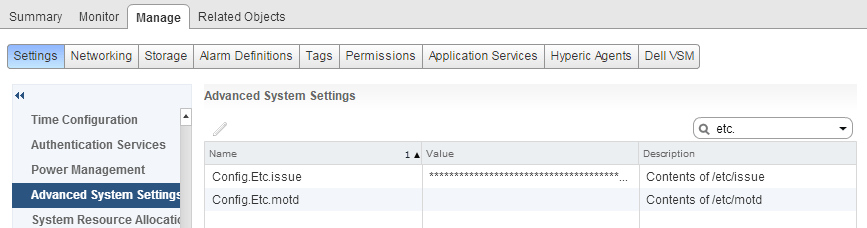
ssh message webclient

vSphere 5.5 thick client:
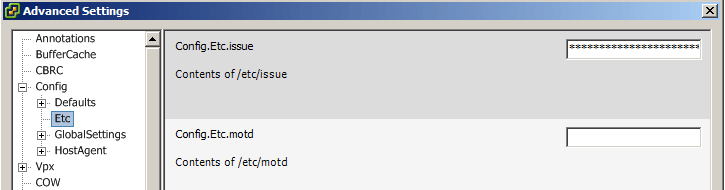
ssh message thickclient

One issue I ran into when using the clients to edit the ESXi SSH login message was adding paragraphs or line breaks in the message (like the screen shot at the top of this post). If you have simple, short messages then editing the Login Banner and/or MOTD via the clients worked great, otherwise using SSH and vi was a better method for me.

Similar Posts

  • HTML5 Embedded Host Client, this looks promising

    It’s no secret many people have really disliked the vSphere web client, it’s very sluggish, clunky, and based on flash (flash comes with it’s own security issues). It was rumored and highly hoped that vSphere 6 might be re-written in HTML5, but sadly this didn’t and hasn’t happened yet. While vSphere 6 did improve a bit on the web client the issues many people have had with it in the past still remain today.

    Enter the VMware HTML5 Embedded Host Client fling. I’ve been using and following this fling for a while now and have really enjoyed it and with each release it keeps getting better and better.

    The Embedded Host Client fling is based on HTML5 which allows it works great across all kinds of platforms, it’s fast, responsive, and doesn’t require any plug-ins – YES the VM console works great. If this happens to be a look of what’s to come in a new VMware vSphere web client, then a client is looking very promising!

    If you haven’t tried it yet, you should. It’s extremely easy to install and doesn’t even require a reboot just follow these simple instructions.

    Read More “HTML5 Embedded Host Client, this looks promising”

  • VMware Recertification Policy

    VMware certified

    Starting today, March 10 2014, new VCP certifications must be re-certified within two years of it’s earned date. Anyone who currently has their VCP certification prior to March 10 2013 has until March 10, 2015 to re-certify.

    The new policy gives you three options to re-certify:

    1. Take the current exam for your existing VCP certification solution track. For example, if you are a VCP3, you could take the current VCP5-Data Center Virtualization (VCP5-DCV) exam.
    2. Earn a new VCP certification in a different solution track. For example, if you are a VCP-Cloud, you could recertify by earning VCP5-Desktop (VCP5-DT) certification.
    3. Advance to the next level by earning a VMware Certified Advanced Professional (VCAP) certification. For example, if you are a VCP5-DCV you could earn VCAP5-DCA certification.

    I can understand why they are doing this but I don’t agree with the changes. As per the announcement if you let your certification expire, “Your certification will be revoked,and you will no longer be entitled to use the certification logo or represent yourself as VMware certified“. Really? You mean everything that was done prior and after taking the exam means nothing?

    Read More “VMware Recertification Policy”

  • VMware Certified Professional 6 (VCP6-DCV) now available

    VMware VCP DCV

    VMware has just recently announced that the VMware Certified Professional 6 (VCP6-DCV) is now available. The new VCP6 exam is similar to the others in the past whereas the VCP6 aims to validate your ability to deploy, configure, administer and scale a vSphere virtualized data center, including administering and troubleshooting virtualization technologies such as:

    • vSphere HA and DRS Clusters
    • Storage virtualization using VMFS
    • Storage DRS and Storage I/O Control
    • Network virtualization using vSphere standard and distributed switches and Network I/O Control
    • vSphere management using vCenter Server and vRealize Operations Manager Standard
    • Virtual Machines

    Read More “VMware Certified Professional 6 (VCP6-DCV) now available”

  • How to use Site Recovery Manager DR IP Customizer

    As one of the tasks given to me include protecting critical virtual machines via Site Recovery Manager (SRM) I ran into an environment that needed to be protected and have static IP’s assigned to them. The environment consists of about 15 VM’s, all of the VM’s each have 5 NIC’s with two of the VM’s having 9 NIC’s – that’s a lot of NIC’s to manually configure on both the Protected and Recovery side in SRM.

    Looking through the SRM Documentation I was able to see that VMware has graced us with a wonderful tool to greatly speed up this process, dr-ip-customizer.exe!

    How to use VMware DR-IP-Customizer

    Read More “How to use Site Recovery Manager DR IP Customizer”

  • How to upgrade ESXi 6.5 to ESXi 6.7

    VMware released ESXi 6.7 a little while ago, but it’s only been here recently have I started deploying it in my home and work lab environments. Below are two ways to easily upgrade your ESXi 6.5 hosts to ESXi 6.7 using the command line or by using the VMware ESXi offline bundle.

    Read More “How to upgrade ESXi 6.5 to ESXi 6.7”

Leave a Reply to Michael Cancel reply

Your email address will not be published. Required fields are marked *

2 Comments