How to easily add an ESXi SSH login message banner
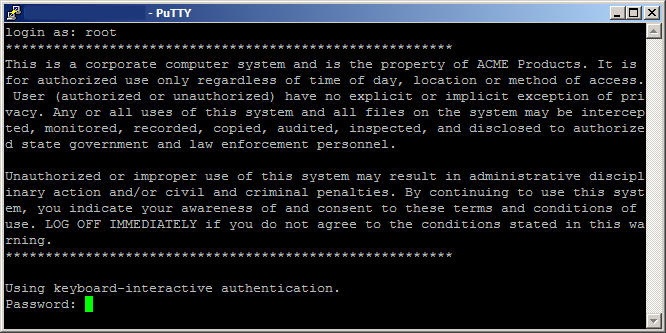
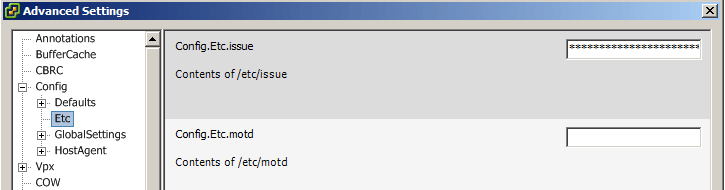
ESXi issues message

Preparing for some upcoming audits, I noticed one of the checkpoints was to ensure each ESXi host was configured with a warning banner stating the machine is being monitored and audited when someone logs into the ESXi host via SSH. This type of message is something you see on most any company or government computer before you login.

There are two message types that can be used to achieve this, the first being login banner (/etc/issue) and MOTD (/etc/motd). The difference between the two are where they are shown. The login banner is shown between the username and password inputs during login, while the MOTD is displayed after a user has successfully logged into SSH.

How to change ESXi SSH login banner via SSH

For my purposes I’m going to change the login banner so that my disclaimer is shown right away.

  1. SSH into your host and type:
    vi /etc/issue
  2. Press i on your keyboard to enter insert mode and then type your message to be displayed.
  3. Press Esc on your keyboard to exit insert mode then type ZZ, which will save and exit VI.
  4. Finally restart SSH by typing the following:
    /etc/init.d/SSH restart

If you would rather your message be shown after login, simply change /etc/issue to /etc/motd in step one above.

How to change ESXi SSH login banner via vSphere client

You can also changes the messages in both web and thick vSphere clients (versions 5.5 and above):

vSphere 5.5 web client:
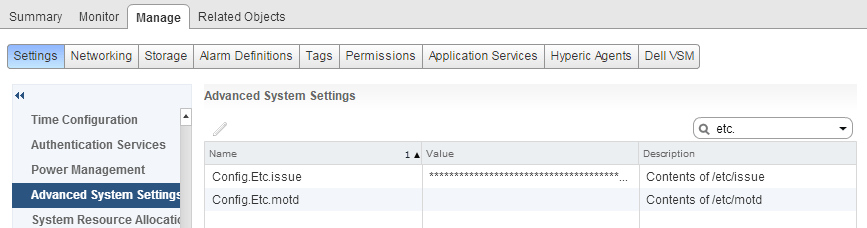
ssh message webclient

vSphere 5.5 thick client:
ssh message thickclient

One issue I ran into when using the clients to edit the ESXi SSH login message was adding paragraphs or line breaks in the message (like the screen shot at the top of this post). If you have simple, short messages then editing the Login Banner and/or MOTD via the clients worked great, otherwise using SSH and vi was a better method for me.
Similar Posts

  • VMware Workstation 8.0.4 released

    VMware has just released it’s forth minor update for VMware Workstation 8, bringing it up to 8.0.4. The looks to contain mostly a few bug and security fixes.

    General Issues

    • Linux guests running the Linux kernel version 2.6.34 or later could not be pinged from the host via an IPv6 address.
    • On rare occasions, Linux guests would suddenly fail to Autofit or enter Unity.
    • Unity mode would exit if the title bar of an application contained certain non UTF-8 encoded extended ASCII characters.
    • On Windows hosts, the VMware Workstation user interface sometimes became unresponsive when minimized from full-screen mode if the suggestion balloon was being displayed.
    • On Windows hosts, the user interface sometimes became unresponsive if the application was rendered on an extended display that was abruptly disconnected.

    Read More “VMware Workstation 8.0.4 released”

  • VMware Workstation 12 Pro Released

    VMware has just released a new version of Workstation in VMware Workstation 12 Pro. Workstation 12 Pro provides full support for Windows 10, including features such as Cortana and universal applications. As well as even larger virtual machines with up to 16 vCPU’s and 64GB of memory. Workstation 12 Pro even supports 4K displays and DirectX 10 and OpenGL 3.3

    You can even seamlessly drag and drop virtual machines between your PC and your internal cloud running vSphere, ESXi or another instance of Workstation. In addition, easily connect to vCloud Air and upload, run, and view virtual machines right from the Workstation 12 Pro interface.

    Read More “VMware Workstation 12 Pro Released”

  • VMware vSphere 5.5 Update 2 released

    vsphere 5.5 update2 released

    VMware vCenter Server and ESXi 5.5 Update 2 has just been released today with a number of fixes and additional features such as vCenter Server database support for Oracle 12c, Microsoft SQL Server 2012 Service Pack 1, and Microsoft SQL Server 2014 in vCenter Server and support for ESXi hosts with 6TB of RAM in the ESXi 5.5 update 2 release!

    Read More “VMware vSphere 5.5 Update 2 released”

  • VMware Workstation updated to 9.0.2

    VMware is released a maintenance update for VMware Workstation to version 9.0.2. The update is available for free for all VMware Workstation 9.x customers.

    Mostly just bug fixes and a few improvements, here are a few highlights:

    • Fedora 18 supported as a guest operating system
    • Windows 8 host permissions issues fixed
    • VMware Tool updated to support the latest Linux kernels
    • Improved general host resource management
    • OVF Tool has been updated to version 3.0.2
    • Virtual machine sharing improvements
    • Memory leak which impacted Windows hosts has been fixed

    Read More “VMware Workstation updated to 9.0.2”

  • My VMware ESXi Home Lab Upgrade

    Although the focus in my career right now is certainly more cloud focused in Amazon Web Services and Azure, I still use my home lab a lot.

    For the last 5+ years my home lab had consisted of using 3x Intel NUC’s (i5 DC53427HYE), a Synology NAS for shared storage and an HP ProCurve switch. This setup served me well for most of those years. It has allowed me to get many of the certifications I have, progress in my career and have fun as well.

    At the start of this year I decided it was time to give the home lab an overhaul. At first I looked at the newest generation of Intel NUC’s but really wasn’t looking forward to dropping over $1,300 on just partial compute (I’d still need to be RAM for each of the 3 NUC’s). I also wanted something that just worked, no more fooling around with network adapter drivers or doing this tweak or that tweak.

    I also no longer needed to be concerned about something that had a tiny footprint. I also questioned if I really needed multiple physical ESXi hosts. My home lab isn’t running anything mission critical and if I really wanted I could always build additional nested VMware ESXi hosts on one powerful machine if I needed.

    So in the end, the below is what I settled on. Replacing all of my compute, most of my networking and adding more storage!

    Read More “My VMware ESXi Home Lab Upgrade”

  • How-to fix VMware Converter error FAILED: Unable to find the system volume, reconfiguration is not possible.

    I was recently tasked with migrating a Hyper-V machine to our VMware environment. However, each time VMware Converter was ran, the task would fail at 97% with an error “FAILED: Unable to find the system volume, reconfiguration is not possible.“.

    FAILED: Unable to find the system volume, reconfiguration is not possible

    Looking further into the virtual machine there were a number of concerns I had on the VM. One such issue which I believe might be causing the above error, is that the system volume drive was on drive 0 while the “C:” drive was on drive 1. Whereas these are typically on the same drive in most Windows installs.

    Below are the steps I took to fix this VM and made the migration from Hyper-V to VMware a success.

    Read More “How-to fix VMware Converter error FAILED: Unable to find the system volume, reconfiguration is not possible.”

Leave a Reply to Spencer Cancel reply

Your email address will not be published. Required fields are marked *

2 Comments