How to fix “SRA command discoverArrays failed” in SRM with RecoverPoint
Recoverpoint SRA command discoverArrays failed

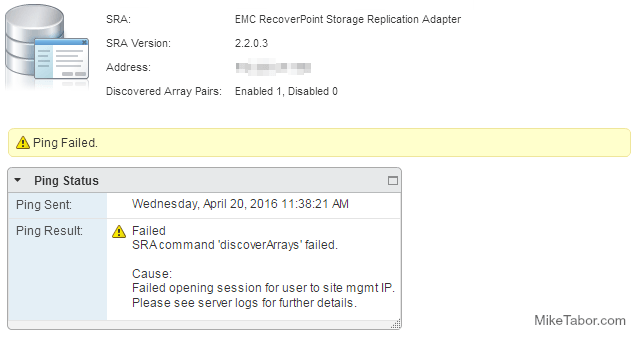
We’ve ran into an issue trying to get VMware SRM and SRA 2.2.0.3 along with EMC Recoverpoint 4.1.2 to communicate with one another and would receive this error in SRM:

SRA command discoverArrays failed. Failed opening session for user to site mgmt IP.

Please see server logs for further details.

After some digging around a bit and talking with the Storage Team and EMC we found out that this is due to the SRA’s using HTTP by default and Recoverpoint 4.1.2 does not accept HTTP, but instead only accepts HTTPS or port 443. The steps below is how to get everything to default HTTPS and then communication will resume.

How to enable HTTPS on EMC SRA

  1. Log into the server where SRM is currently installed.
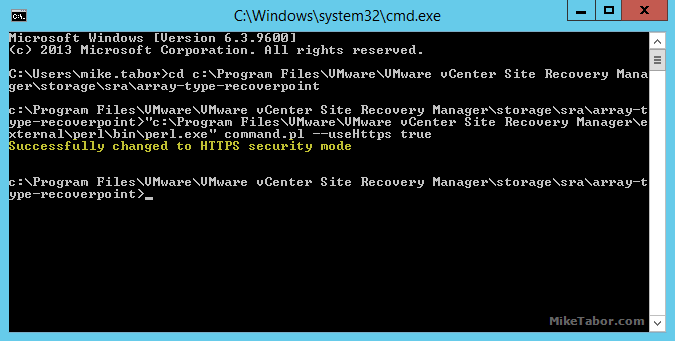
  2. Open a Windows command prompt and move to the following directory:
    c:\Program Files\VMware\VMware vCenter Site Recovery Manager\storage\sra\array-type-recoverpoint
  3. Now type in the following command:
    "c:\Program Files\VMware\VMware vCenter Site Recovery Manager\external\perl\bin\perl.exe" command.pl --useHttps true
    useHTTPS command.pl

You will also need to perform the above steps on both the protected and recovery sites.

Enable only HTTPS on each RecoverPoint Appliance (RPA) Cluster

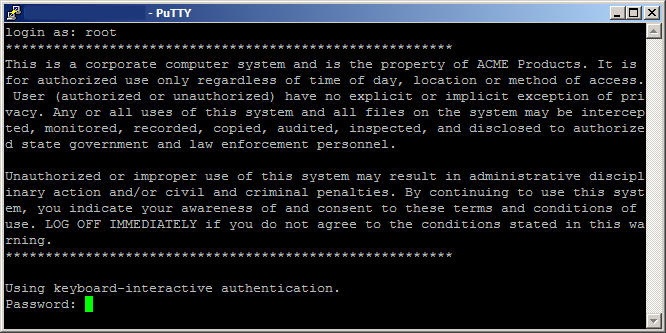
  1. Log into the RPA cluster with the admin account.
  2. Select option 2 for Setup.
  3. Select option 8 for Advanced Settings.
  4. Select option 2 for Security Options.
  5. Then finally option 1 to change Web Server Mode.
  6. You will then get the following message:
    The web server is currently in both HTTPS and HTTP available mode. Do you want to disable the HTTP server (y/n) ?

    You want to answer Y to disable HTTP.

Again you’ll want to ensure both RPA’s at the protected and recovery sites are configured the same.

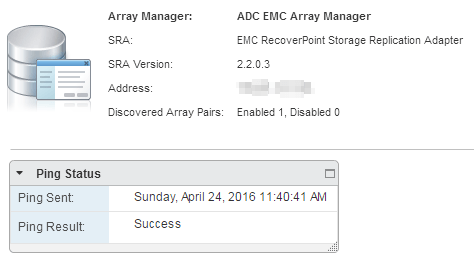
After completing the steps at both sites, ensuring only HTTPS is used throughout the errors have gone away and SRM is happy once more and the dreaded “SRA command discoverArrays failed” and “Failed opening session for user to site mgmt IP” are gone.

srm sra success

Similar Posts

  • VMware vCenter Server 5.5b released

    vmware vcenter 5.5b released

    VMware hasn’t let the holidays get in their way and has released vCenter Server 5.5b (Build 1476387) along with vCenter Server Appliance 5.5.0b (Build 1476389). The update includes a number of fixes.

    Resolved Issues in 5.5.0b

    Upgrade and Installation

    • Upgrading the vSphere Web Client to vSphere 5.5 fails with an error
      Attempts to upgrade the vSphere Web Client to vSphere 5.5 fails when they are installed in a custom, non-default location. An error message similar to the following is displayed:

      Error 29107. The service or solution user already registered...

    Read More “VMware vCenter Server 5.5b released”

  • VMware Recertification Policy

    VMware certified

    Starting today, March 10 2014, new VCP certifications must be re-certified within two years of it’s earned date. Anyone who currently has their VCP certification prior to March 10 2013 has until March 10, 2015 to re-certify.

    The new policy gives you three options to re-certify:

    1. Take the current exam for your existing VCP certification solution track. For example, if you are a VCP3, you could take the current VCP5-Data Center Virtualization (VCP5-DCV) exam.
    2. Earn a new VCP certification in a different solution track. For example, if you are a VCP-Cloud, you could recertify by earning VCP5-Desktop (VCP5-DT) certification.
    3. Advance to the next level by earning a VMware Certified Advanced Professional (VCAP) certification. For example, if you are a VCP5-DCV you could earn VCAP5-DCA certification.

    I can understand why they are doing this but I don’t agree with the changes. As per the announcement if you let your certification expire, “Your certification will be revoked,and you will no longer be entitled to use the certification logo or represent yourself as VMware certified“. Really? You mean everything that was done prior and after taking the exam means nothing?

    Read More “VMware Recertification Policy”

  • How to change vCenter Operations Manager session timeout

    I’ve been using vCenter Operations Manager for a while now at work for all the great information that can be found about our environment so I tend to log into vCOp at the start of the morning and then come back to as I may or may not need it thoughout the day. One thing that has kind of annoyed me is having to constantly log into the standard UI multiple times a day due to the default 30 minute timeout value.

    Luckily, with a bit of SSH and a few commands we can increase this timeout to anything we like or even disable it all together!

    Read More “How to change vCenter Operations Manager session timeout”

  • VMware vCenter Server 5.5.0a update released

    VMware has released an update to vCenter 5.5 Server. The new updated, numbered 5.5.0a doesn’t appear to add any new features but instead focus on squishing a number of bugs in the 5.5 version – mostly around vCenter Single-Sign-On and the vSphere web client.

    Issues resolved with this release are as follows:

    1. Attempts to upgrade vCenter Single Sign-On (SSO) 5.1 Update 1 to version 5.5 might fail with error code 1603
    2. Attempts to log in to the vCenter Server might be unsuccessful after you upgrade from vCenter Server 5.1 to 5.5
    3. Unable to change the vCenter SSO administrator password on Windows in the vSphere Web Client after you upgrade to vCenter Server 5.5 or VCSA 5.5
    4. VPXD service might fail due to MS SQL database deadlock for the issues with VPXD queries that run on VPX_EVENT and VPX_EVENT_ARG tables

    Read More “VMware vCenter Server 5.5.0a update released”

  • Upgrade vCenter Server Appliance 6.0 to 6.5

    VMware vSphere 6.5 has been released as general available and earlier this week I posted about Installing VMware vCenter Server Appliance 6.5 as a new install, this post will walk through upgrading an existing vCenter Server Appliance 6.0 to 6.5!

    Similar to a fresh VCSA 6.5 install, the VCSA 6.5 upgrade is also broken up into two stages. The first stage is deploying a new vCenter Server Appliance and the second stage is copying data from the 6.0 VCSA to the newly deployed 6.5 VCSA.

    Read More “Upgrade vCenter Server Appliance 6.0 to 6.5”

  • Power off an unresponsive VM using ESXTOP

    Just recently we have some hardware issues in our primary datacenter and during that time had a few VM’s that became unresponsive and needed to get them back online. The VM’s had stopped responding to the normal vSphere commands to reboot, shutdown or even restart. I didn’t want to power cycle the entire ESXi host and instead just power off an unresponsive VM.

    Here is a quick and easy way to do just that using ESXTOP.

    Read More “Power off an unresponsive VM using ESXTOP”

Leave a Reply

Your email address will not be published. Required fields are marked *

2 Comments