VMware Certified Professional 6 (VCP6-DCV) now available
VMware VCP DCV

VMware has just recently announced that the VMware Certified Professional 6 (VCP6-DCV) is now available. The new VCP6 exam is similar to the others in the past whereas the VCP6 aims to validate your ability to deploy, configure, administer and scale a vSphere virtualized data center, including administering and troubleshooting virtualization technologies such as:

  • vSphere HA and DRS Clusters
  • Storage virtualization using VMFS
  • Storage DRS and Storage I/O Control
  • Network virtualization using vSphere standard and distributed switches and Network I/O Control
  • vSphere management using vCenter Server and vRealize Operations Manager Standard
  • Virtual Machines

If you haven’t already started upgrading your VMware lab or production environment to vSphere 6 then I’d suggest watching the Upgrading Your vSphere Environment done by Chris Wahl (@ChrisWahl)

VMware Certified Professional 6 Requirements
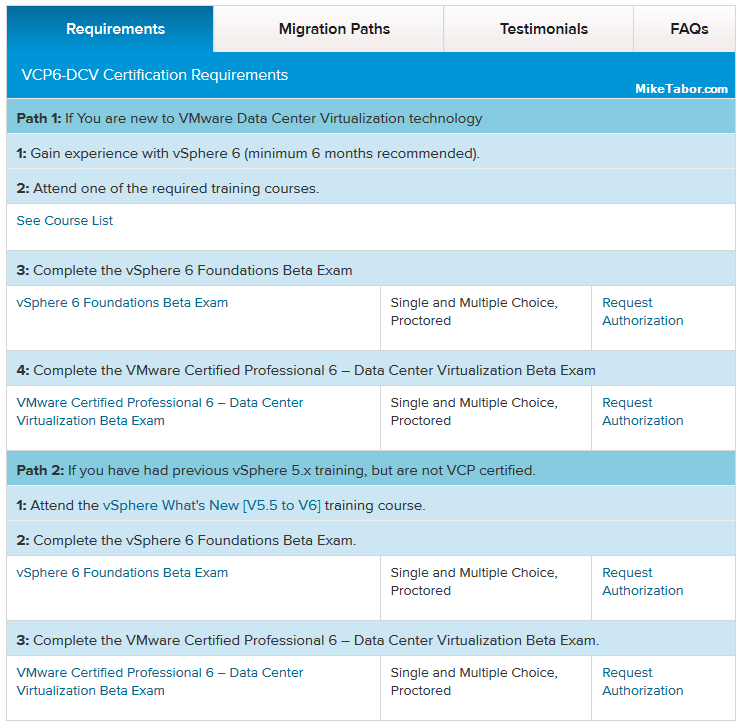
VMware VCP6-dcv requirements

VMware VCP6-DCV Migration Paths
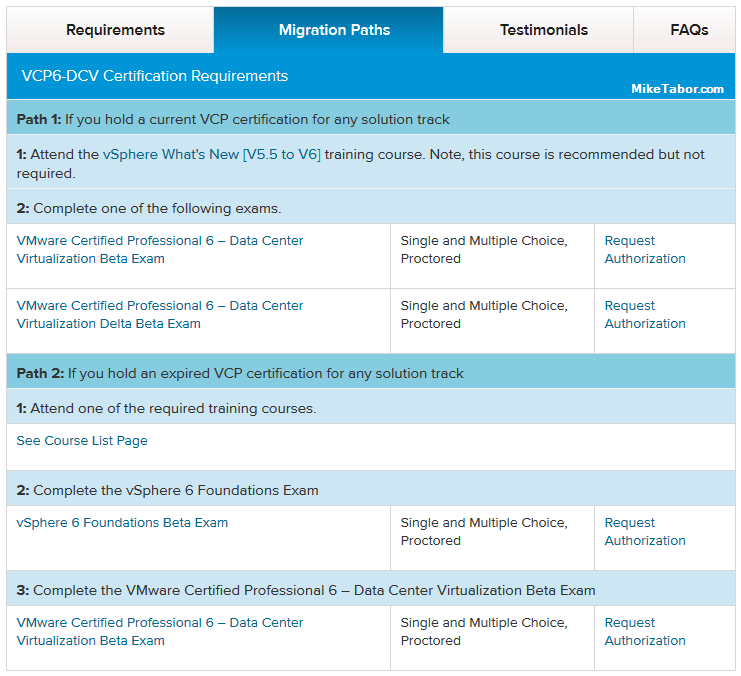
VMware vcp6-dcv migrations paths

About to take the VCP exam? Get a PluralSight Free 10-day trial!

Similar Posts

  • How to easily add an ESXi SSH login message banner

    ESXi issues message

    Preparing for some upcoming audits, I noticed one of the checkpoints was to ensure each ESXi host was configured with a warning banner stating the machine is being monitored and audited when someone logs into the ESXi host via SSH. This type of message is something you see on most any company or government computer before you login.

    There are two message types that can be used to achieve this, the first being login banner (/etc/issue) and MOTD (/etc/motd). The difference between the two are where they are shown. The login banner is shown between the username and password inputs during login, while the MOTD is displayed after a user has successfully logged into SSH.

    Read More “How to easily add an ESXi SSH login message banner”

  • VMware VCP exam coupons, save 50%!

    VMware

    Current VCPs save 25% off any VCP exam

    All current VMware Certified Professionals can save 25% on exams taken before January 1st, 2015 on the following VCP exams:

    VMware Certified Professional 5 – Data Center Virtualization

    • Exam Code: VCP550
    • Exam Code: VCP510

    VMware Certified Professional 5 – Desktop

    • Exam code: VCP510-DT
    • Exam code: VCPD510

    VMware Certified Professional – Cloud

    • Exam Code: VCPC550
    • Exam Code: VCPC510
    • Exam Code: VCPVCD510

    VMware Certified Professional – Network Virtualization

    • Exam Code: VCPN610

    Read More “VMware VCP exam coupons, save 50%!”

  • How to fix “SRA command discoverArrays failed” in SRM with RecoverPoint

    Recoverpoint SRA command discoverArrays failed

    We’ve ran into an issue trying to get VMware SRM and SRA 2.2.0.3 along with EMC Recoverpoint 4.1.2 to communicate with one another and would receive this error in SRM:

    SRA command discoverArrays failed. Failed opening session for user to site mgmt IP.

    Please see server logs for further details.

    After some digging around a bit and talking with the Storage Team and EMC we found out that this is due to the SRA’s using HTTP by default and Recoverpoint 4.1.2 does not accept HTTP, but instead only accepts HTTPS or port 443. The steps below is how to get everything to default HTTPS and then communication will resume.

    Read More “How to fix “SRA command discoverArrays failed” in SRM with RecoverPoint”

  • How to upgrade vCenter Server Appliance from 5.x to 6.0

    VMware vSphere 6.0 has finally been released as GA on March 12th and with it out of beta I hope to post several “how-to” posts, this being the first on how to upgrade your vCenter Server Appliance from 5.1/5.5 to vCSA 6.0. So lets get started…

    Prerequisites:

    • vCSA 6.0 ISO downloaded and mounted or burned to disc.
    • Installed Client Integration Plugin (located in the vcsa folder on the ISO).

    Read More “How to upgrade vCenter Server Appliance from 5.x to 6.0”

  • VMware Recertification Policy

    VMware certified

    Starting today, March 10 2014, new VCP certifications must be re-certified within two years of it’s earned date. Anyone who currently has their VCP certification prior to March 10 2013 has until March 10, 2015 to re-certify.

    The new policy gives you three options to re-certify:

    1. Take the current exam for your existing VCP certification solution track. For example, if you are a VCP3, you could take the current VCP5-Data Center Virtualization (VCP5-DCV) exam.
    2. Earn a new VCP certification in a different solution track. For example, if you are a VCP-Cloud, you could recertify by earning VCP5-Desktop (VCP5-DT) certification.
    3. Advance to the next level by earning a VMware Certified Advanced Professional (VCAP) certification. For example, if you are a VCP5-DCV you could earn VCAP5-DCA certification.

    I can understand why they are doing this but I don’t agree with the changes. As per the announcement if you let your certification expire, “Your certification will be revoked,and you will no longer be entitled to use the certification logo or represent yourself as VMware certified“. Really? You mean everything that was done prior and after taking the exam means nothing?

    Read More “VMware Recertification Policy”

  • How to convert VMDK to OVF file format

    Here is a quick and easy way to convert a VMDK to OVF file format using the OVF Tool from VMware.

    1. First download and install the VMware OVF Tool for your operating system.
    2. Open a command prompt as Administrator and navigate to the OVF Tool install directory:
      
      cd C:\Program Files\VMware\VMware OVF Tool
      

      vmdk to ovf command prompt

    3. Next, type in the following command to convert VMDK to OVF:
      
      ovftool.exe \virtualmachine.vmx \virtualmachine.ovf
      

      convert vmdk to ovf command

    After a few minutes time you should you should see a “Transfer Completed, Completed successfully” message and your VMDK to OVF file conversion is complete and ready for use.
    convert vmdk to ovf complete

Leave a Reply

Your email address will not be published. Required fields are marked *