VMware Horizon View White Papers

VMware has been on a roll here lately releasing new technical white papers for VMware Horizon View. If you already have a View environment or about to roll one out, I’d recommend reading these papers to make sure you’re following the recommended best practices.

Also, be sure to check out my View Windows 7 Optimization Guide as well.
Similar Posts

  • How to convert VMDK to OVF file format

    Here is a quick and easy way to convert a VMDK to OVF file format using the OVF Tool from VMware.

    1. First download and install the VMware OVF Tool for your operating system.
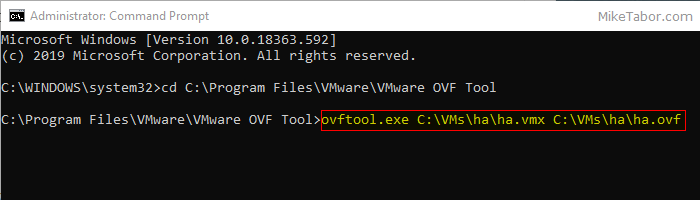
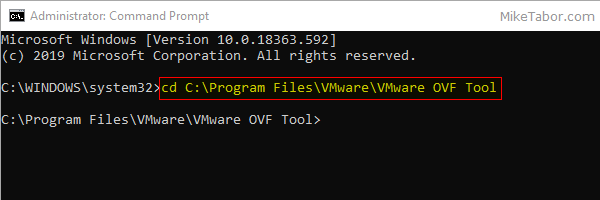
    2. Open a command prompt as Administrator and navigate to the OVF Tool install directory:
      
      cd C:\Program Files\VMware\VMware OVF Tool
      

      vmdk to ovf command prompt

    3. Next, type in the following command to convert VMDK to OVF:
      
      ovftool.exe \virtualmachine.vmx \virtualmachine.ovf
      

      convert vmdk to ovf command

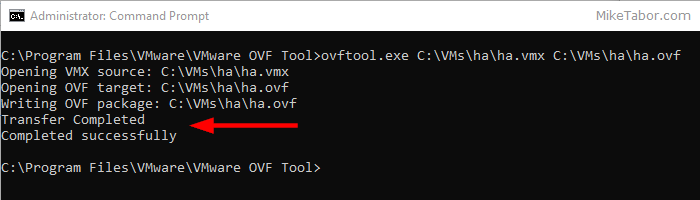
    After a few minutes time you should you should see a “Transfer Completed, Completed successfully” message and your VMDK to OVF file conversion is complete and ready for use.
    convert vmdk to ovf complete

  • VMware View client now availabe for Android!

    VMware has announced that they have released a View Client for Android tablets available on the Android Market now. Here are just a few of the features found on the new client.

    • A new look and feel – The View Client for Android features the NEW blue look and feel of the VMware View clients!
    • Multiple broker support – If you have more than one VMware View broker in your organization, you can can easily access your desktop from all of them via the Android client
    • Desktop Shortcuts – Quickly connect with as many as four recent desktop via shortcuts
    • Virtual trackpad – Control your desktop on a granular level just like you would control the mouse on a laptop
    • Custom keyboard toolbar – Super easy access to all of the special keys not found on the Android default keynboard
    • Honeycomb 3.x support – Made from the ground up for the new generation of Android tablets
    • Custom gestures – Invoke keyboard, scrolling, etc are as easy as ever and simple to use
    • VMware View Security Server support (best experience) – No need to have VPN when you use VMware View Security Server
    • Background tasking – Switch between apps on your tablet and come right back
  • Update vCenter Server Appliance 6.7 to 6.7 Update 1

    VMware has released vCenter Server 6.7 Update 1 and with comes with a number changes.

    One most notable change is the feature complete HTML5 vSphere client. The vSphere client in vCenter 6.7 Update 1 now includes the ability to manage:

    • Host profiles
    • Auto deploy
    • Full vSphere Update Manager (VUM)
    • A new dark theme
    • and vCenter High Availability.

    That’s no where near all of the changes though, there are many more changes and updates in the 6.7 Update 1 update. Be sure to read the full release notes here.

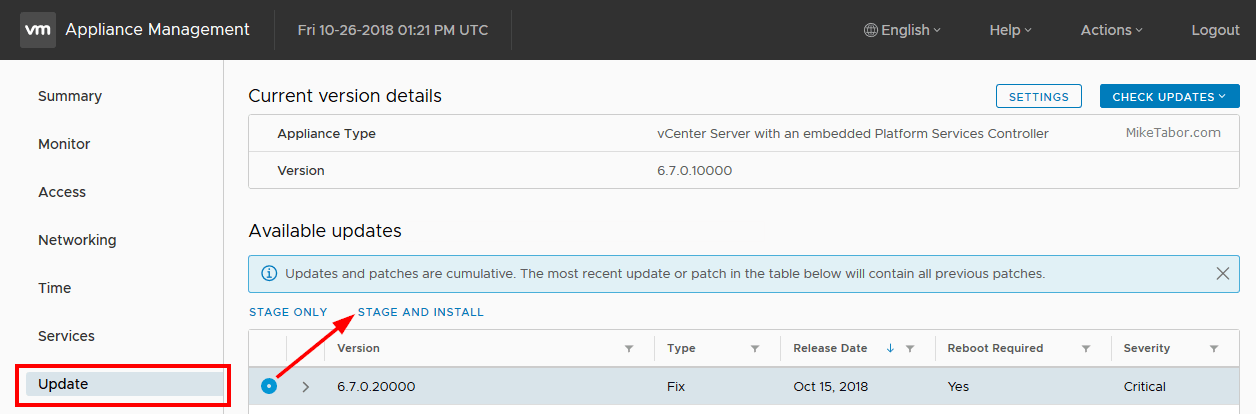
    In this post we’ll see just how easy it is to upgrade from VCSA 6.7 to VCSA 6.7 Update 1 in just a couple steps!

    Read More “Update vCenter Server Appliance 6.7 to 6.7 Update 1”

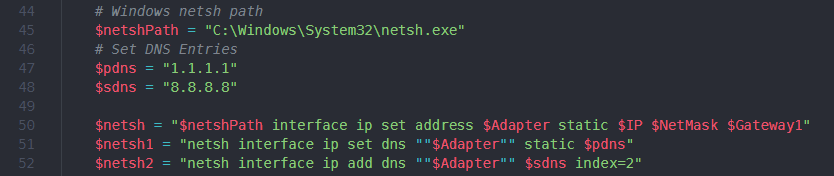
  • How to update VMware Windows VM’s DNS using PowerCLI

    This post will show you how to update a VMware Windows virtual machine’s DNS IP addresses using PowerCLI.

    You’ll also see how I went from a starting point to a fully working script – all thanks to the awesome #vCommunity!

    Here at work we’ve been doing a number of networking, AD, and DNS changes. In doing so, our DNS IP address have changed. Changing the DNS settings for our workstations was easy, simply edit the DHCP scope.

    The servers on the other hand all had static IP’s and static DNS IP’s entered, each of which needed to be updated.

    Read More “How to update VMware Windows VM’s DNS using PowerCLI”

Leave a Reply

Your email address will not be published. Required fields are marked *