VMware releases patch for glibc vulnerability on ESXi 5.5
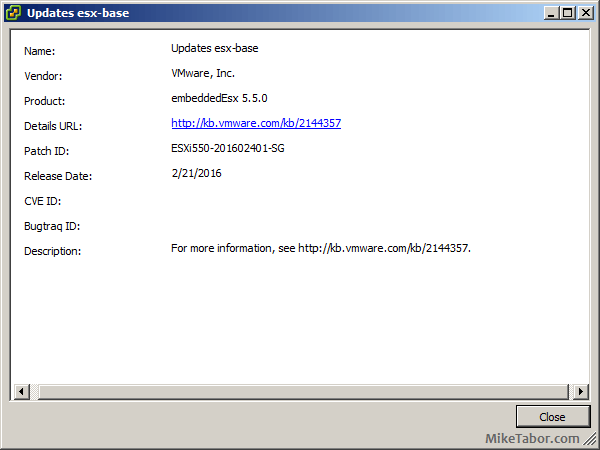
VMware ESXi550-201602401-SG

You may remember not to long ago, the GHOST vulnerability found in glibc, a GNU C library. Well a new glibc vulnerability (CVE-2015-7547) has been discovered and it affects VMware ESXi 5.5 and 6.0 in addition to all versions of VMware virtual appliances running Linux such as vCenter, Orchestrator, vRealize, etc.

VMware has just released patch ESXi550-201602401-SG for ESXi 5.5 and ESXi600-201602401-SG for ESXi 6.0 which fixes the glibc vulnerability, a patch for ESXi 6.0 has yet to be released. VMware has however posted workarounds for affected virtual appliances.

In addition, ESXi550-201602401-SG also fixes two other issues:

  • ESXi hosts might purple screen due to an unresponsive CPU as a result of several CMCIs within a short time. Sample purple diagnostic screen might look like the following:
    cpu1:33127)MCE: 1118: cpu1: MCA error detected via CMCI (Gbl status=0x0): Restart IP: invalid, Error IP: invalid, MCE in progress: no.cpu1:33127)MCE: 231: cpu1: bank9: MCA recoverable error (CE): "Memory Controller Scrubbing Error on Channel 0."cpu1:33127)MCE: 222: cpu1: bank9: status=0xXXXXXXXXXXXXXXXX: (VAL=1, OVFLW=0, UC=0, EN=0, PCC=0, S=0, AR=0), ECC=no, Addr:0xXXXXXXXXXXXXXXXX (valid), Misc:0x8c3589300 (valid)
  • Resolves the issue where virtual machine vMotions would fail when trying to vMotion from an ESXi 5.0 or 5.1 host to an ESXi 5.5 U3b host.

UPDATE: VMware has released ESXi 6 patch ESXi600-201602401-SG which updates the glibc package and patches the glibc vulnerability.

A host reboot will be required to apply the ESXi patches. After applying the patch your ESXi 5.5 host should have a build number of 3568722.

Similar Posts

  • Install ESXi 5.1 from a USB Flash Drive

    Many servers already come with a DVD/CD-ROM drive or some kind of ability to virtually mount an ISO image from a network share onto your server to then install ESXi. However, not all do or you just want to have your ESXi image readily available. Here’s a quick step by step instructions on how to use a USB flash drive to install ESXi.

    1. Download ESXi 5.1 from VMware (if you haven’t already) as well as UNettbootin.
    2. Plug in your USB Flash Drive.
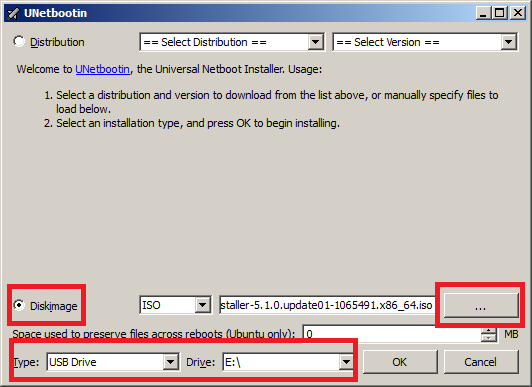
    3. Open UNetbootin and select “Diskimage”, set Type to “USB Drive”, select Drive letter of your USB flash drive, and set the path of your ESXi 5.1 ISO image. Then click on “OK”.
      unetbootin setup
    4. Read More “Install ESXi 5.1 from a USB Flash Drive”

  • How to easily add an ESXi SSH login message banner

    ESXi issues message

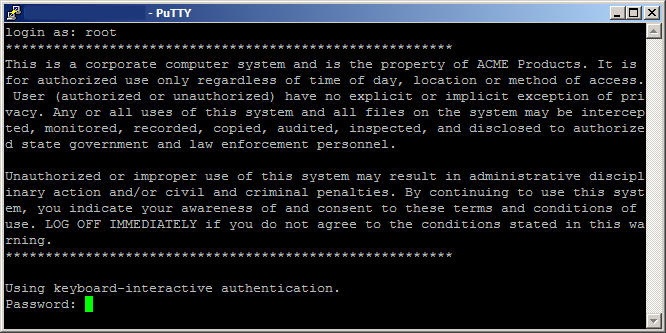
    Preparing for some upcoming audits, I noticed one of the checkpoints was to ensure each ESXi host was configured with a warning banner stating the machine is being monitored and audited when someone logs into the ESXi host via SSH. This type of message is something you see on most any company or government computer before you login.

    There are two message types that can be used to achieve this, the first being login banner (/etc/issue) and MOTD (/etc/motd). The difference between the two are where they are shown. The login banner is shown between the username and password inputs during login, while the MOTD is displayed after a user has successfully logged into SSH.

    Read More “How to easily add an ESXi SSH login message banner”

  • How to shadow a VMware Horizon View desktop

    Ever work on a View 5.x Desktop issue and needed access to the desktop it self while in use? While not a feature that is easily enabled say via the vmTools or the View Administrator console – it can however be easily enabled via Group Policy, similar to some other settings that I mention in the Windows 7 Optimization Guide.

    Enable PCoIP Shadowing

    • Import the pcoip.adm GPO Template.
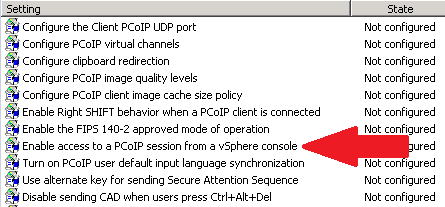
    • Navigate to: Computer Configuration > Administrative Templates > Classic Administrative Templates (ADM) > PCoIP Session Variables.
    • Enable “Enable access to PCoIP session from a vSphere console”.
    • Link the GPO to the OU where your View Desktops reside.

    shadow pcoip policy

    Read More “How to shadow a VMware Horizon View desktop”

  • My VMware ESXi Home Lab Upgrade

    Although the focus in my career right now is certainly more cloud focused in Amazon Web Services and Azure, I still use my home lab a lot.

    For the last 5+ years my home lab had consisted of using 3x Intel NUC’s (i5 DC53427HYE), a Synology NAS for shared storage and an HP ProCurve switch. This setup served me well for most of those years. It has allowed me to get many of the certifications I have, progress in my career and have fun as well.

    At the start of this year I decided it was time to give the home lab an overhaul. At first I looked at the newest generation of Intel NUC’s but really wasn’t looking forward to dropping over $1,300 on just partial compute (I’d still need to be RAM for each of the 3 NUC’s). I also wanted something that just worked, no more fooling around with network adapter drivers or doing this tweak or that tweak.

    I also no longer needed to be concerned about something that had a tiny footprint. I also questioned if I really needed multiple physical ESXi hosts. My home lab isn’t running anything mission critical and if I really wanted I could always build additional nested VMware ESXi hosts on one powerful machine if I needed.

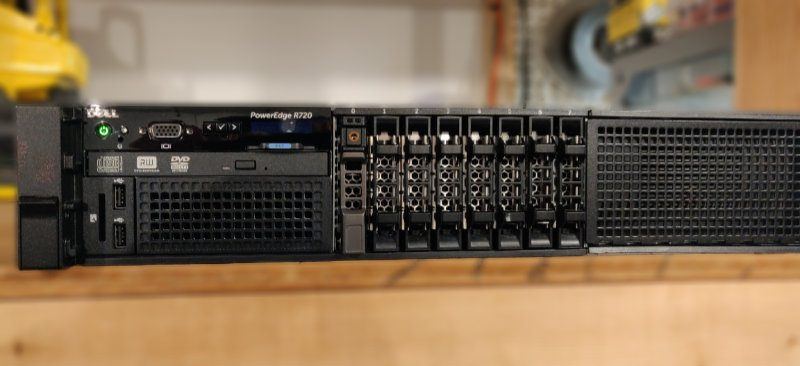
    So in the end, the below is what I settled on. Replacing all of my compute, most of my networking and adding more storage!

    Read More “My VMware ESXi Home Lab Upgrade”

Leave a Reply

Your email address will not be published. Required fields are marked *