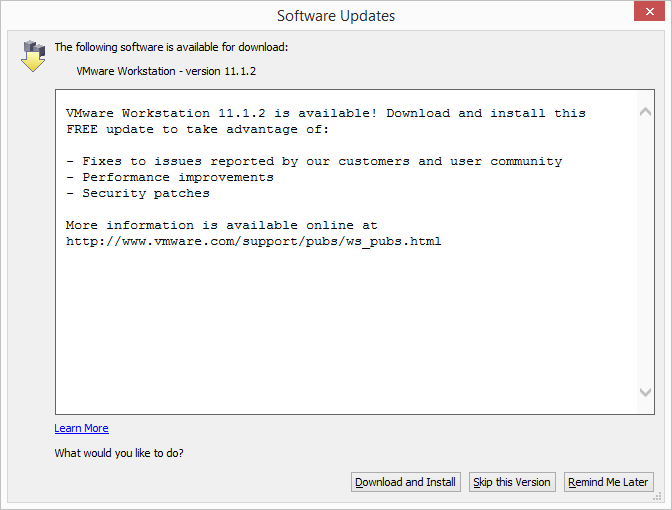
VMware Workstation 12.5.5 released, fixes Pwn2Own exploits
VMware Workstation 12.5

VMware has just released Workstation 12.5.5 which includes bug fixes as well as fixes for several vulnerabilities found in this years Pwn2Own contest, which two hacking teams, 360 Security (@mj011sec) and Team Sniper was able to successfully complete a virtual machine escape.

While these are serious exploits, VMware has said they are not aware of any active exploitation of the vulnerabilities that has now been fixed in 12.5.5.

Issues Resolved in VMware Workstation 12.5.5

  • VMware Workstation Pro has a heap buffer overflow and uninitialized stack memory usage in SVGA. These issues might allow a guest virtual machine to execute code on the host.
  • Heap overflow leading to arbitrary code execution. Critical issue. CVE-2017-4902
  • Uninitialized stack value leading to arbitrary code execution. Critical issue. CVE-2017-4903
  • Uninitialized stack value leading to arbitrary code execution. Critical issue. CVE-2017-4904
  • Uninitialized memory read leading to information disclosure. Moderate issue. CVE-2017-4905
  • Installing VMware Tools on a 64-bit Windows virtual machine might result in an error. After you install VMware Tools on a 64-bit Windows virtual machine, when the virtual machine boots up, the system might display the following error: VMware Tools unrecoverable error: (vthread-4) Exception 0xc0000005 (access violation) has occurred. VMware Workstation 12.5.5 fixes this issue.

The good news is not only did VMware fix these exploits quickly but also shows these types of exploits are not something most script kiddies are typically going to find but instead require someone or teams of someones who are highly skilled and motivated – in the case of Pwn2Own the two teams mentioned above won a combined amount of over $200,000.00 USD to expose these exploits!

View the full Workstation 12.5.5 release notes here.
Similar Posts

  • How to manually delete NetApp SnapMirror snapshots

    The other day, one of our volumes in the lab environment filled up. This volume has a couple large VM’s on it, coupled with a couple different Veeam backup jobs running using the native Veeam backup methods as well as using NetApp snap mirror to snapshot the volume and then using Veeam to ship it out to Azure.

    At any rate the volume filled up to the point where vCenter wasn’t allowing me to migrate VM’s off the datastore. I really didn’t want to expand the volume just so I could move VM’s off of it.

    Instead, I decided to delete some of the older proof of concept snapshots from SnapMirror. Below are the quick and easy steps to clear up some un-used snapshots and free up some space on the datastore.

    Read More “How to manually delete NetApp SnapMirror snapshots”

  • Easy ESXi 6.0 upgrade via command line

    VMware has released ESXi 6.0 back in March and I recently posted a guide on how to upgrade your vCenter Server Appliance from 5.x to 6.0 – Now we’re going to look at two ways to upgrade a VMware ESXi 5.x host to ESXi 6.0 via command line.

    The first method will show you how to have each ESXi host download the update directly from VMware and then upgrade itself while the second method shows how to download the update, place it on a datastore accessible to the host, then upgrade the host.

    Read More “Easy ESXi 6.0 upgrade via command line”

  • My VMware View Windows 7 Optimization Guide

    These are the few steps I do when creating a new "Golden" image. Luckily I don’t have to do these steps all the time as I’ll create the "Golden" image when there is a new upgrade such as when we went from View 4.6 to View 5.0.1. I like to have a new fresh machine using new virtual hardware from the start. You could certainly just upgrade the virtual hardware on the "Golden" image, I just prefer to start clean.

    At any rate, here’s my list. Hopefully someone might find it somewhat useful and maybe even others can improve upon it.

    Preparing a new virtual machine

    1. Create New Virtual Machine – FILE > NEW > VIRTUAL MACHINE (CTRL+N)
    2. Under Configuration select CUSTOM.
    3. Select a Name, Folder, Host, Cluster, and Storage.
    4. Under Guest Operating System select Windows and then Windows 7 32bit under the Version drop down.
    5. Select which Network (VLAN) and under Adapter select VMXNET 3.
    6. Configure disk size to 30GB THIN provisioned.

    Read More “My VMware View Windows 7 Optimization Guide”

  • VMware View client now availabe for Android!

    VMware has announced that they have released a View Client for Android tablets available on the Android Market now. Here are just a few of the features found on the new client.

    • A new look and feel – The View Client for Android features the NEW blue look and feel of the VMware View clients!
    • Multiple broker support – If you have more than one VMware View broker in your organization, you can can easily access your desktop from all of them via the Android client
    • Desktop Shortcuts – Quickly connect with as many as four recent desktop via shortcuts
    • Virtual trackpad – Control your desktop on a granular level just like you would control the mouse on a laptop
    • Custom keyboard toolbar – Super easy access to all of the special keys not found on the Android default keynboard
    • Honeycomb 3.x support – Made from the ground up for the new generation of Android tablets
    • Custom gestures – Invoke keyboard, scrolling, etc are as easy as ever and simple to use
    • VMware View Security Server support (best experience) – No need to have VPN when you use VMware View Security Server
    • Background tasking – Switch between apps on your tablet and come right back

Leave a Reply

Your email address will not be published. Required fields are marked *