How to change vCenter Operations Manager session timeout

I’ve been using vCenter Operations Manager for a while now at work for all the great information that can be found about our environment so I tend to log into vCOp at the start of the morning and then come back to as I may or may not need it thoughout the day. One thing that has kind of annoyed me is having to constantly log into the standard UI multiple times a day due to the default 30 minute timeout value.

Luckily, with a bit of SSH and a few commands we can increase this timeout to anything we like or even disable it all together!

Edit vCenter Operations Manager session timeout, or disable it altogether

  1. SSH into the UI VM as root.
  2. Using VI, edit the web.xml file located at /usr/lib/vmware-vcops/tomcat/webapps/vcops-vsphere/WEB-INF/web.xml by typing in the command:
    vi /usr/lib/vmware-vcops/tomcat/webapps/vcops-vsphere/WEB-INF/web.xml

    vi webex file

  3. Press the j key to move down until you find the line: <session-timeout>30</session-timeout>

    default vcop timeout value
  4. Edit the value by pressing i (default: 30) to your desired amount in minutes, or you can use -1 to disable the timeout all together.

    new vcop timeout value
  5. Save your changes in VI by typing
    :wq
  6. Finally restart the service by typing
    /etc/init.d/vcopsweb restart

Edit vCOp Enterprise Custom UI timeout value

It seems the vCOp Enterprise Custom UI can be changed as well, but has a different file path and service that needs to be restarted. Simply follow the same steps from above but using the below file path and service to restart.

  • File path: /usr/lib/vmware-vcops/tomcat-enterprise/webapps/vcops-custom/WEB-INF/web.xml
  • Restart service: /etc/init.d/vcopswebenterprise restart

There you have it, vCOp with a longer (or shorter?) timeout value or maybe even disabled all together!

VI commands quick reference

I don’t normally use VI very often so this just serves as a quick reference guide to VI and since we’re using it in the above steps figured I’d list a few basic commands if for nothing else my own good. :)

Moving Cursor
Left – h
Right – l
Up – k
Down – j

Inserting Text
Insert text to the left of cursor – i
Exit insert mode – ESC Key

Exiting File
Save and quit VI – :wq
Quit VI and don’t save – :q!
Similar Posts

  • Installing VMware vCenter Server Appliance 6.5

    VMware has announced that VMware vSphere 6.5 has gone general available this week. Now installing VMware vCenter Server Appliance 6.5 (VCSA) is even easier as the requirement for the client integration plugin has been removed and now the VCSA appliance is delivered via an ISO image with an installation wizard that’s been broken up into two stages.

    The VCSA 6.5 ISO offers two types of installation methods, CLI and GUI install – both availalbe for Windows, Mac and Linux machines. In this guide I’ll walk through the steps of installing VCSA 6.5 using the Windows GUI install.

    Read More “Installing VMware vCenter Server Appliance 6.5”

  • How to shadow a VMware Horizon View desktop

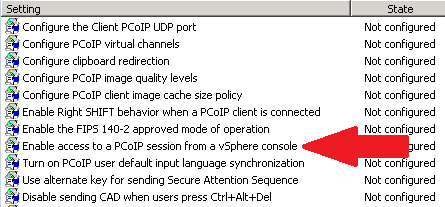
    Ever work on a View 5.x Desktop issue and needed access to the desktop it self while in use? While not a feature that is easily enabled say via the vmTools or the View Administrator console – it can however be easily enabled via Group Policy, similar to some other settings that I mention in the Windows 7 Optimization Guide.

    Enable PCoIP Shadowing

    • Import the pcoip.adm GPO Template.
    • Navigate to: Computer Configuration > Administrative Templates > Classic Administrative Templates (ADM) > PCoIP Session Variables.
    • Enable “Enable access to PCoIP session from a vSphere console”.
    • Link the GPO to the OU where your View Desktops reside.

    shadow pcoip policy

    Read More “How to shadow a VMware Horizon View desktop”

  • VMware Recertification Policy

    VMware certified

    Starting today, March 10 2014, new VCP certifications must be re-certified within two years of it’s earned date. Anyone who currently has their VCP certification prior to March 10 2013 has until March 10, 2015 to re-certify.

    The new policy gives you three options to re-certify:

    1. Take the current exam for your existing VCP certification solution track. For example, if you are a VCP3, you could take the current VCP5-Data Center Virtualization (VCP5-DCV) exam.
    2. Earn a new VCP certification in a different solution track. For example, if you are a VCP-Cloud, you could recertify by earning VCP5-Desktop (VCP5-DT) certification.
    3. Advance to the next level by earning a VMware Certified Advanced Professional (VCAP) certification. For example, if you are a VCP5-DCV you could earn VCAP5-DCA certification.

    I can understand why they are doing this but I don’t agree with the changes. As per the announcement if you let your certification expire, “Your certification will be revoked,and you will no longer be entitled to use the certification logo or represent yourself as VMware certified“. Really? You mean everything that was done prior and after taking the exam means nothing?

    Read More “VMware Recertification Policy”

  • Backup and Restore VMware VCSA 6.5

    With the release of vSphere 6.5, the VCSA has had a built-in and convenient way easily backup the configuration, inventory and even historical data right from the VAMI and directly into a TAR bundle. VMware has also made restoring the VCSA from a backup just as easy as well.

    Below are quick and dirty steps to backing up and restoring your VMware VCSA!

    Read More “Backup and Restore VMware VCSA 6.5”

  • Fix VMware VCSA /storage/log filesystem out of disk space

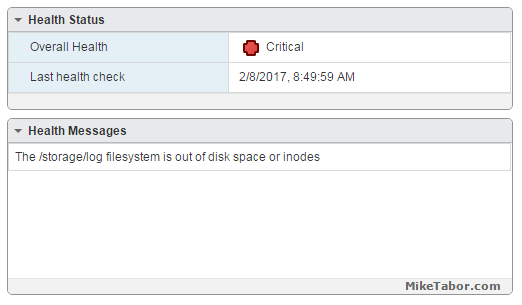
    This morning I ran into an issue where users were reporting the production VCSA 6.0 was not allowing them to connect into the web or thick client. Another administrator rebooted the VCSA which seemed to work only briefly. I then logged into the VCSA web management (https://<VCENTER_IP>:5480) and noticed the following health status right away:

    The /storage/log filesystem is out of disk space or inodes

    vcsa /storage/log full

    Read More “Fix VMware VCSA /storage/log filesystem out of disk space”

  • VMware Workstation 8.0.4 released

    VMware has just released it’s forth minor update for VMware Workstation 8, bringing it up to 8.0.4. The looks to contain mostly a few bug and security fixes.

    General Issues

    • Linux guests running the Linux kernel version 2.6.34 or later could not be pinged from the host via an IPv6 address.
    • On rare occasions, Linux guests would suddenly fail to Autofit or enter Unity.
    • Unity mode would exit if the title bar of an application contained certain non UTF-8 encoded extended ASCII characters.
    • On Windows hosts, the VMware Workstation user interface sometimes became unresponsive when minimized from full-screen mode if the suggestion balloon was being displayed.
    • On Windows hosts, the user interface sometimes became unresponsive if the application was rendered on an extended display that was abruptly disconnected.

    Read More “VMware Workstation 8.0.4 released”

Leave a Reply

Your email address will not be published. Required fields are marked *

One Comment