How to upgrade vCenter server appliance

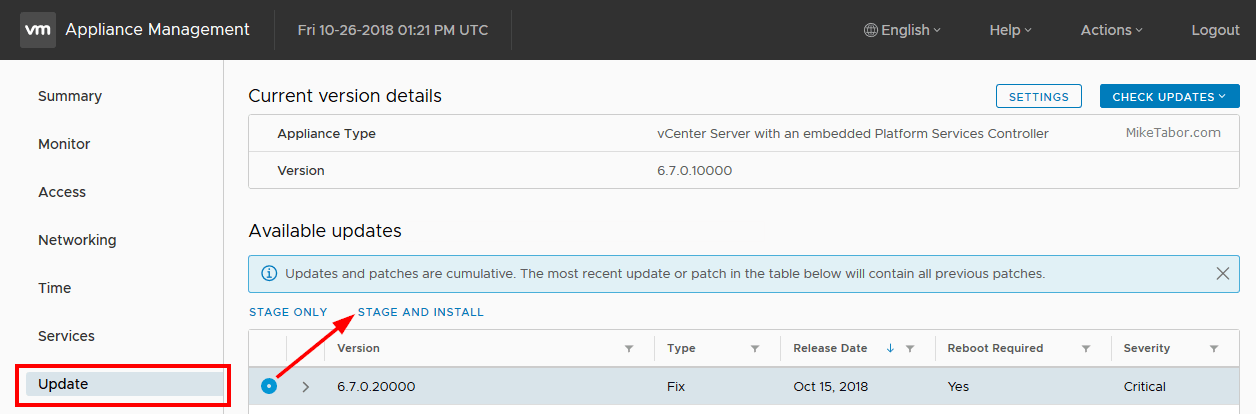
Prior to VMware vCenter Server Appliance 6.x, upgrading or patching vCSA was as simple as a few button clicks in the appliance UI. Gone are those days, as VMware has replaced the appliance UI with a DCUI and the web based install wizard during setup.

The good news is, upgrading or patching the vCSA 6.x is still pretty simple via the command line!

How to patch or upgrade VMware vCenter 6.x Appliance

  1. Download the vCSA .ISO patch from VMware.
  2. Upload the ISO to a datastore the vCSA has access to and mount the ISO to the vCSA virtual machine.
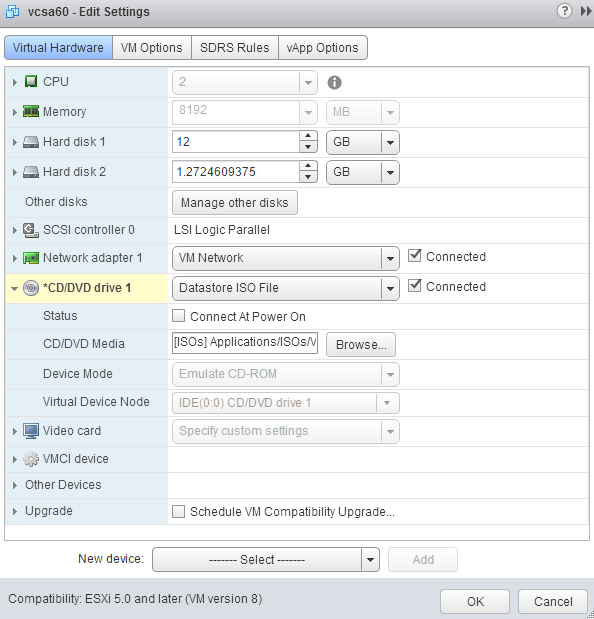
    VMware vCSA mount ISO
  3. Connect to the vCSA via SSH using PuTTy or your choice of client.
  4. Type the following command:
    software-packages install --iso --acceptEulas
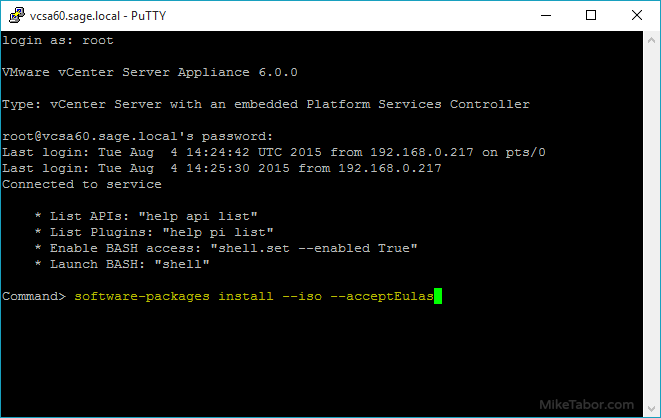
    VMware vCSA upgrade command

  5. After just a minute or two the update will complete, now reboot the appliance by typing the following command:
    shutdown reboot -r updating

    VMware vCSA reboot command

And that’s it, sure it’s not the old (5.x) appliance UI but still pretty darn easy to update your VMware vCenter Server Appliance with the latest build.
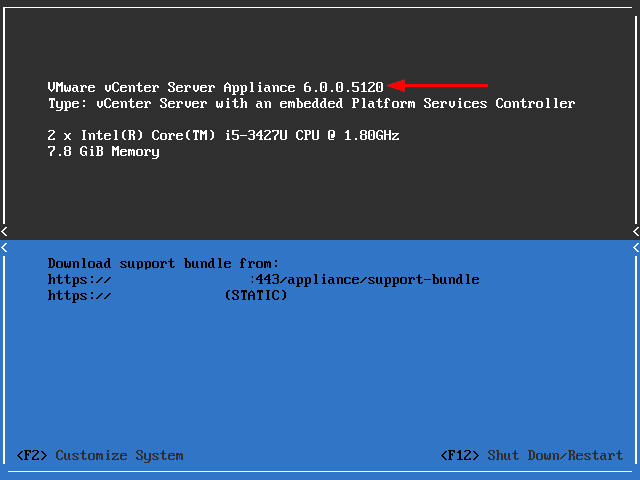
VMware vCSA updated

Similar Posts

  • vSphere 5.1 Release Date leaked, maybe?

    Looks like Sammy Bogaert over at Boerlowie’s Blog has possibly found the release date of vSphere 5.1… maybe?

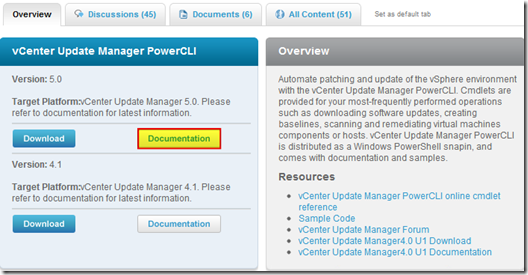
    I was about to download vSphere Update Manager PowerCLI 5.0.

    I followed the main site and wanted to check the documentation first. So I clicked the Documentation button.

    vmware update manager

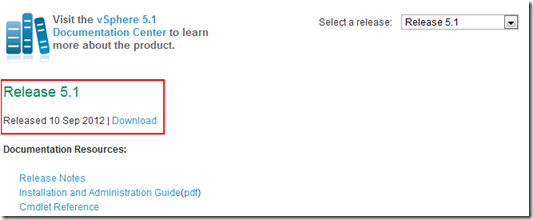
    This lead me to the Docs of Update Manager PowerCLI 5.1! That’s right, 5.1! With a release date of 10 September 2012.

    vsphere5.1 release date

    None of the links for 5.1 work, so no news on any new features…

    Guess somebody at VMware was a bit too fast to update the website

    Nice find Sammy, guess time will tell if the Sept. 10th date is the actual release date or not.

  • Easy ESXi 6.0 upgrade via command line

    VMware has released ESXi 6.0 back in March and I recently posted a guide on how to upgrade your vCenter Server Appliance from 5.x to 6.0 – Now we’re going to look at two ways to upgrade a VMware ESXi 5.x host to ESXi 6.0 via command line.

    The first method will show you how to have each ESXi host download the update directly from VMware and then upgrade itself while the second method shows how to download the update, place it on a datastore accessible to the host, then upgrade the host.

    Read More “Easy ESXi 6.0 upgrade via command line”

  • How to install VMware Workstation 10 on Linux Mint 17.1

    vmware workstation 10 linux mint

    Two goals that I would like to achieve this year is to learn how to program (likely Python) as well as learn more about Linux. So last week I completely wiped my HP laptop that used to run Windows 7 Pro and installed Linux Mint 17.1. However, I had a nested ESXi lab within VMware Workstation when I was running Windows and wanted to do the same on my new Linux install.

    I found this wasn’t just as simple as downloading an .exe and running the file, like it is in Windows. There are a few dependiences that are needed first, below is the steps I took to install VMware Workstation 10 on Linux Mint 17.1.

    Read More “How to install VMware Workstation 10 on Linux Mint 17.1”

  • How to upgrade vCenter Server Appliance from 5.x to 6.0

    VMware vSphere 6.0 has finally been released as GA on March 12th and with it out of beta I hope to post several “how-to” posts, this being the first on how to upgrade your vCenter Server Appliance from 5.1/5.5 to vCSA 6.0. So lets get started…

    Prerequisites:

    • vCSA 6.0 ISO downloaded and mounted or burned to disc.
    • Installed Client Integration Plugin (located in the vcsa folder on the ISO).

    Read More “How to upgrade vCenter Server Appliance from 5.x to 6.0”

  • VMware ESXi 5 home lab upgrade

    In the past I’ve been using a single server to run my VMware ESXi home lab. it was slow, old, big and loud. I’ve been meaning to upgrade my home lab for a while and just never got around to it, until now! When looking for new hardware I wanted the servers to be as compact as possible, quiet, and low energy usage as possible while still having some horsepower.

    I debated on going the whitebox solution as I build all my own desktops anyway, I also looked at several other solutions such as the HP ML310e server, Shuttle XH61V barebones machine, but ultimately decided to go with two Intel NUC i5’s.

    Intel NUC i5 and 16GB ram

    Intel NUC i5 DC53427HYE Features:

    • Uses very little energy
    • Completely quiet
    • Supports up to 16GB RAM
    • A dual core CPU that scores nearly 3,600 in PassMark benchmarking
    • Includes vPro which allows me to easily run both NUC’s headless
    • Extremely small, nearly 4 1/2″ inch square footprint

    Read More “VMware ESXi 5 home lab upgrade”

  • My VMware View Windows 7 Optimization Guide

    These are the few steps I do when creating a new "Golden" image. Luckily I don’t have to do these steps all the time as I’ll create the "Golden" image when there is a new upgrade such as when we went from View 4.6 to View 5.0.1. I like to have a new fresh machine using new virtual hardware from the start. You could certainly just upgrade the virtual hardware on the "Golden" image, I just prefer to start clean.

    At any rate, here’s my list. Hopefully someone might find it somewhat useful and maybe even others can improve upon it.

    Preparing a new virtual machine

    1. Create New Virtual Machine – FILE > NEW > VIRTUAL MACHINE (CTRL+N)
    2. Under Configuration select CUSTOM.
    3. Select a Name, Folder, Host, Cluster, and Storage.
    4. Under Guest Operating System select Windows and then Windows 7 32bit under the Version drop down.
    5. Select which Network (VLAN) and under Adapter select VMXNET 3.
    6. Configure disk size to 30GB THIN provisioned.

    Read More “My VMware View Windows 7 Optimization Guide”

Leave a Reply

Your email address will not be published. Required fields are marked *

2 Comments

  1. Any idea why there are so many partitions on the 6.x appliance? I count 11 disks. The 5.5 appliance has 2 disks.