How to upgrade ESXi 6.5 to ESXi 6.7
VMware released ESXi 6.7 a little while ago, but it’s only been here recently have I started deploying it in my home and work lab environments. Below are two ways to easily upgrade your ESXi 6.5 hosts to ESXi 6.7 using the command line or by using the VMware ESXi offline bundle.
How to update ESXi 6.5 to 6.7 via command line
- Place the host you are about to upgrade into Maintenance Mode.
- Now SSH into the host using PuTTY (or any other SSH client/terminal).
- Type the following command to open the firewall for outgoing HTTP requests:
esxcli network firewall ruleset set -e true -r httpClient - Type the following command to upgrade to the latest ESXi 6.7 Build 9484548 (latest as of writing)
esxcli software profile update -d https://hostupdate.vmware.com/software/VUM/PRODUCTION/main/vmw-depot-index.xml -p ESXi-6.7.0-20180804001-standard - After the update has finished disable the HTTP firewall rule by typing:
esxcli network firewall ruleset set -e false -r httpClient - And finally, reboot the ESXi host to complete the upgrade.
reboot
Once the host comes back online, remove it from Maintenance mode and you’re good to go. It also wouldn’t hurt to also disable SSH when you’re done, for security purposes.
Tip: To view a list of all available ESXi profiles type the following in your SSH session:
esxcli software sources profile list --depot=https://hostupdate.vmware.com/software/VUM/PRODUCTION/main/vmw-depot-index.xmlHow to upgrade VMware ESXi 6.5 to ESXi 6.7 using an Offline Bundle
Using the offline bundle works similar in the way of the command line but saves you from having to re-download the upgrade file for each VMware ESXi host. This is nice when you have more than just a couple hosts or limited bandwidth.
- First download the ESXi 6.7 offline bundle zip file.
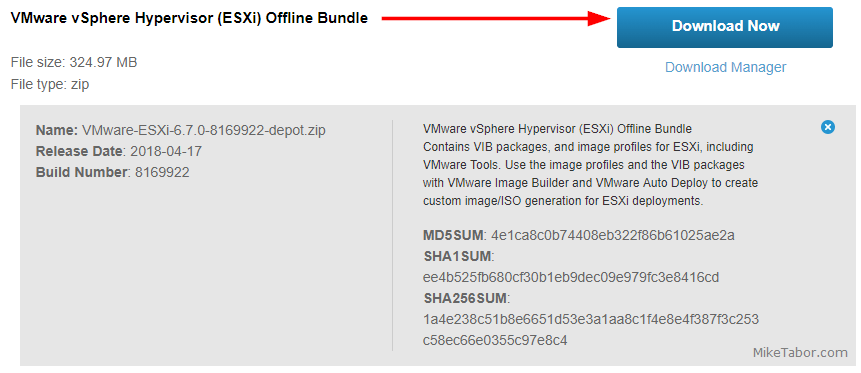
- Upload the VMware-ESXi-6.7.0-8169922-depot.zip file to a datastore that is accessible by all your host(s).
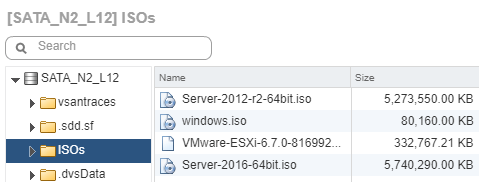
- Next place the host you plan on upgrading into Maintenance Mode.
- SSH into your host using PuTTY (or other client/terminal).
- Type the following command, replace “DATASTORE” with the name of your datastore you uploaded the VMware-ESXi-6.7.0-8169922-depot.zip file to.
esxcli software vib update -d /vmfs/volumes/DATASTORE/VMware-ESXi-6.7.0-8169922-depot.zip - Once the above completes reboot your host by typing:
reboot
Once the host has rebooted, take it out of Maintenance Mode and move on to your next host. That’s it!
problems with the upgrade… after the upgrade my environment will on operate for 15mins then stops…
Hello,
I have esxi running remotely on commodity hardware. Unfortunately, the esxi web interface does not even show me the board type.
Will the upgrade procedure check hardware support or do I risk having a dead server after upgrade?
Huge help, thank you!
You’re welcome Adam. I’m glad to help!
Does this same process apply if vCenter is installed.? Do you simply update each host manually and it won’t break anything with vCenter? I’ve never done a upgrade to existing setup with vCenter, only fresh setups.
Tim,
You’ll want to make sure you upgrade vCenter first before upgrading your hosts, otherwise yes the process remains the same.
-Michae
Whoops. It doesn’t seem to see my datastores any longer and all the machines have been renamed to two digit numbers. Looks like I’ve got a bunch of work ahead of me. :(
It’s happened with me too! I don’t whether this procedure is correct. For my luck, I’m doing that on the test machine.
july 2020 -> you should use this line to get the latest version (6.7.0U3)
esxcli software profile update -d https://hostupdate.vmware.com/software/VUM/PRODUCTION/main/vmw-depot-index.
xml -p ESXi-6.7.0-20200604001-standard
also make sure to enable swap on the host and use a datastore or you won’t be able to install the vmware tools and the download will throw an error.
sometimes even that doesn’t work just change standard for no-tools
Sometimes when you updates old version you get the error “Could not find a trusted signer.”
Why – ask VMWare ?!
Solution – try with esxcli –no-sig-check