Horizon View Events Notifier Tool

Chris Halstead (@chrisdhalsted), just made every Horizon View administrators job just a little bit easier by releasing a free tool that will allow you to setup alerts and notifications for events in View such as Warnings and Audit failures. The Horizon View Events Notifier tool uses SMTP and allows you to add multiple addresses in the alert recipients field.
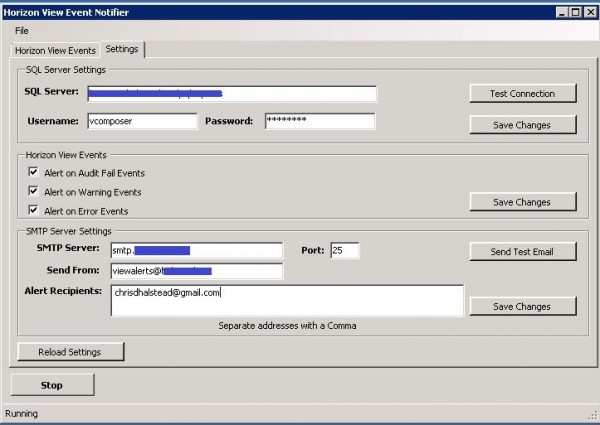
view events config

You can download the View Events Notifier tool here – http://goo.gl/WP7Vnt or visit Chris’ blog here – http://chrisdhalstead.net/2013/08/18/horizon-view-events-notifier/
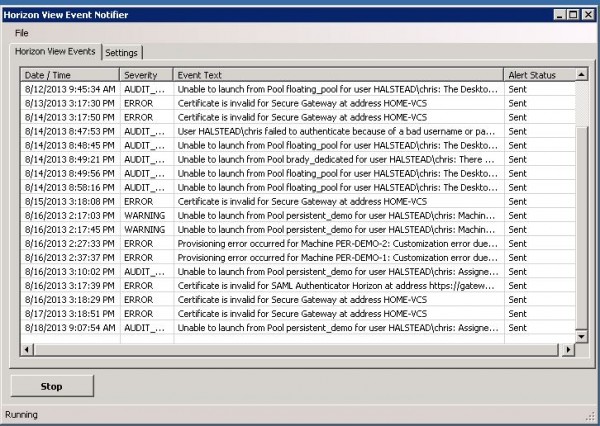
view events alerts

Similar Posts

  • VMware Horizon View 5.3 has been announced

    Horizon View 5.2 is receiving an update to 5.3! Doesn’t sound like much, but in that tiny dot number increase VMware has in fact brought a number improvements and features to Horizon View.

    In a nut shell, some features Horizon View 5.3 brings is the ability to connect to a virtual desktop from any HTML5 capable web browser (yes, even Chromebook!), ability to bring full workstation class user experience with 3D graphics, deploy Windows Server 2008 as a desktop, as well as completely rewritten the Windows client with support for Windows 8.1 and a new iOS7 client too.

    In more detail, Horizon View 5.3 brings…

    Read More “VMware Horizon View 5.3 has been announced”

  • My VMware View Windows 7 Optimization Guide

    These are the few steps I do when creating a new "Golden" image. Luckily I don’t have to do these steps all the time as I’ll create the "Golden" image when there is a new upgrade such as when we went from View 4.6 to View 5.0.1. I like to have a new fresh machine using new virtual hardware from the start. You could certainly just upgrade the virtual hardware on the "Golden" image, I just prefer to start clean.

    At any rate, here’s my list. Hopefully someone might find it somewhat useful and maybe even others can improve upon it.

    Preparing a new virtual machine

    1. Create New Virtual Machine – FILE > NEW > VIRTUAL MACHINE (CTRL+N)
    2. Under Configuration select CUSTOM.
    3. Select a Name, Folder, Host, Cluster, and Storage.
    4. Under Guest Operating System select Windows and then Windows 7 32bit under the Version drop down.
    5. Select which Network (VLAN) and under Adapter select VMXNET 3.
    6. Configure disk size to 30GB THIN provisioned.

    Read More “My VMware View Windows 7 Optimization Guide”

  • VMware View client now availabe for Android!

    VMware has announced that they have released a View Client for Android tablets available on the Android Market now. Here are just a few of the features found on the new client.

    • A new look and feel – The View Client for Android features the NEW blue look and feel of the VMware View clients!
    • Multiple broker support – If you have more than one VMware View broker in your organization, you can can easily access your desktop from all of them via the Android client
    • Desktop Shortcuts – Quickly connect with as many as four recent desktop via shortcuts
    • Virtual trackpad – Control your desktop on a granular level just like you would control the mouse on a laptop
    • Custom keyboard toolbar – Super easy access to all of the special keys not found on the Android default keynboard
    • Honeycomb 3.x support – Made from the ground up for the new generation of Android tablets
    • Custom gestures – Invoke keyboard, scrolling, etc are as easy as ever and simple to use
    • VMware View Security Server support (best experience) – No need to have VPN when you use VMware View Security Server
    • Background tasking – Switch between apps on your tablet and come right back
  • vSphere 5.1 currently not compatible with any VMware View version

    Before you go updating your vSphere to the new 5.1 version that was just released, VMware had just released this alert yesterday (9/12) that vSphere 5.1 is currently NOT compatible with any version of VMware View.

    vSphere 5.1 is in the process of being certified against VMware View. We recommend that you do not upgrade vSphere above the supported versions listed in the VMware View 5.1 Release Notes.

    For further updates and more information on this alert, refer to KB article:
    vSphere 5.1 is not compatible with any versions VMware View (2035268).

    If you don’t use VMware View, and are ready to upgrade to vSphere 5.1 be sure to check out the Installing vCenter Server 5.1 best practices from VMware.

  • Using PowerShell to Unblock multiple files

    powershell blocked file

    If you’ve ever downloaded a PowerShell script from the internet and tried running it you’ve probably seen the warning message “Run only scripts that you trust. While scripts from the internet can be useful, this script can potentially harm your computer.

    In my case I noticed the following tweet from Alan Renouf about the vCheck dev branch.

    Read More “Using PowerShell to Unblock multiple files”

  • Defrag to improve Synology BTRFS performance

    My Synology NAS gets a lot of use at home. Not only is the Synology NAS a central point for my VMware home lab, but all my PCs are connected to it for document, photo, and ISO storage.

    In order to keep things as optimized as possible I try to defrag the drives every once in a while. Depending on how fragmented the drives are, this could help improve performance in sequential read and random IOPS.

    In this post I’ll show how it easy it is to kick off the task. Just keep in mind you will want to do this during low usage as the defrag task will certainly impact performance while it’s running.

    Read More “Defrag to improve Synology BTRFS performance”

Leave a Reply

Your email address will not be published. Required fields are marked *