How to install VMware vCenter Log Insight

VMware vCenter Log Insight

Log Insight is a real-time log management and analytics solution, and one of VMware’s newest product. Log Insight was recently updated to version 2.0 and available to download here.

Below we’ll go through the steps to installing VMware Log Insight and you’ll soon see just how easy it is to get Log Insight up and running.

Deploying the Log Insight OVA

When you download Log Insight it comes as a .OVA file. I’m not going to get all wrapped up in OVA deployment part as it’s pretty simple. In a nutshell you’ll accept the user agreement, give it a name and assign it an IP – or you can use DHCP.

Once the appliance has been deployed go ahead and power it up.

Install / Configure Log Insight

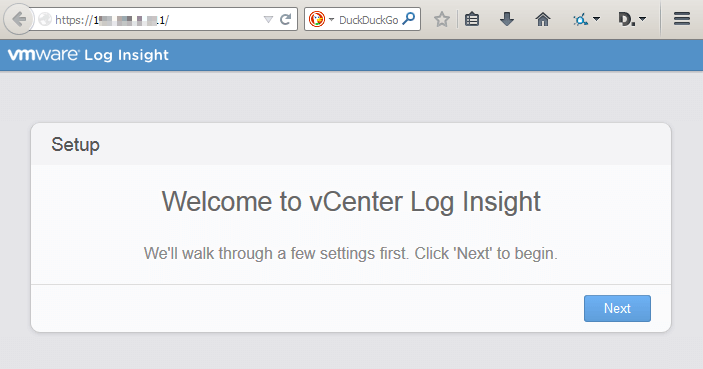
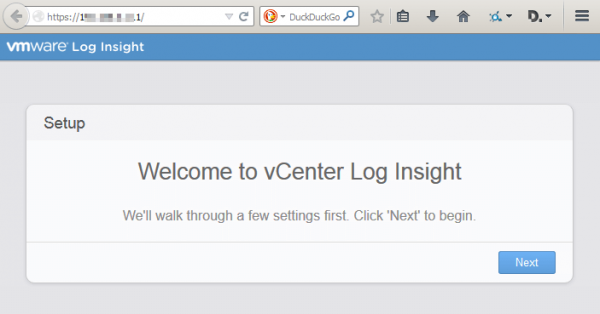
  1. To begin, open up your favorite browser and go to:
    https:\\appliance-ip-address
    vmware log insight step1
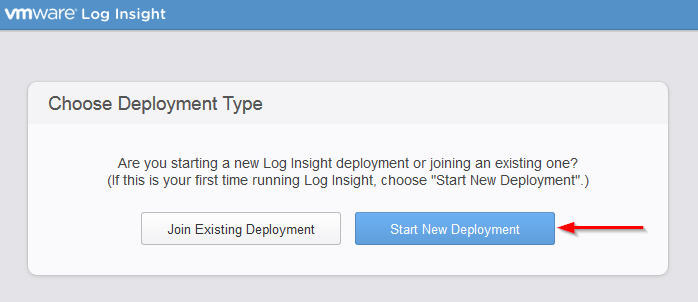
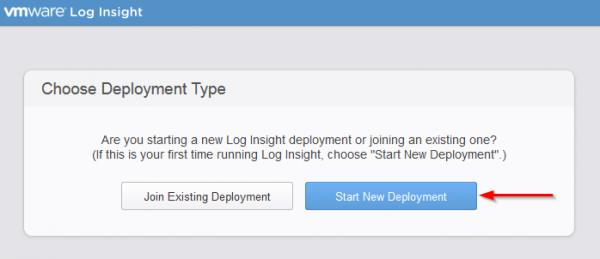
  2. You are then prompted to join an existing deployment or new deployment, being that Log Insight isn’t already installed – click on “Start New Deployment“.
    vmware log insight step2
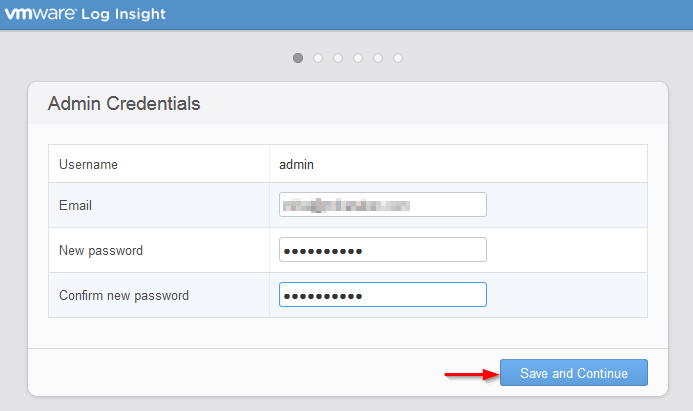
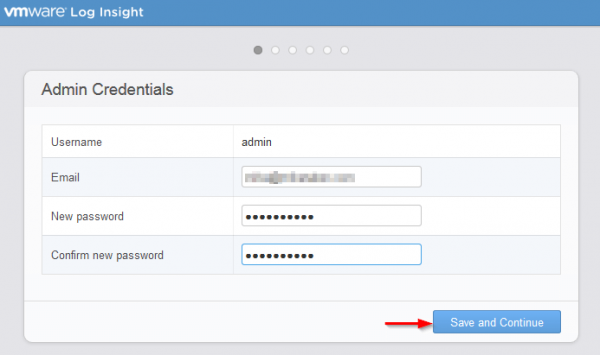
  3. You’re then prompted to enter a new password and email address for the Log Insight admin user.
    vmware log insight step3
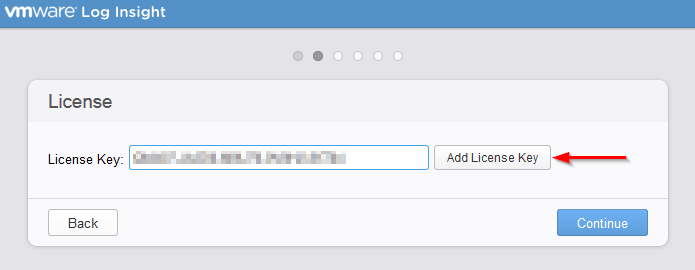
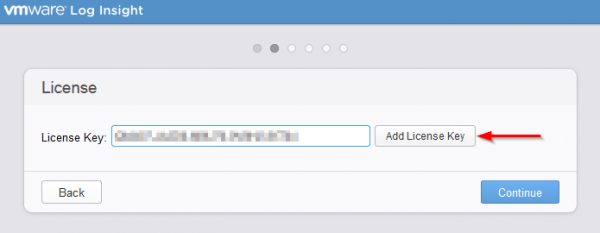
  4. Now enter your license key and click on “Add License Key“.
    vmware log insight step4
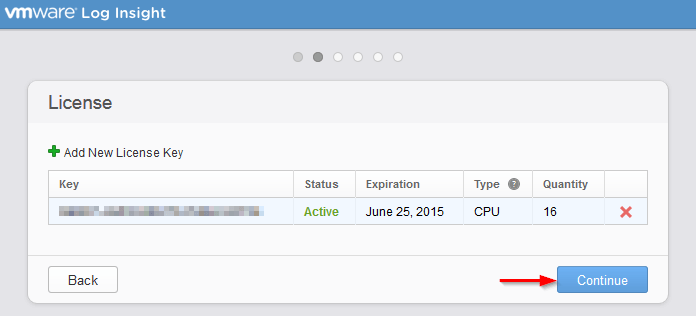
  5. The next screen shows details of your license, now click on “Continue”.
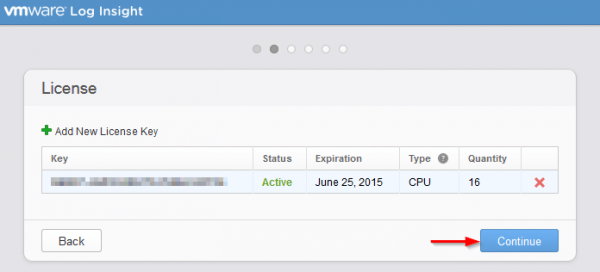
    vmware log insight step5
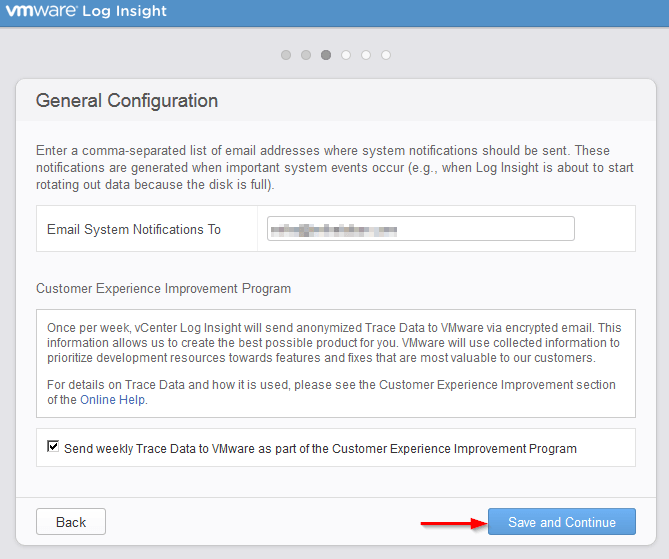
  6. Next, enter an email address you want to have system notifications sent to. Also decide if you want to help VMware be sure to join the customer experience improvement program. Being that my license was free (Thanks Corey Romero & vExpert program!) I decided to check the box.
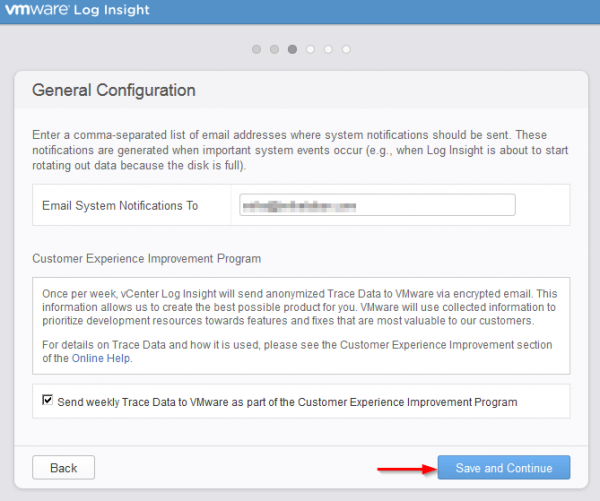
    vmware log insight step6
  7. Next is Time Configuration and you have two options. Use NTP server(s) or time sync with the ESXi hosts. I went with the recommended option (NTP Server), the default NTP servers Log Insight has automatically entered is: 0.vmware.pool.ntp.org, 1.vmware.pool.ntp.org, etc, however I recommend using the same NTP servers you are currently using throughout your environment, otherwise it’s going to be hard reading logs if the time is skewed. In my case I’m already using: 0.us.pool.ntp.org, 1.us.pool.ntp.org, etc.
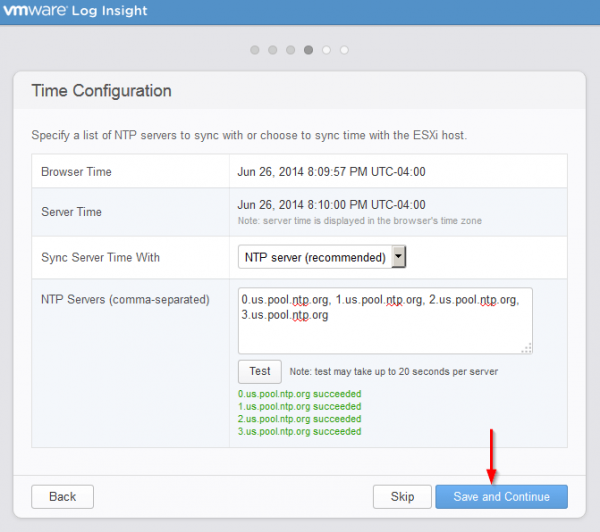
    vmware log insight step7
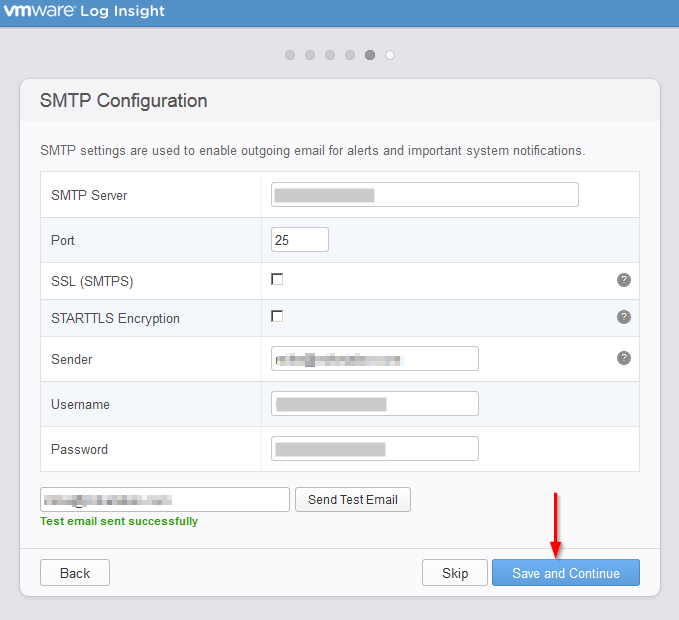
  8. Enter your SMTP server, sender address, username, and password so that Log Insight can send you notifications.
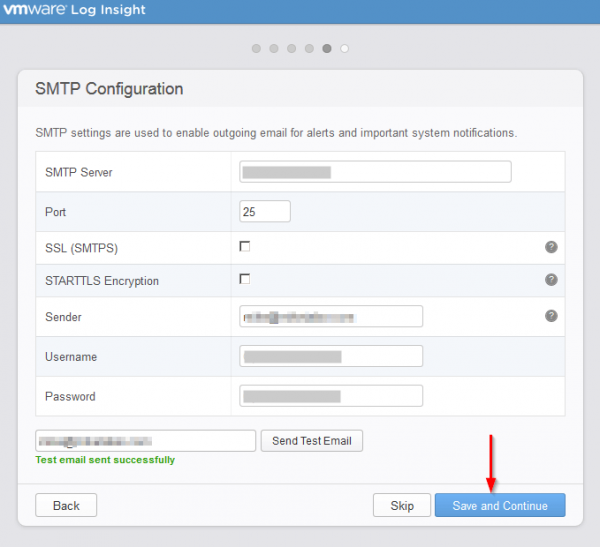
    vmware log insight step8
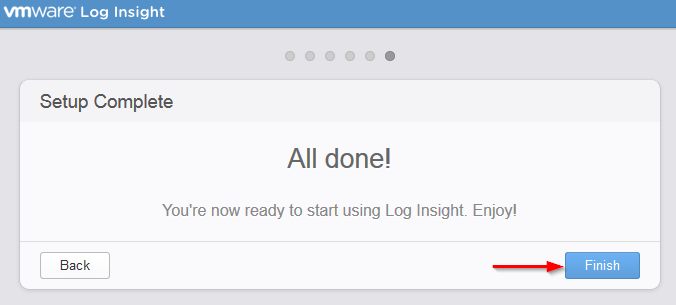
  9. That’s it on the initial setup of Log Insight, just click on Finish!
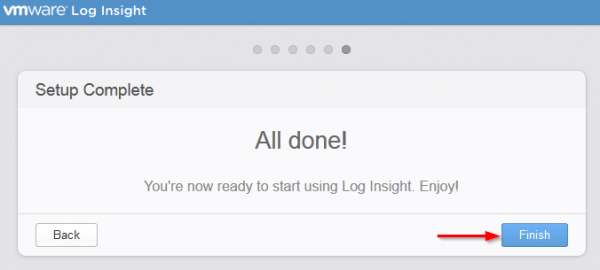
    vmware log insight step9

Import system logs into VMware Log Insight

Now that the initial appliance setup is finished we need to link our vCenter and ESXi hosts to Log Insight.

  1. Click on the “vSphere Integration” link to start the wizard
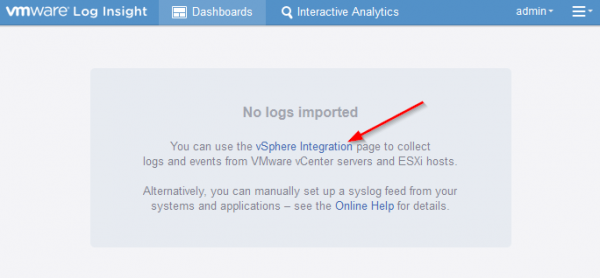
    vmware log insight step10
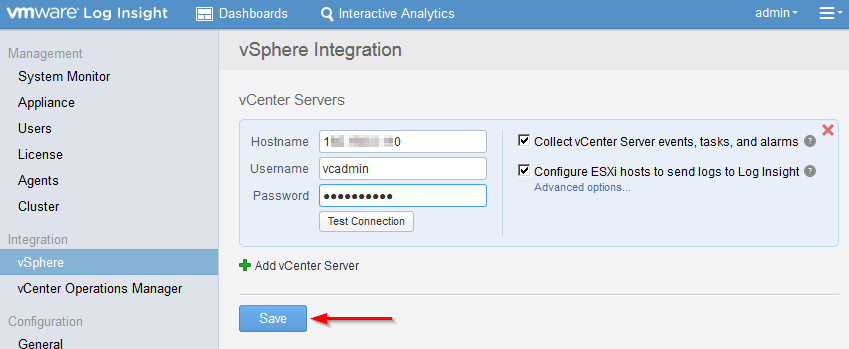
  2. Simply enter the host name or IP address of your vCenter server along with a username and password. By default Log Insight will collect vCenter events, tasks, alarms, as well ans configure the ESXi hosts to send their logs to Log Insight as well.
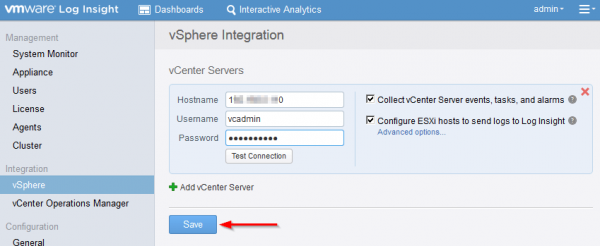
    vmware log insight step11
  3. Once you click on Save from the step 11, Log Insight will start link to vCenter and start configuring your hosts to send logs to Log Insight.
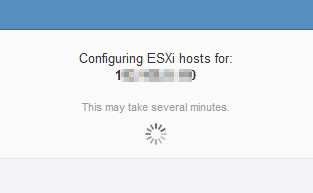
    vmware log insight step12
    Note: I already had my hosts configured to send logs to my Synology Syslog server and was happy to see Log Insight kept that IP setting alone on each of the hosts and simply added a comma and the Log Insight IP as well.

That’s it! When the last step completes the page will refresh and will already start showing you stats and information about your environment.
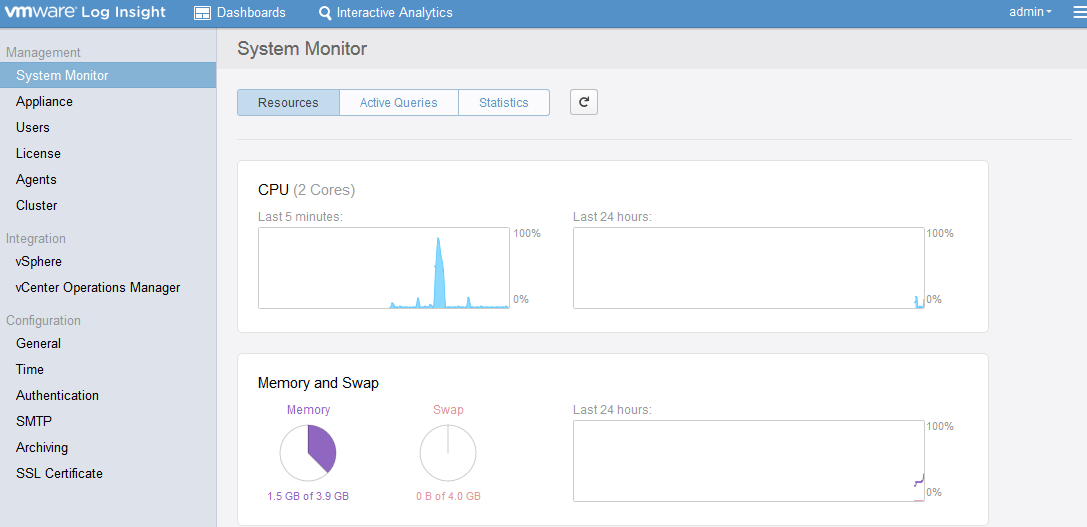
VMware Log Insight dashboard

I’m looking forward to really digging into Log Insight in the lab and very possibly in the production environment as well. If you’re interested in finding out more specifics on VMware Log Insight, be sure to check out the Log Insight Community by VMware.
Similar Posts

  • VMware Workstation 8.0.4 released

    VMware has just released it’s forth minor update for VMware Workstation 8, bringing it up to 8.0.4. The looks to contain mostly a few bug and security fixes.

    General Issues

    • Linux guests running the Linux kernel version 2.6.34 or later could not be pinged from the host via an IPv6 address.
    • On rare occasions, Linux guests would suddenly fail to Autofit or enter Unity.
    • Unity mode would exit if the title bar of an application contained certain non UTF-8 encoded extended ASCII characters.
    • On Windows hosts, the VMware Workstation user interface sometimes became unresponsive when minimized from full-screen mode if the suggestion balloon was being displayed.
    • On Windows hosts, the user interface sometimes became unresponsive if the application was rendered on an extended display that was abruptly disconnected.

    Read More “VMware Workstation 8.0.4 released”

  • How to easily add an ESXi SSH login message banner

    ESXi issues message

    Preparing for some upcoming audits, I noticed one of the checkpoints was to ensure each ESXi host was configured with a warning banner stating the machine is being monitored and audited when someone logs into the ESXi host via SSH. This type of message is something you see on most any company or government computer before you login.

    There are two message types that can be used to achieve this, the first being login banner (/etc/issue) and MOTD (/etc/motd). The difference between the two are where they are shown. The login banner is shown between the username and password inputs during login, while the MOTD is displayed after a user has successfully logged into SSH.

    Read More “How to easily add an ESXi SSH login message banner”

  • VMware View client now availabe for Android!

    VMware has announced that they have released a View Client for Android tablets available on the Android Market now. Here are just a few of the features found on the new client.

    • A new look and feel – The View Client for Android features the NEW blue look and feel of the VMware View clients!
    • Multiple broker support – If you have more than one VMware View broker in your organization, you can can easily access your desktop from all of them via the Android client
    • Desktop Shortcuts – Quickly connect with as many as four recent desktop via shortcuts
    • Virtual trackpad – Control your desktop on a granular level just like you would control the mouse on a laptop
    • Custom keyboard toolbar – Super easy access to all of the special keys not found on the Android default keynboard
    • Honeycomb 3.x support – Made from the ground up for the new generation of Android tablets
    • Custom gestures – Invoke keyboard, scrolling, etc are as easy as ever and simple to use
    • VMware View Security Server support (best experience) – No need to have VPN when you use VMware View Security Server
    • Background tasking – Switch between apps on your tablet and come right back
  • VCP5 Exam: Passed

    Pass

    This morning I took the VCP510 exam and passed it on my first go at it!

    Overall I felt the exam was a nice challenge, while I can’t go into details of the exam, per the NDA. I will say I was surprised at the number of multiple answer questions and the VPC510 was certainly more “real-world” based and not so much memorizing config maximums.

    That said, I’ll do as others have done and list what I used in my preparation for the VCP510 exam…

    Read More “VCP5 Exam: Passed”

  • How to Add Login Banner to vSphere Web Client

    If you have the pleasure or meeting certain audits or security compliance then having a login banner message on your systems is a pretty common requirement. Sometime ago I detailed how to add a login banner message to ESXi hosts, below I’ll show how easy it is to do the same with your VMware vSphere web client or HTML5 client using vSphere 6.0 Update 2 or better.

    Read More “How to Add Login Banner to vSphere Web Client”

Leave a Reply

Your email address will not be published. Required fields are marked *