How to fix “SRA command discoverArrays failed” in SRM with RecoverPoint
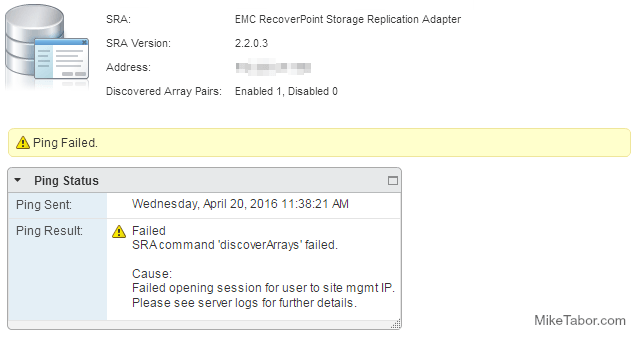
Recoverpoint SRA command discoverArrays failed

We’ve ran into an issue trying to get VMware SRM and SRA 2.2.0.3 along with EMC Recoverpoint 4.1.2 to communicate with one another and would receive this error in SRM:

SRA command discoverArrays failed. Failed opening session for user to site mgmt IP.

Please see server logs for further details.

After some digging around a bit and talking with the Storage Team and EMC we found out that this is due to the SRA’s using HTTP by default and Recoverpoint 4.1.2 does not accept HTTP, but instead only accepts HTTPS or port 443. The steps below is how to get everything to default HTTPS and then communication will resume.

How to enable HTTPS on EMC SRA

  1. Log into the server where SRM is currently installed.
  2. Open a Windows command prompt and move to the following directory:
    c:\Program Files\VMware\VMware vCenter Site Recovery Manager\storage\sra\array-type-recoverpoint
  3. Now type in the following command:
    "c:\Program Files\VMware\VMware vCenter Site Recovery Manager\external\perl\bin\perl.exe" command.pl --useHttps true
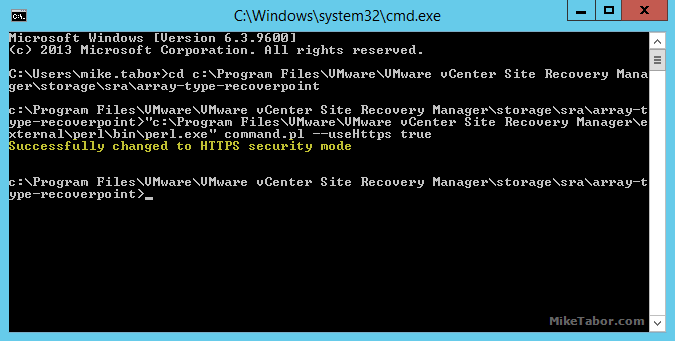
    useHTTPS command.pl

You will also need to perform the above steps on both the protected and recovery sites.

Enable only HTTPS on each RecoverPoint Appliance (RPA) Cluster

  1. Log into the RPA cluster with the admin account.
  2. Select option 2 for Setup.
  3. Select option 8 for Advanced Settings.
  4. Select option 2 for Security Options.
  5. Then finally option 1 to change Web Server Mode.
  6. You will then get the following message:
    The web server is currently in both HTTPS and HTTP available mode. Do you want to disable the HTTP server (y/n) ?

    You want to answer Y to disable HTTP.

Again you’ll want to ensure both RPA’s at the protected and recovery sites are configured the same.

After completing the steps at both sites, ensuring only HTTPS is used throughout the errors have gone away and SRM is happy once more and the dreaded “SRA command discoverArrays failed” and “Failed opening session for user to site mgmt IP” are gone.
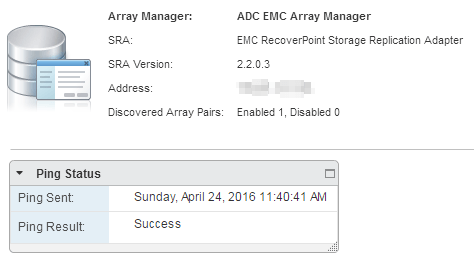
srm sra success

Similar Posts

  • VMware P2V Permission to perform this operation was denied fix

    Just the other day we had a Windows Server 2008 R2 Standard physical server that needed to be P2V’ed, and after trying to use VMware Converter Standalone 6.1.1 we ran into the error message “Permission to perform this operation was denied” after entering the source machine details.

    vmware p2v permission denied

    Even after trying to start VMware Converter as “Run as administrator” the error persisted. Below is the workaround we performed to quickly allow us to P2V the physical server.

    Read More “VMware P2V Permission to perform this operation was denied fix”

  • VMware View client now availabe for Android!

    VMware has announced that they have released a View Client for Android tablets available on the Android Market now. Here are just a few of the features found on the new client.

    • A new look and feel – The View Client for Android features the NEW blue look and feel of the VMware View clients!
    • Multiple broker support – If you have more than one VMware View broker in your organization, you can can easily access your desktop from all of them via the Android client
    • Desktop Shortcuts – Quickly connect with as many as four recent desktop via shortcuts
    • Virtual trackpad – Control your desktop on a granular level just like you would control the mouse on a laptop
    • Custom keyboard toolbar – Super easy access to all of the special keys not found on the Android default keynboard
    • Honeycomb 3.x support – Made from the ground up for the new generation of Android tablets
    • Custom gestures – Invoke keyboard, scrolling, etc are as easy as ever and simple to use
    • VMware View Security Server support (best experience) – No need to have VPN when you use VMware View Security Server
    • Background tasking – Switch between apps on your tablet and come right back
  • VMware Horizon View 5.3 has been announced

    Horizon View 5.2 is receiving an update to 5.3! Doesn’t sound like much, but in that tiny dot number increase VMware has in fact brought a number improvements and features to Horizon View.

    In a nut shell, some features Horizon View 5.3 brings is the ability to connect to a virtual desktop from any HTML5 capable web browser (yes, even Chromebook!), ability to bring full workstation class user experience with 3D graphics, deploy Windows Server 2008 as a desktop, as well as completely rewritten the Windows client with support for Windows 8.1 and a new iOS7 client too.

    In more detail, Horizon View 5.3 brings…

    Read More “VMware Horizon View 5.3 has been announced”

  • How to upgrade vCenter server appliance

    Prior to VMware vCenter Server Appliance 6.x, upgrading or patching vCSA was as simple as a few button clicks in the appliance UI. Gone are those days, as VMware has replaced the appliance UI with a DCUI and the web based install wizard during setup.

    The good news is, upgrading or patching the vCSA 6.x is still pretty simple via the command line!

    Read More “How to upgrade vCenter server appliance”

  • VCP5 Exam: Passed

    Pass

    This morning I took the VCP510 exam and passed it on my first go at it!

    Overall I felt the exam was a nice challenge, while I can’t go into details of the exam, per the NDA. I will say I was surprised at the number of multiple answer questions and the VPC510 was certainly more “real-world” based and not so much memorizing config maximums.

    That said, I’ll do as others have done and list what I used in my preparation for the VCP510 exam…

    Read More “VCP5 Exam: Passed”

  • Upgrade VCSA 6.5 to VCSA 6.7 Update 1

    VMware vCenter 6.7 U1 has recently been released. Last week I posted how to upgrade VCSA 6.7 to 6.7 Update 1, this post will walk you though upgrading VMware vCenter Server Appliance 6.5 to VCSA 6.7 Update 1!

    When doing a VCSA version upgrade the upgrade process is much different, than going from say 6.7 to 6.7 U1. When going from 6.5 to 6.7 the upgrade is actually broken up into two stages.

    The first stage involves deploying a brand new vCenter 6.7 appliance. Then the second stage will copy the data from your 6.5 VCSA into the newly deployed 6.7 VCSA from stage 1.

    Read More “Upgrade VCSA 6.5 to VCSA 6.7 Update 1”

Leave a Reply

Your email address will not be published. Required fields are marked *

2 Comments