Fixing, This host currently has no management network redundancy
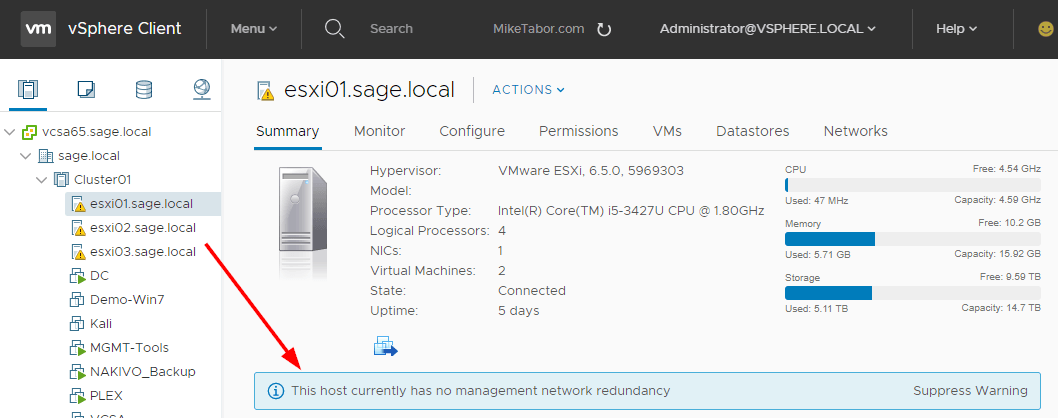
host no management network redundancy

I recently redid my VMware home lab environment and after enabling HA the warning message “This host currently has no management network redundancy” started displaying on each of my ESXi hosts.

This warning happens because in a HA cluster there is a requirement for the management network to have redundant NICs, but in my case I’m using Intel NUCs which only have a single NIC and since this is only a lab I don’t care to see the warning so lets disable it.

Disable host currently has no management network redundancy warning

  1. First log into vSphere. I’ll be using the HTML5 client.
  2. Now select the cluster and click on the Configure tab then click on vSphere Availability and then Edit.
    host no management network redundancy cluster settings
  3. Click on Advanced Options and then Add the following option and value and click OK:
    das.ignoreRedundantNetWarning    true
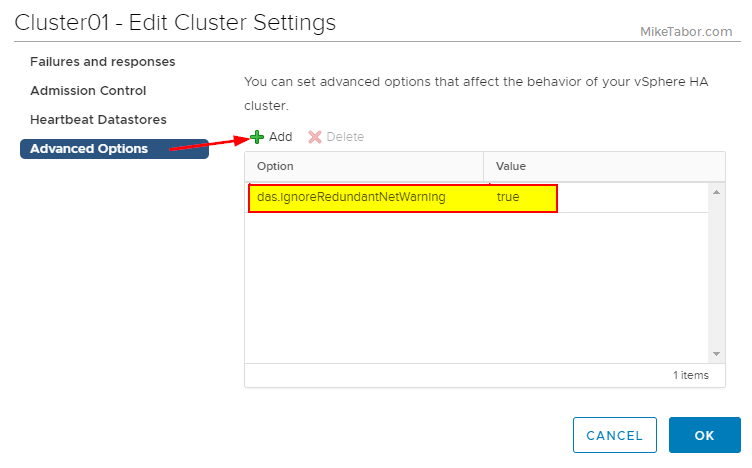
    host no management network redundancy advanced options

With that the warning message is gone. If you do still see the error then try turning HA off and back on or right clicking on each host and selecting Reconfigure for vSphere HA.


Similar Posts

  • How to change vCenter Operations Manager session timeout

    I’ve been using vCenter Operations Manager for a while now at work for all the great information that can be found about our environment so I tend to log into vCOp at the start of the morning and then come back to as I may or may not need it thoughout the day. One thing that has kind of annoyed me is having to constantly log into the standard UI multiple times a day due to the default 30 minute timeout value.

    Luckily, with a bit of SSH and a few commands we can increase this timeout to anything we like or even disable it all together!

    Read More “How to change vCenter Operations Manager session timeout”

  • Become a VMware Certified Associate for FREE!

    During the San Francisco VMworld 2013, VMware announced the start of their new VMware Certified Associate certifications.

    There’s no training class requirement for the new exams although VMware offers a free self-paced e-learning course which is recommended to help you prepare for the exams. The exams normally run $120.00 but VMware is currently running a $60.00 discount for those who take the exam in 2013. NTPRO.nl has an additional coupon code (VCA13ICS) to take the remaining $60.00 off making the exam FREE!

    VCA Exam for free

    The VCA13ICS coupon code expires on October 30, 2013!

    Update:
    Global Knowledge also has a coupon code (VCA13GKN) which does not expire until January 31, 2014. Limit one free exam per individual!

  • VMware Recertification Policy

    VMware certified

    Starting today, March 10 2014, new VCP certifications must be re-certified within two years of it’s earned date. Anyone who currently has their VCP certification prior to March 10 2013 has until March 10, 2015 to re-certify.

    The new policy gives you three options to re-certify:

    1. Take the current exam for your existing VCP certification solution track. For example, if you are a VCP3, you could take the current VCP5-Data Center Virtualization (VCP5-DCV) exam.
    2. Earn a new VCP certification in a different solution track. For example, if you are a VCP-Cloud, you could recertify by earning VCP5-Desktop (VCP5-DT) certification.
    3. Advance to the next level by earning a VMware Certified Advanced Professional (VCAP) certification. For example, if you are a VCP5-DCV you could earn VCAP5-DCA certification.

    I can understand why they are doing this but I don’t agree with the changes. As per the announcement if you let your certification expire, “Your certification will be revoked,and you will no longer be entitled to use the certification logo or represent yourself as VMware certified“. Really? You mean everything that was done prior and after taking the exam means nothing?

    Read More “VMware Recertification Policy”

  • VMware View client now availabe for Android!

    VMware has announced that they have released a View Client for Android tablets available on the Android Market now. Here are just a few of the features found on the new client.

    • A new look and feel – The View Client for Android features the NEW blue look and feel of the VMware View clients!
    • Multiple broker support – If you have more than one VMware View broker in your organization, you can can easily access your desktop from all of them via the Android client
    • Desktop Shortcuts – Quickly connect with as many as four recent desktop via shortcuts
    • Virtual trackpad – Control your desktop on a granular level just like you would control the mouse on a laptop
    • Custom keyboard toolbar – Super easy access to all of the special keys not found on the Android default keynboard
    • Honeycomb 3.x support – Made from the ground up for the new generation of Android tablets
    • Custom gestures – Invoke keyboard, scrolling, etc are as easy as ever and simple to use
    • VMware View Security Server support (best experience) – No need to have VPN when you use VMware View Security Server
    • Background tasking – Switch between apps on your tablet and come right back
  • VMware vSphere 5.5 Update 2 released

    vsphere 5.5 update2 released

    VMware vCenter Server and ESXi 5.5 Update 2 has just been released today with a number of fixes and additional features such as vCenter Server database support for Oracle 12c, Microsoft SQL Server 2012 Service Pack 1, and Microsoft SQL Server 2014 in vCenter Server and support for ESXi hosts with 6TB of RAM in the ESXi 5.5 update 2 release!

    Read More “VMware vSphere 5.5 Update 2 released”

  • VMware P2V Permission to perform this operation was denied fix

    Just the other day we had a Windows Server 2008 R2 Standard physical server that needed to be P2V’ed, and after trying to use VMware Converter Standalone 6.1.1 we ran into the error message “Permission to perform this operation was denied” after entering the source machine details.

    vmware p2v permission denied

    Even after trying to start VMware Converter as “Run as administrator” the error persisted. Below is the workaround we performed to quickly allow us to P2V the physical server.

    Read More “VMware P2V Permission to perform this operation was denied fix”

Leave a Reply

Your email address will not be published. Required fields are marked *

One Comment