VMware P2V Permission to perform this operation was denied fix

Just the other day we had a Windows Server 2008 R2 Standard physical server that needed to be P2V’ed, and after trying to use VMware Converter Standalone 6.1.1 we ran into the error message “Permission to perform this operation was denied” after entering the source machine details.
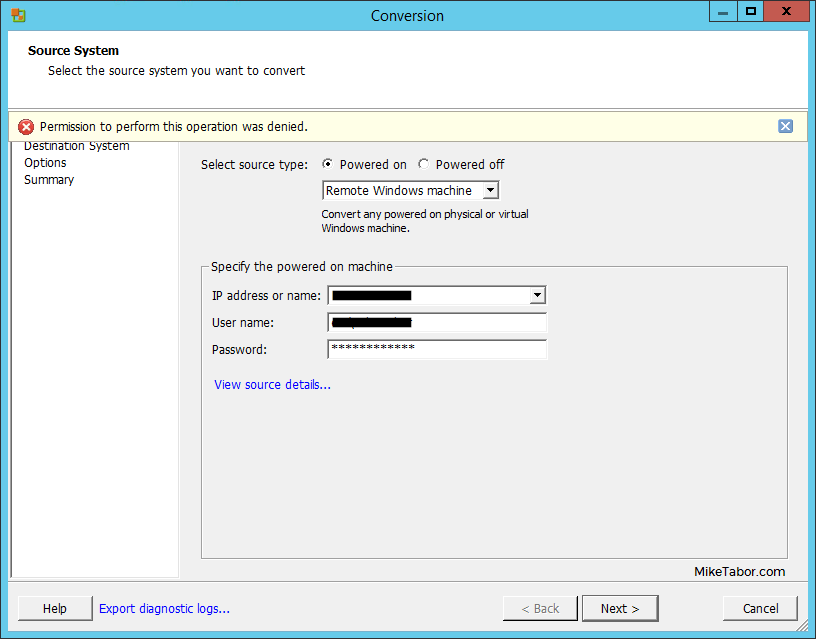
vmware p2v permission denied

Even after trying to start VMware Converter as “Run as administrator” the error persisted. Below is the workaround we performed to quickly allow us to P2V the physical server.

Workaround for Permission to perform this operation was denied

  1. Log into the server you’re trying to convert to a virtual machine.
  2. Open Local Security Policy (open run dialog and type secpol.msc).
  3. Go to: Local Policies > Security Options.
  4. Change “User Access Control: Run all Administrators in Admin Approval Mode” from Enabled to Disabled.
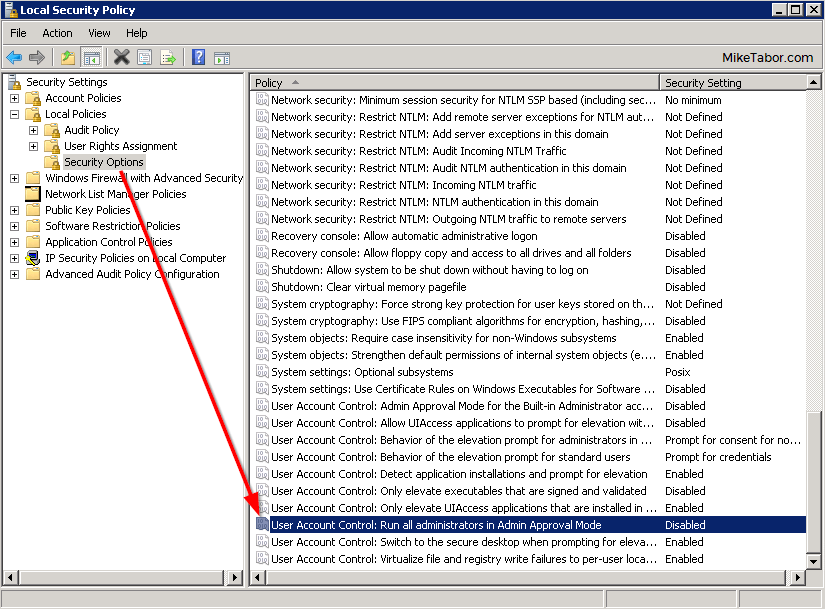
    local security policy disabled p2v
  5. Restart the server to make the changes take effect.
  6. You should now be able perform the P2V without issue.

After making the above change we was able to successfully P2V the server without any further issues:
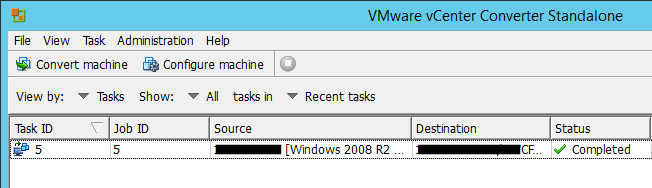
VMware P2V completed

Once you confirm the P2V is successful I would recommend changing User Access Control: Run all Administrators in Admin Approval Mode back to Enabled from Disabled.
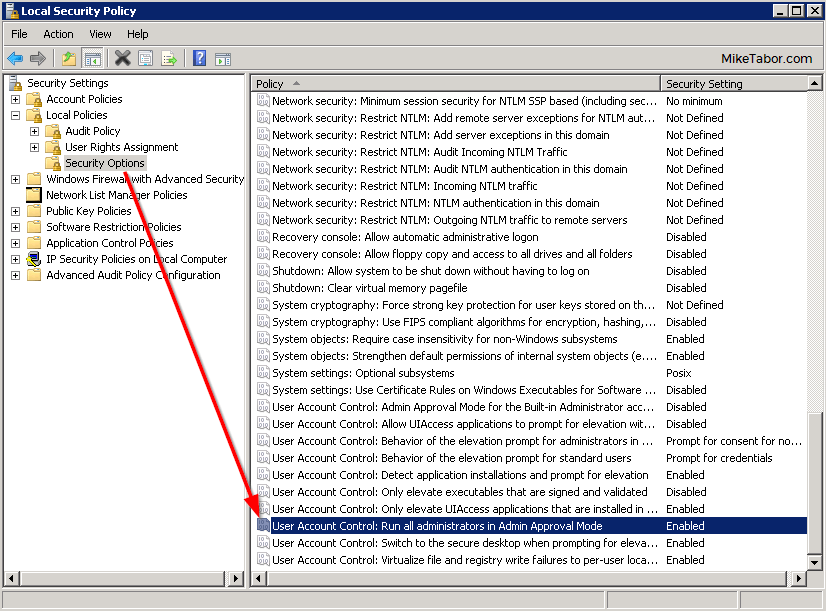
local security policy enabled p2v

If you have another workaround please share in the comments!
Similar Posts

  • vCenter server service won’t start after upgrading 5.5 to Update 3b

    Just a quick heads up! Over the last week I’ve been upgrading our vCenter servers from version 5.5 to the most recent 5.5 Update 3b version and have ran into a small hiccup.

    The upgrade of SSO, Web Client, Inventory Service and even vCenter server all went as expected without any issues. Then I rebooted the vCenter server and after the reboot noticed that the vCenter server service hadn’t started and when I tried to start it manually I then received the following error:

    Error 1053: The service did not respond to the start or control request in a timely fashion.

    Read More “vCenter server service won’t start after upgrading 5.5 to Update 3b”

  • Shrink a thin provisioned VMDK disk

    When maintaining a Horizon View environment I like to keep my parent images as small as possible and over time a thin provision disk can start to grow on you if you don’t watch it – be it from downloading installers, updates, or even running disk defrag. While there isn’t a simple, one click button in the View Administrator Console there is a fairly easy manual method using vmfkstools.

    Before we can use “vmkfstools” to shrink the VMDK file we must zero out any unused space on the thin provisioned disk. A simple way of doing this is by using a free utility called SDelete from Sysinternals.

    Read More “Shrink a thin provisioned VMDK disk”

  • VMware vCenter Server 5.5.0a update released

    VMware has released an update to vCenter 5.5 Server. The new updated, numbered 5.5.0a doesn’t appear to add any new features but instead focus on squishing a number of bugs in the 5.5 version – mostly around vCenter Single-Sign-On and the vSphere web client.

    Issues resolved with this release are as follows:

    1. Attempts to upgrade vCenter Single Sign-On (SSO) 5.1 Update 1 to version 5.5 might fail with error code 1603
    2. Attempts to log in to the vCenter Server might be unsuccessful after you upgrade from vCenter Server 5.1 to 5.5
    3. Unable to change the vCenter SSO administrator password on Windows in the vSphere Web Client after you upgrade to vCenter Server 5.5 or VCSA 5.5
    4. VPXD service might fail due to MS SQL database deadlock for the issues with VPXD queries that run on VPX_EVENT and VPX_EVENT_ARG tables

    Read More “VMware vCenter Server 5.5.0a update released”

  • VMware View client now availabe for Android!

    VMware has announced that they have released a View Client for Android tablets available on the Android Market now. Here are just a few of the features found on the new client.

    • A new look and feel – The View Client for Android features the NEW blue look and feel of the VMware View clients!
    • Multiple broker support – If you have more than one VMware View broker in your organization, you can can easily access your desktop from all of them via the Android client
    • Desktop Shortcuts – Quickly connect with as many as four recent desktop via shortcuts
    • Virtual trackpad – Control your desktop on a granular level just like you would control the mouse on a laptop
    • Custom keyboard toolbar – Super easy access to all of the special keys not found on the Android default keynboard
    • Honeycomb 3.x support – Made from the ground up for the new generation of Android tablets
    • Custom gestures – Invoke keyboard, scrolling, etc are as easy as ever and simple to use
    • VMware View Security Server support (best experience) – No need to have VPN when you use VMware View Security Server
    • Background tasking – Switch between apps on your tablet and come right back

Leave a Reply to Robo Cancel reply

Your email address will not be published. Required fields are marked *

12 Comments

  1. Quick thanks and to let folks finding this article know this tip still works (as of 25 Feb 2021) … at least it worked for me …

    – Windows 10 Pro / SP1 (1803) (host to be P2V’d)
    – VMware Workstation 16 Pro (running on host to be P2V’d)
    – VMware vCenter Converter Standalone Client 6.2