VMware P2V Permission to perform this operation was denied fix

Just the other day we had a Windows Server 2008 R2 Standard physical server that needed to be P2V’ed, and after trying to use VMware Converter Standalone 6.1.1 we ran into the error message “Permission to perform this operation was denied” after entering the source machine details.
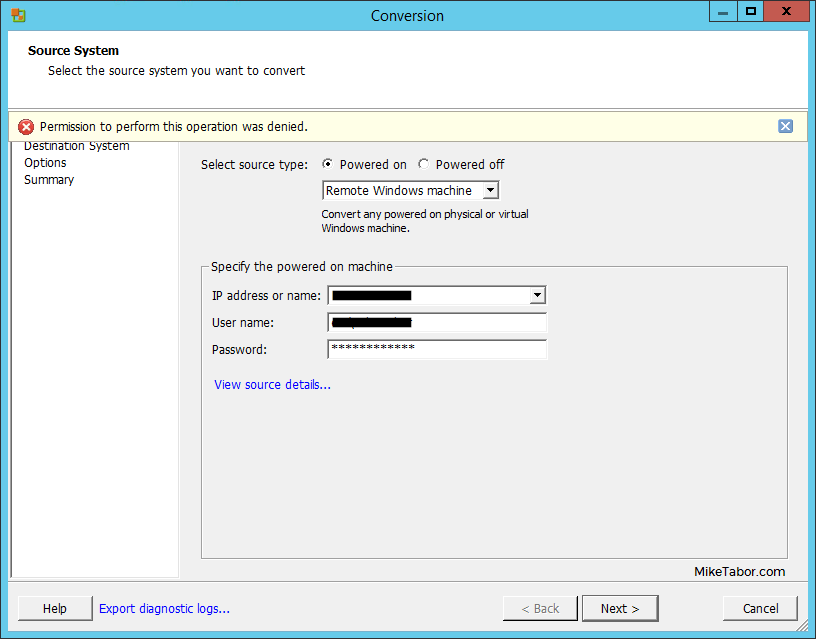
vmware p2v permission denied

Even after trying to start VMware Converter as “Run as administrator” the error persisted. Below is the workaround we performed to quickly allow us to P2V the physical server.

Workaround for Permission to perform this operation was denied

  1. Log into the server you’re trying to convert to a virtual machine.
  2. Open Local Security Policy (open run dialog and type secpol.msc).
  3. Go to: Local Policies > Security Options.
  4. Change “User Access Control: Run all Administrators in Admin Approval Mode” from Enabled to Disabled.
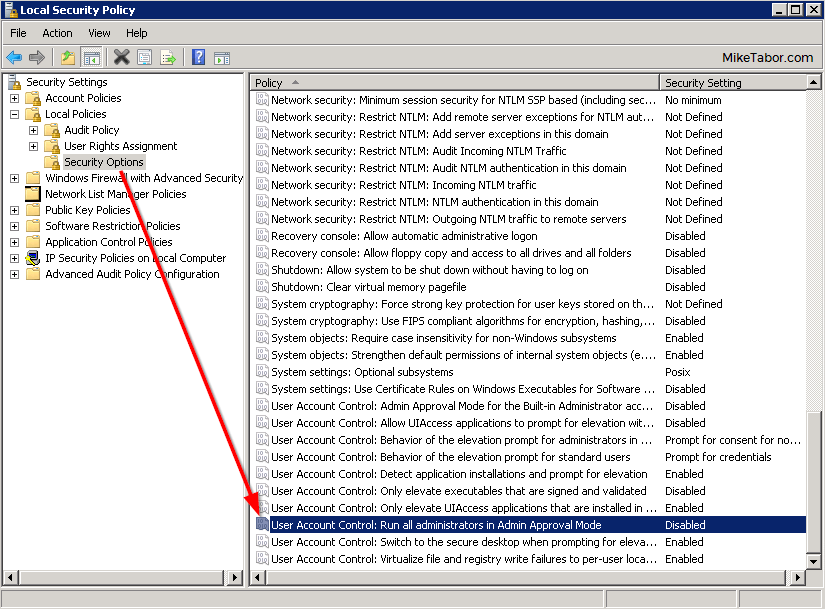
    local security policy disabled p2v
  5. Restart the server to make the changes take effect.
  6. You should now be able perform the P2V without issue.

After making the above change we was able to successfully P2V the server without any further issues:
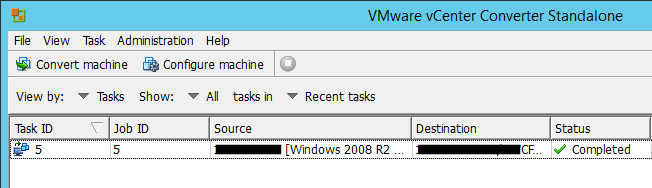
VMware P2V completed

Once you confirm the P2V is successful I would recommend changing User Access Control: Run all Administrators in Admin Approval Mode back to Enabled from Disabled.
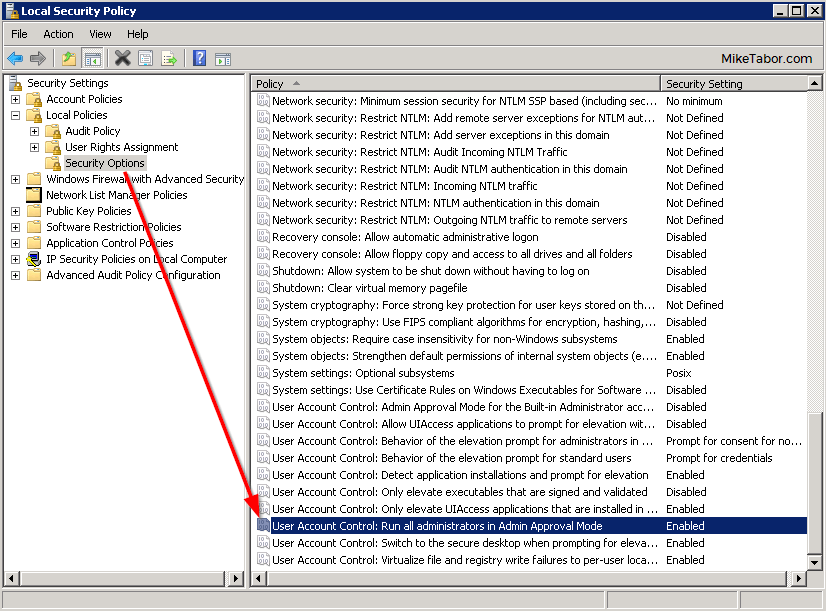
local security policy enabled p2v

If you have another workaround please share in the comments!
Similar Posts

  • VMware vSphere 7 announced

    VMware vSphere 7

    Some pretty big news coming out of VMware today. The announcement of VMware vSphere 7 to become available May 1, 2020! One of the biggest item coming out of this news so far is that vSphere 7 will come in two options.

    The first being vSphere 7 as we all have known it to be for years and then the second being vSphere 7 with Kubernetes which will be available through VMware Cloud Foundation and is a new generation of vSphere for containerized applications.

    Other notables is that the flash based vSphere client is FINALLY no more! From here on out, only the HTML 5 will exist. vCenter Server on Windows will also finally be put to rest and new deployments of vCenter server will be done using the tried and tested vCenter Server Appliance (VCSA) based on PhotonOS linux.

    Read More “VMware vSphere 7 announced”

  • VMware Recertification Policy

    VMware certified

    Starting today, March 10 2014, new VCP certifications must be re-certified within two years of it’s earned date. Anyone who currently has their VCP certification prior to March 10 2013 has until March 10, 2015 to re-certify.

    The new policy gives you three options to re-certify:

    1. Take the current exam for your existing VCP certification solution track. For example, if you are a VCP3, you could take the current VCP5-Data Center Virtualization (VCP5-DCV) exam.
    2. Earn a new VCP certification in a different solution track. For example, if you are a VCP-Cloud, you could recertify by earning VCP5-Desktop (VCP5-DT) certification.
    3. Advance to the next level by earning a VMware Certified Advanced Professional (VCAP) certification. For example, if you are a VCP5-DCV you could earn VCAP5-DCA certification.

    I can understand why they are doing this but I don’t agree with the changes. As per the announcement if you let your certification expire, “Your certification will be revoked,and you will no longer be entitled to use the certification logo or represent yourself as VMware certified“. Really? You mean everything that was done prior and after taking the exam means nothing?

    Read More “VMware Recertification Policy”

  • How to use Site Recovery Manager DR IP Customizer

    As one of the tasks given to me include protecting critical virtual machines via Site Recovery Manager (SRM) I ran into an environment that needed to be protected and have static IP’s assigned to them. The environment consists of about 15 VM’s, all of the VM’s each have 5 NIC’s with two of the VM’s having 9 NIC’s – that’s a lot of NIC’s to manually configure on both the Protected and Recovery side in SRM.

    Looking through the SRM Documentation I was able to see that VMware has graced us with a wonderful tool to greatly speed up this process, dr-ip-customizer.exe!

    How to use VMware DR-IP-Customizer

    Read More “How to use Site Recovery Manager DR IP Customizer”

  • How to install VMware vSphere Update Manager 5.5

    If you don’t already know, VMware Update Manager (aka, VUM) is a tool which allows you to easily automate patching and upgrading VMware hosts as well as virtual machine hardware and VMware tools. It’s a wonderful tool and makes upgrading and patching so much easier and allows you to quickly see how compliant/up-to-date your environment is with the built in pie graph.

    Recently we had some pretty serious array issues which corrupted the VUM database taking Update Manager down. Since we was going to have to rebuild Update Manager I opted to move from Windows Server 2008 to Windows Server 2012, in the steps below I’ll document step by step how to install VMware Update Manager 5.5 on Server 2012 and a separate database.

    Read More “How to install VMware vSphere Update Manager 5.5”

  • Restore a VM using the {vm}-flat.vmdk file

    missing vmdk file error

    A couple days ago I was asked the question “An admin deleted the vmdk file associated with a VM, there are no snapshots or backups of the VM . Can we restore this VM somehow?“. I believe in backups, I like to have my VM’s backed up so that I can depend on them for events just like this very issue. At first I was stumped, until the {vm-name}.flat.vmdk was mentioned. That’s when I remembered a method to recover a VM using the vm-flat.vmdk file that I had actually done 2-3 years ago.

    Read More “Restore a VM using the {vm}-flat.vmdk file”

  • Upgrade VCSA 6.5 to VCSA 6.7 Update 1

    VMware vCenter 6.7 U1 has recently been released. Last week I posted how to upgrade VCSA 6.7 to 6.7 Update 1, this post will walk you though upgrading VMware vCenter Server Appliance 6.5 to VCSA 6.7 Update 1!

    When doing a VCSA version upgrade the upgrade process is much different, than going from say 6.7 to 6.7 U1. When going from 6.5 to 6.7 the upgrade is actually broken up into two stages.

    The first stage involves deploying a brand new vCenter 6.7 appliance. Then the second stage will copy the data from your 6.5 VCSA into the newly deployed 6.7 VCSA from stage 1.

    Read More “Upgrade VCSA 6.5 to VCSA 6.7 Update 1”

Leave a Reply to Mike Tabor Cancel reply

Your email address will not be published. Required fields are marked *

12 Comments

  1. Quick thanks and to let folks finding this article know this tip still works (as of 25 Feb 2021) … at least it worked for me …

    – Windows 10 Pro / SP1 (1803) (host to be P2V’d)
    – VMware Workstation 16 Pro (running on host to be P2V’d)
    – VMware vCenter Converter Standalone Client 6.2