Installing VMware vCenter Server Appliance 6.5

VMware has announced that VMware vSphere 6.5 has gone general available this week. Now installing VMware vCenter Server Appliance 6.5 (VCSA) is even easier as the requirement for the client integration plugin has been removed and now the VCSA appliance is delivered via an ISO image with an installation wizard that’s been broken up into two stages.

The VCSA 6.5 ISO offers two types of installation methods, CLI and GUI install – both availalbe for Windows, Mac and Linux machines. In this guide I’ll walk through the steps of installing VCSA 6.5 using the Windows GUI install.

How to install vCenter Server Appliance 6.5

New to VCSA 6.5, the installer has now been broken up into two stages. Stage 1 will deploy the appliance (OVA) based on type and size, configure networking. Stage 2 will configure the VCSA with NTP and SSO settings.

If you haven’t already, go ahead and download the VCSA 6.5 ISO and lets get started.

Stage 1 – Deploying VCSA 6.5

  1. Mount the ISO and start the vCenter Server Appliance 6.5 installer located at \vcsa-ui-installer\win32
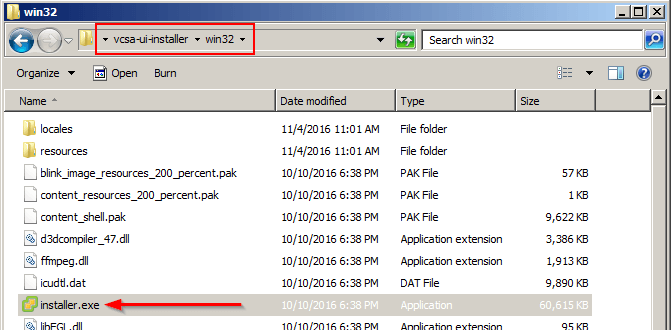
    vcsa installer install
  2. Select Install from the VMware vCenter Server Appliance 6.5 Installer.
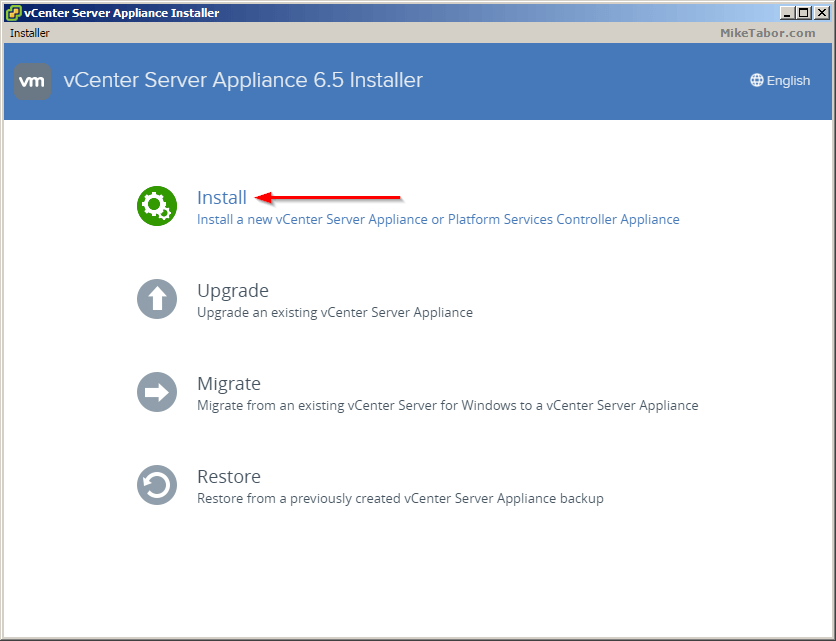
    vcsa 6.5 installer
  3. The introduction shows what I stated above, that the installer is broken up into two stages – deploy and then configure. Click on Next.
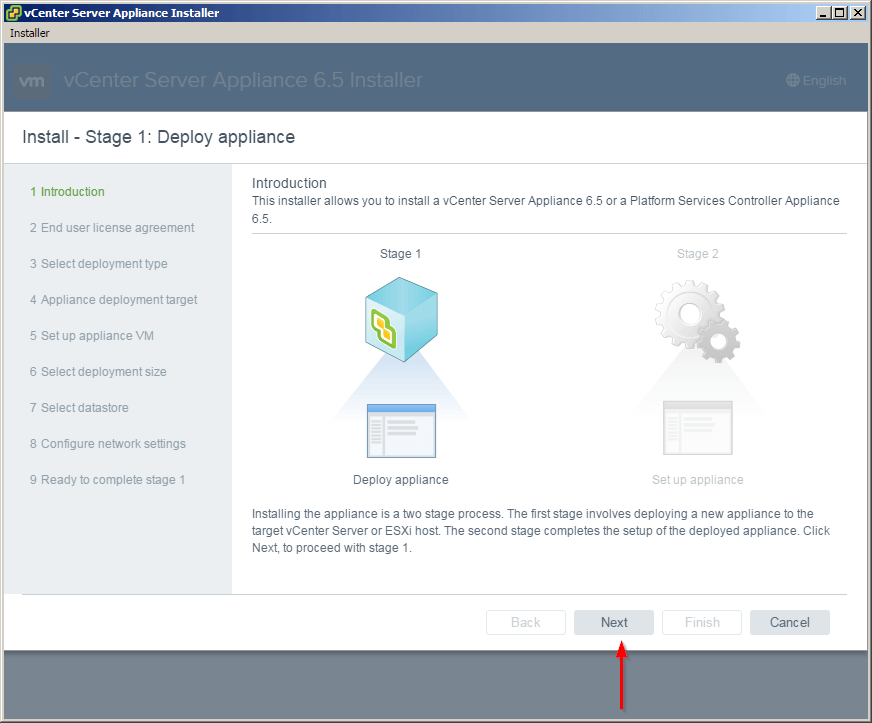
    vcsa 6.5 install introduction
  4. Accept the End User Licence Agreement.
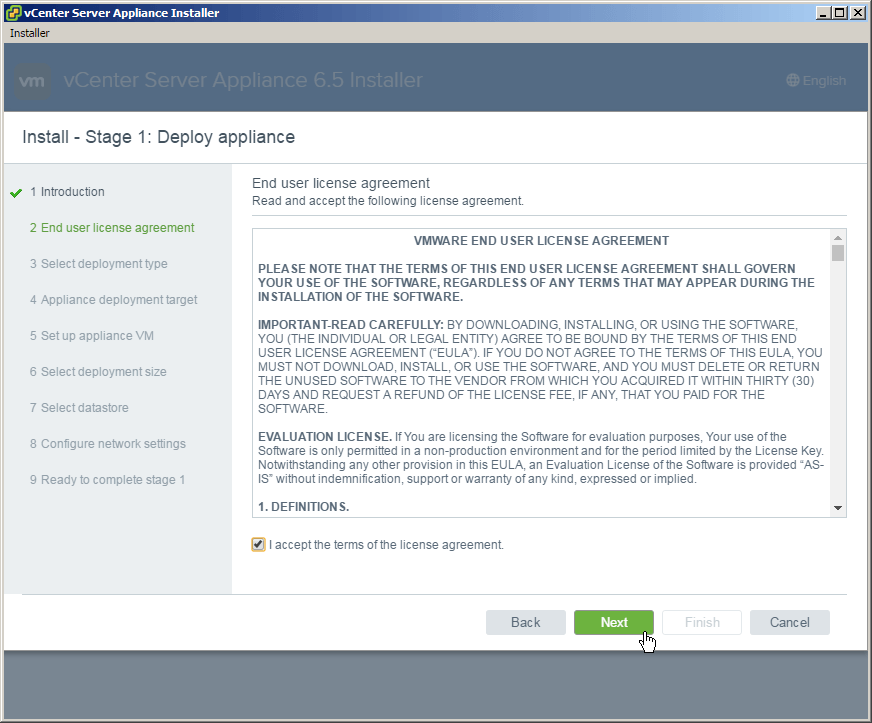
    vcsa 6.5 install eula
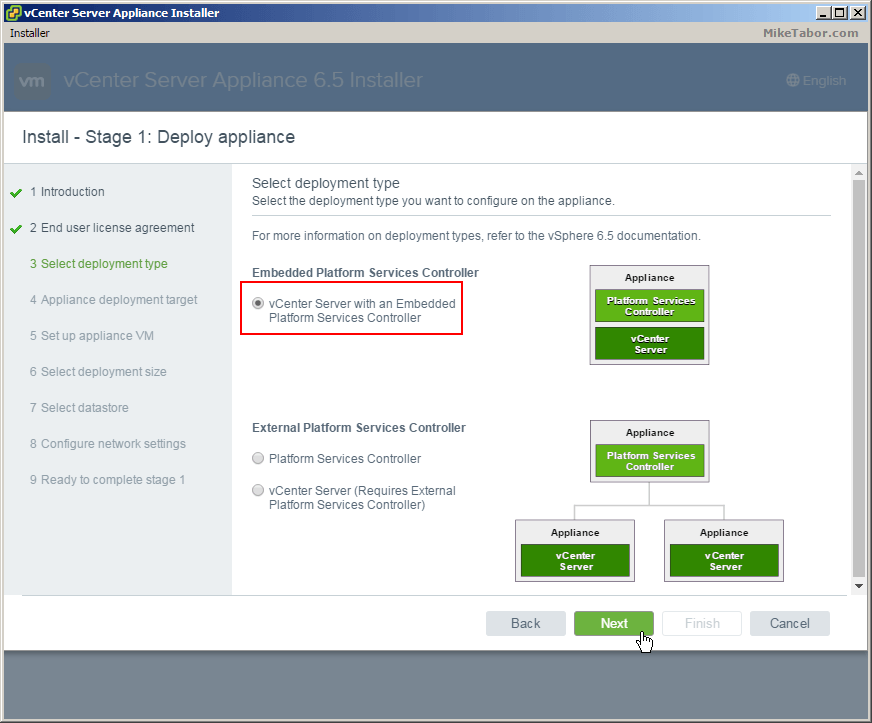
  5. Now you will need to decide to use embedded or an external Platform Services Controller. Since this is my home lab I’ll be selecting embedded. For a production environment I would go with external.
    vcsa 6.5 install deployment type
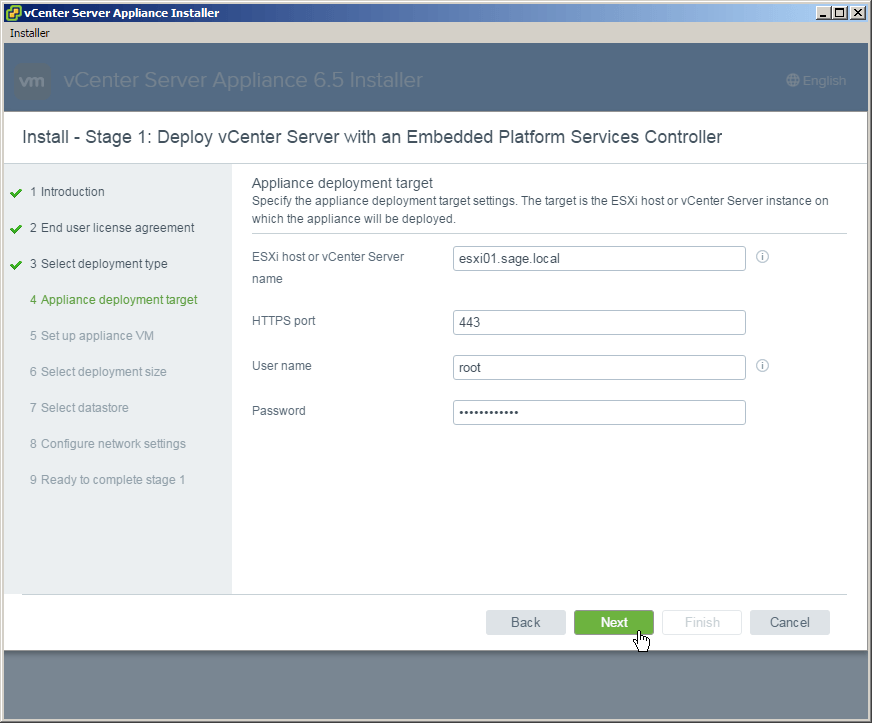
  6. Now enter the ESXi host where you want to have the VCSA deployed and enter your host credentials.
    vcsa 6.5 install appliance deployment
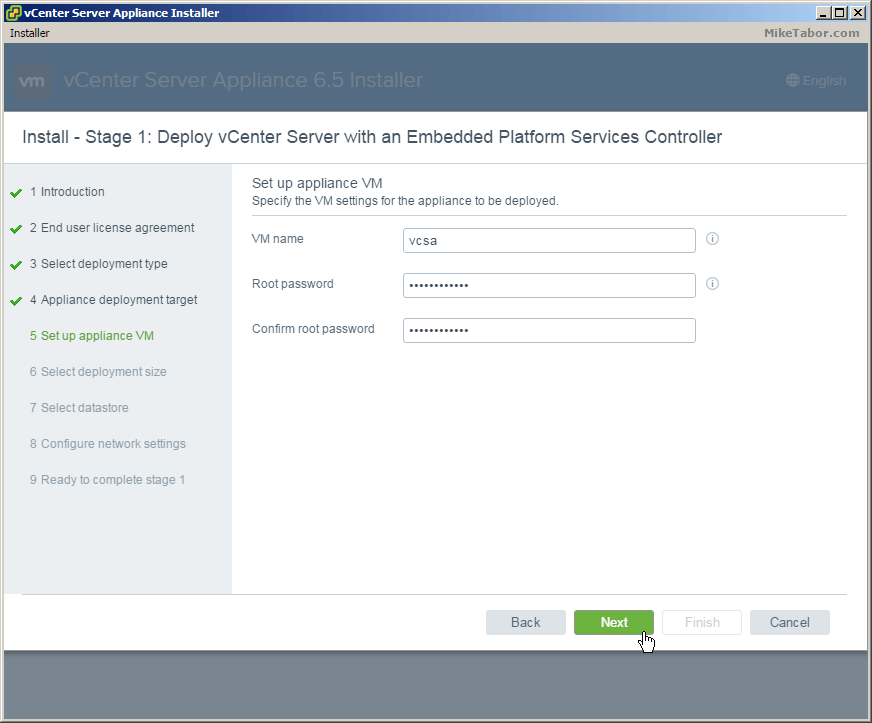
  7. Enter the name you would like for the appliance VM to be called as well as set a root password.
    vcsa 6.5 install set appliance-vm
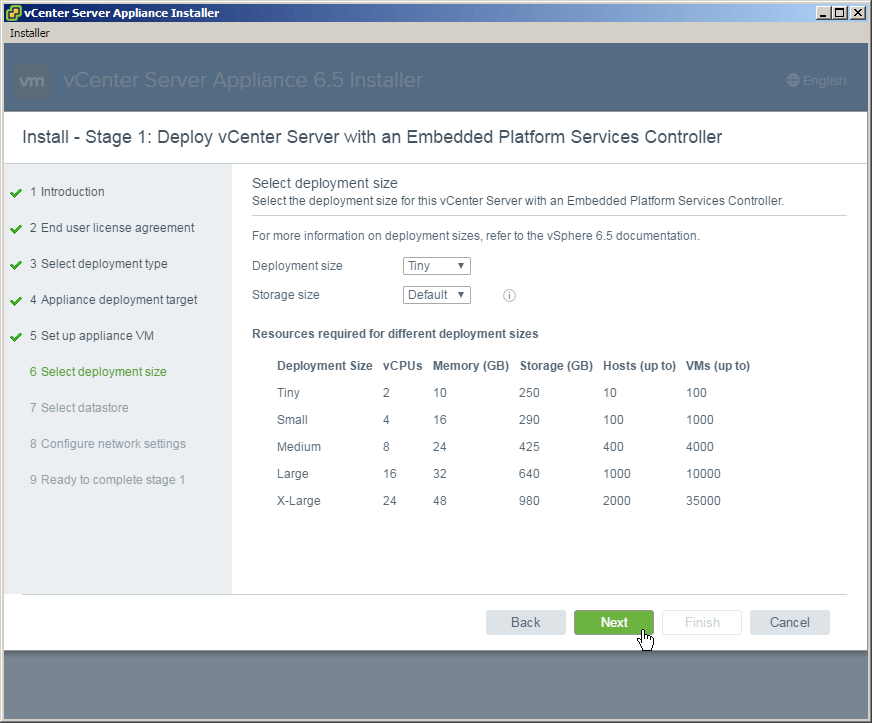
  8. Select the deployment size that best matches your environment. For my home lab I’m selecting Tiny.
    vcsa 6.5 install deployment size
  9. Select what datastore you want the VCSA appliance to be stored.
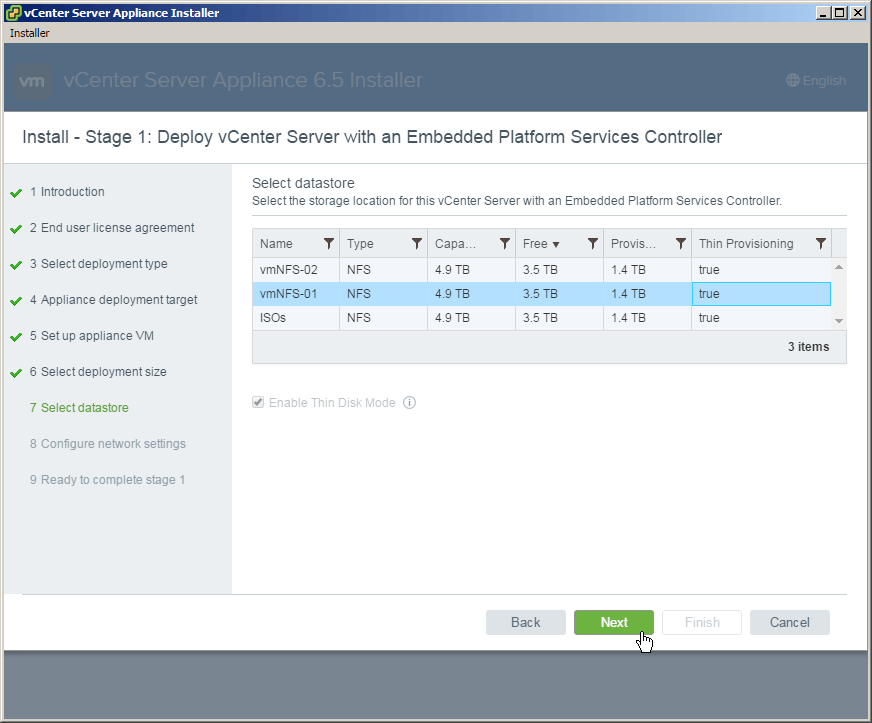
    vcsa 6.5 install select datastore
  10. Now configure the networking the VCSA appliance should use. It’s important to note that DNS for the IP used should both forward and reverse resolve else you will run into errors.
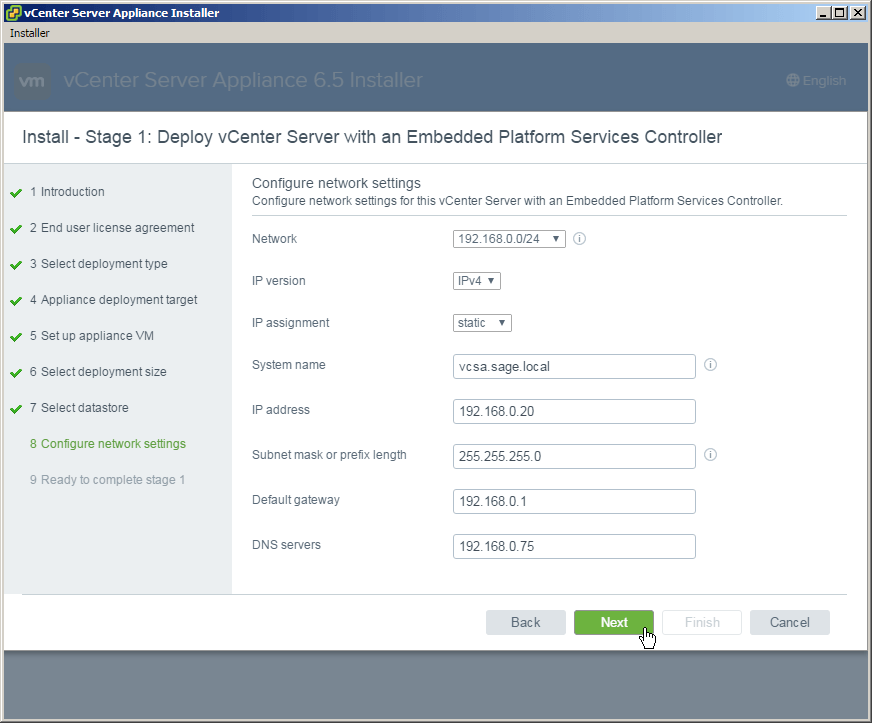
    vcsa 6.5 install network settings
  11. The final step of the vCenter Server Appliance 6.5 deployment process is to review the summary and click on Finish.
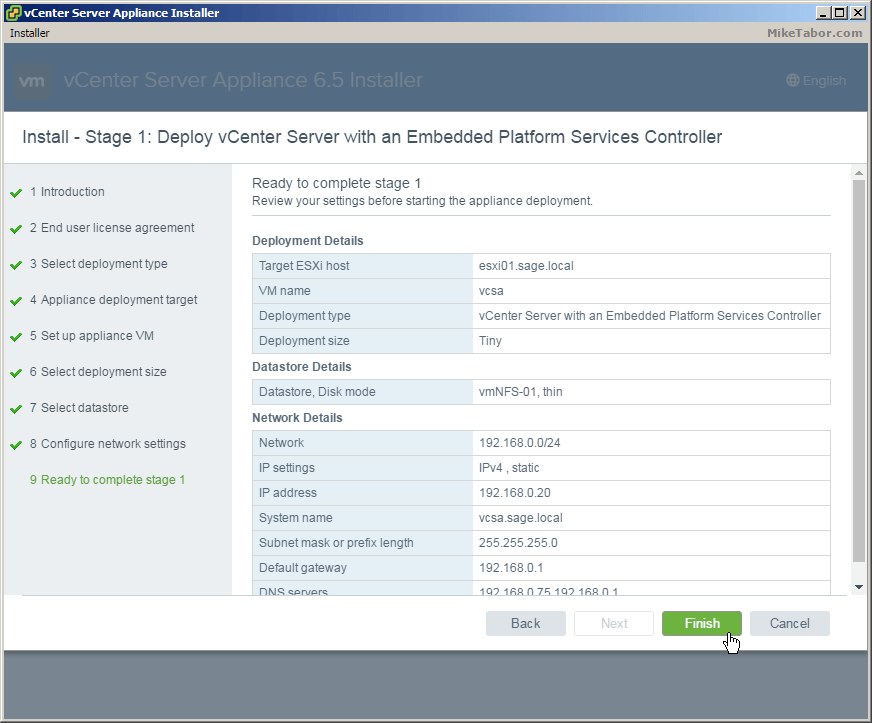
    vcsa 6.5 install complete stage1
  12. Once completed you will have the option to continue onto Stage 2 or close. If you close then you can finish the VCSA config by going to https://<VCENTER_IP>:5480
    vcsa 6.5 install deploying stage 1 complete

Stage 2 – Configuring VCSA 6.5

  1. After clicking Continue from Stage 1 you will be taken to the Stage 2 introduction page, click Next.
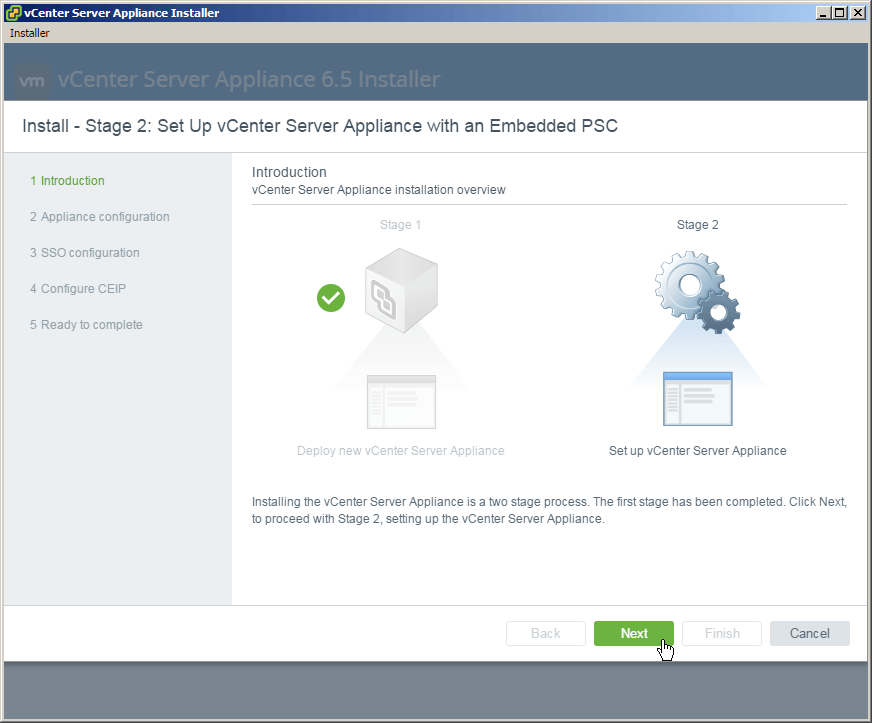
    vcsa 6.5 stage2 intro
  2. First option to configure of the VCSA is Time synchronization. You can either sync with the ESXi host or user defined NTP servers as well as enable or disable SSH.
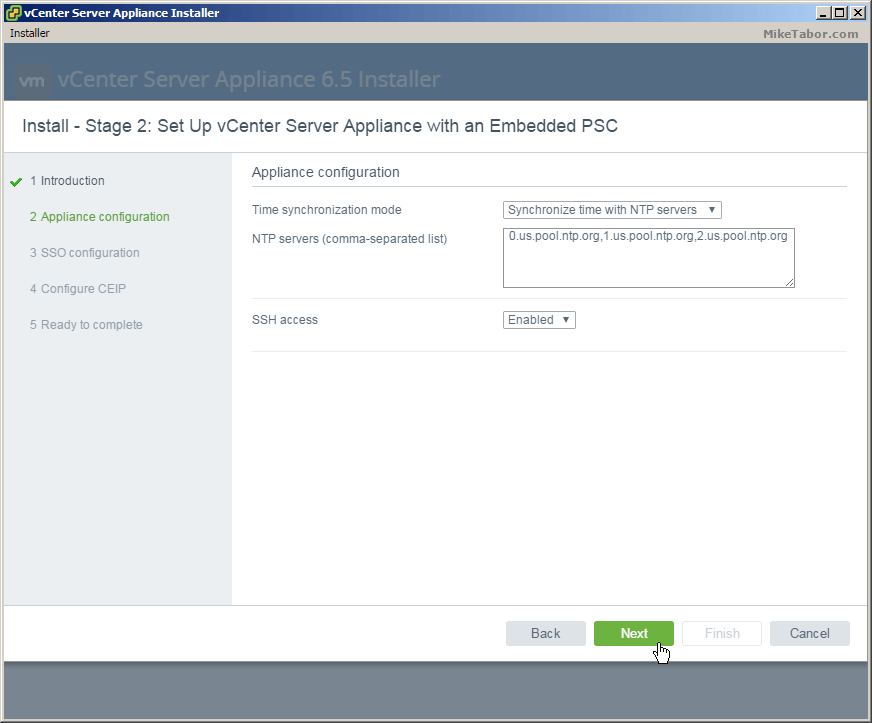
    vcsa 6.5 stage2 appliance config
  3. Next configure Single Sign On (SSO) by giving it a domain name, password and site name.
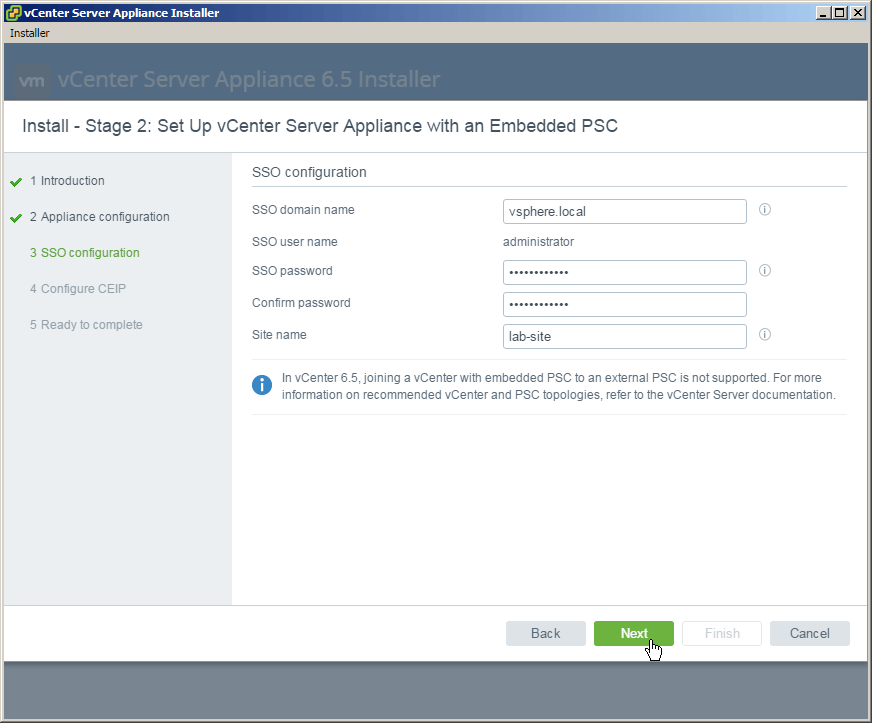
    vcsa 6.5 stage2 sso config
  4. Now decide if you’d like to join the Customer Experience Improvement Program (CEIP) and click Next.
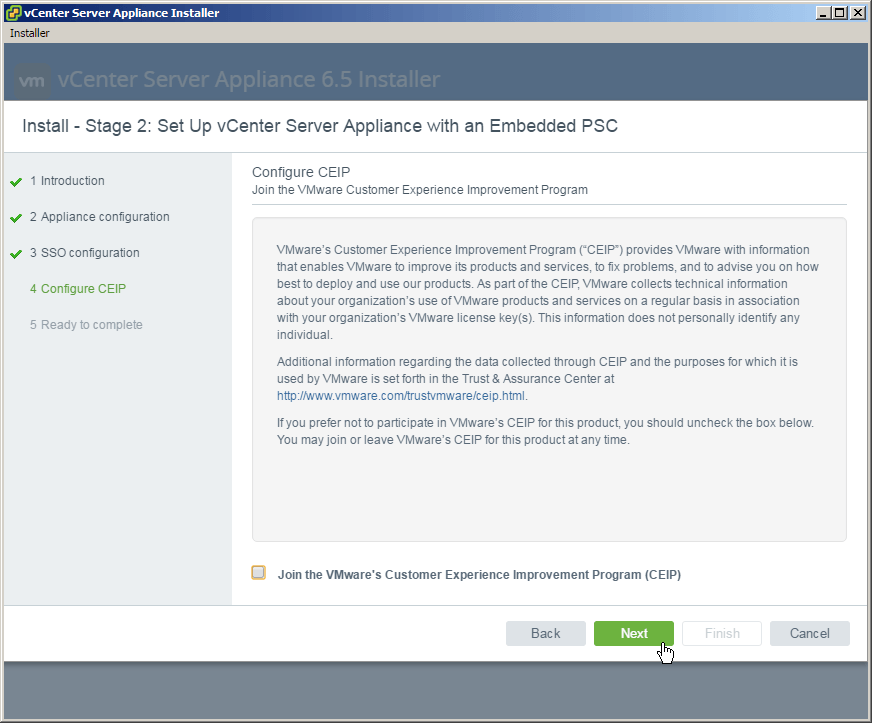
    vcsa 6.5 stage2 ceip
  5. Again review the summary and click Finish.
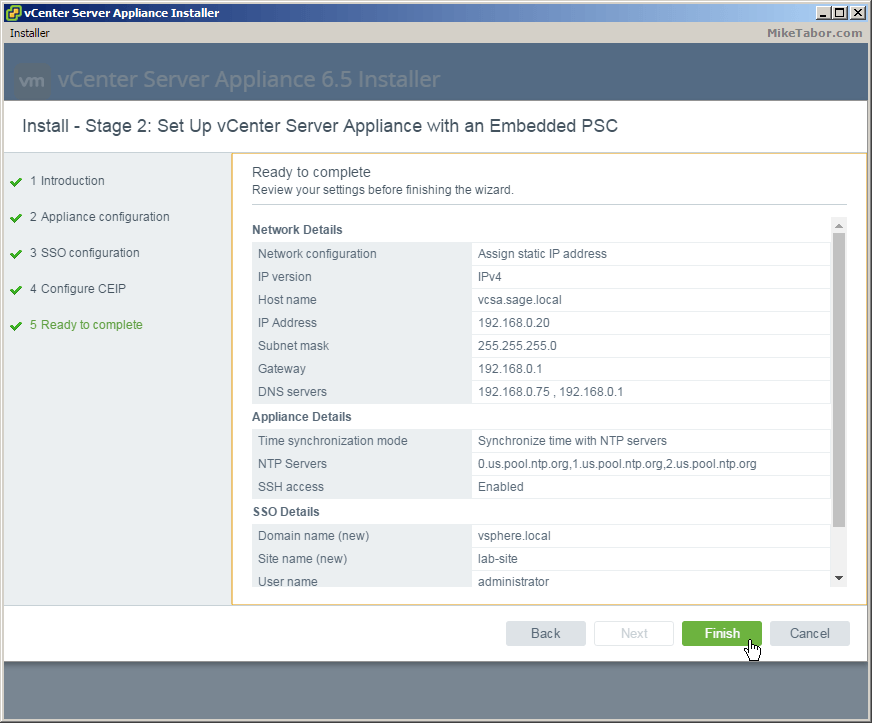
    vcsa 6.5 stage2 ready complete

After the Stage 2 has completed you can then log into the vCenter web client, https://<VCENTER_IP>/vsphere-client (Flash – YUCK!) or the HTML5 client, https://<VCENTER_IP>/ui which currently only offers partial functionality. The vSphere thick client is gone in vSphere 6.5.

If you want more details about vSphere 6.5 check out the VMware vSphere 6.5 release notes here.
Similar Posts

  • VMware vCenter 5.0 Update 1a released

    VMware vCenter 5.0 Update 1a has just been released and is the first major update since version 5.0.

    The main improvements being:

    • vCenter Server 5.0 Update 1a introduces support for the following vCenter Databases
      • Oracle 11g Enterprise Edition, Standard Edition, Standard ONE Edition Release 2 [11.2.0.3] – 64 bit
      • Oracle 11g Enterprise Edition, Standard Edition, Standard ONE Edition Release 2 [11.2.0.3] – 32 bit
    • vCenter Server Appliance Database Support: The DB2 express embedded database provided with the vCenter Server Appliance has been replaced with VMware vPostgres database. This decreases the appliance footprint and reduces the time to deploy vCenter Server further.

    Read More “VMware vCenter 5.0 Update 1a released”

  • VMware’s Dual Persona smartphones now available at Verizon Wireless

    VMware Ready for Verizon

    VMware has announced that the Android running LG Intuition and Motorola Razr M can now both be purchased with VMWare Horizon Mobile software. The VMWare Horizon Mobile software separates the devices into isolated partitions that allow users to keep their work applications and data separate from their personal applications and data.

    Today, VMware and Verizon Wireless announced that the Android-based LG Intuition and Motorola Razr M can now be purchased with VMware’s Horizon Mobile software, which separates the device into isolated partitions that keep a user’s work applications and data separate from personal stuff. Licenses to Horizon Mobile start at $125 per user and can be purchased through local resellers of VMware and Verizon Wireless.

    Read More “VMware’s Dual Persona smartphones now available at Verizon Wireless”

  • How to upgrade vCenter Server Appliance from 5.x to 6.0

    VMware vSphere 6.0 has finally been released as GA on March 12th and with it out of beta I hope to post several “how-to” posts, this being the first on how to upgrade your vCenter Server Appliance from 5.1/5.5 to vCSA 6.0. So lets get started…

    Prerequisites:

    • vCSA 6.0 ISO downloaded and mounted or burned to disc.
    • Installed Client Integration Plugin (located in the vcsa folder on the ISO).

    Read More “How to upgrade vCenter Server Appliance from 5.x to 6.0”

  • Fix VMware VCSA /storage/log filesystem out of disk space

    This morning I ran into an issue where users were reporting the production VCSA 6.0 was not allowing them to connect into the web or thick client. Another administrator rebooted the VCSA which seemed to work only briefly. I then logged into the VCSA web management (https://<VCENTER_IP>:5480) and noticed the following health status right away:

    The /storage/log filesystem is out of disk space or inodes

    vcsa /storage/log full

    Read More “Fix VMware VCSA /storage/log filesystem out of disk space”

  • VMware View client now availabe for Android!

    VMware has announced that they have released a View Client for Android tablets available on the Android Market now. Here are just a few of the features found on the new client.

    • A new look and feel – The View Client for Android features the NEW blue look and feel of the VMware View clients!
    • Multiple broker support – If you have more than one VMware View broker in your organization, you can can easily access your desktop from all of them via the Android client
    • Desktop Shortcuts – Quickly connect with as many as four recent desktop via shortcuts
    • Virtual trackpad – Control your desktop on a granular level just like you would control the mouse on a laptop
    • Custom keyboard toolbar – Super easy access to all of the special keys not found on the Android default keynboard
    • Honeycomb 3.x support – Made from the ground up for the new generation of Android tablets
    • Custom gestures – Invoke keyboard, scrolling, etc are as easy as ever and simple to use
    • VMware View Security Server support (best experience) – No need to have VPN when you use VMware View Security Server
    • Background tasking – Switch between apps on your tablet and come right back
  • How to upgrade vCenter server appliance

    Prior to VMware vCenter Server Appliance 6.x, upgrading or patching vCSA was as simple as a few button clicks in the appliance UI. Gone are those days, as VMware has replaced the appliance UI with a DCUI and the web based install wizard during setup.

    The good news is, upgrading or patching the vCSA 6.x is still pretty simple via the command line!

    Read More “How to upgrade vCenter server appliance”

Leave a Reply

Your email address will not be published. Required fields are marked *

2 Comments

  1. Hello Mike. I need help downloading the vCenter Server Appliance 6.5. I tried from all the links you provided but they kept only allowing me to download the Windows vCenter Server version.

  2. Great job – very informative and helpful. Setup in no time. For the download, choose “vSphere Server” in your my.vmware.com login pages and download the appliance ISO file (about 3.3 GB).