How to update VMware ESXi 6.5 to 6.5 Update 1

With the release of VMware vCenter 6.5 Update 1 also comes VMware ESXi 6.5 Update 1 and just like vCenter there are a number of changes, updates, and fixes for ESXi as well in 6.5 Update 1 – you can see the release notes here.

Yesterday I made a post on how to upgrade VMware VCSA 6.5 to 6.5 Update 1. Below I’ll show you three ways to upgrade your ESXi hosts to 6.5 Update 1.

How to update ESXi 6.5 to 6.5 Update 1 via command line

If you’ve only have a couple ESXi hosts to upgrade, then using the command line method is a fast and easy way of doing so.

  1. Place the host you are upgrading into Maintenance Mode.
  2. Then SSH into the host using PuTTY (or any other SSH client/terminal).
  3. Type the following command to open the firewall for outgoing HTTP requests:
    esxcli network firewall ruleset set -e true -r httpClient
  4. Type the following command to download and upgrade to ESXi 6.5 U1
    esxcli software profile update -d https://hostupdate.vmware.com/software/VUM/PRODUCTION/main/vmw-depot-index.xml -p ESXi-6.5.0-20170702001-standard
  5. After the update has finished disable the HTTP firewall rule by typing:
    esxcli network firewall ruleset set -e false -r httpClient
  6. And finally, reboot the ESXi host to complete the upgrade.
    reboot
  7. Doesn’t hurt to also disable SSH when you’re done for security purposes.

How to update ESXi 6.5 to 6.5 Update 1 using an Offline Bundle

Using the offline bundle works similar in the way of the command line but saves you from having to download the upgrade bits for each VMware ESXi host. Great when you have more than just a couple hosts or limited bandwidth.

  1. Download the ESXi 6.5 Update 1 offline bundle zip file.
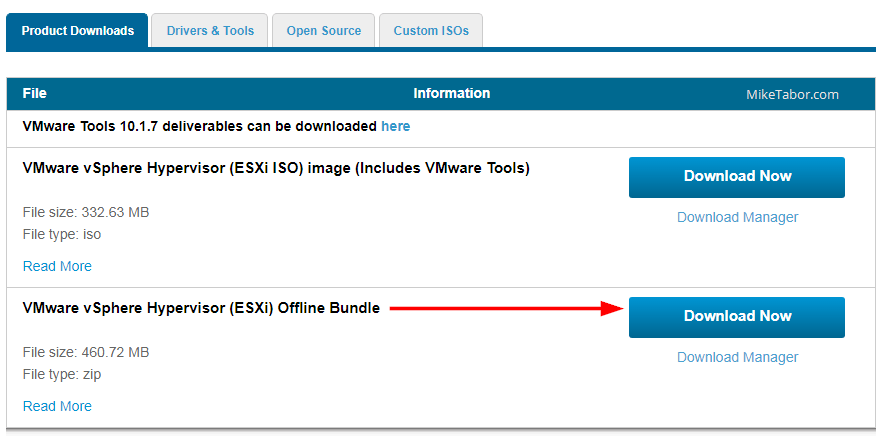
    ESXi 6.5 Update 1 offline bundle update
  2. Upload the update-from-esxi6.5-6.5_update01.zip file to a datastore accessible by the host.
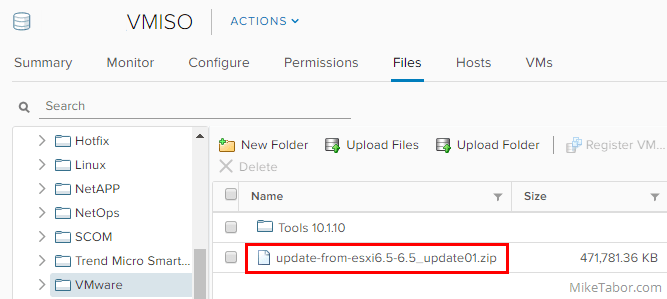
    ESXi 6.5 Update 1 datastore browser
  3. Now place the host you want to upgrade into Maintenance Mode.
  4. SSH into your host using PuTTY or other client/terminal.
  5. Type the following command, replace “DATASTORE” with the name of your datastore you uploaded the update-from-esxi6.5-6.5_update01.zip file to.
    esxcli software vib update -d /vmfs/volumes/DATASTORE/update-from-esxi6.5-6.5_update01.zip
  6. Once the above completes reboot your host by typing:
    reboot

How to upgrade ESXi 6.5 to 6.5 Update 1 with VMware Update Manager

If you have many ESXi hosts to upgrade and/or in an enterprise environment then using VMware Update Manager is probably the best way to upgrade your hosts.

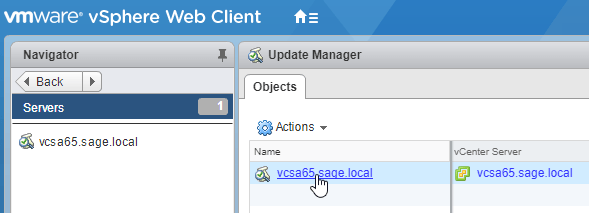
  1. Log into the vSphere web client and click on Update Manager.
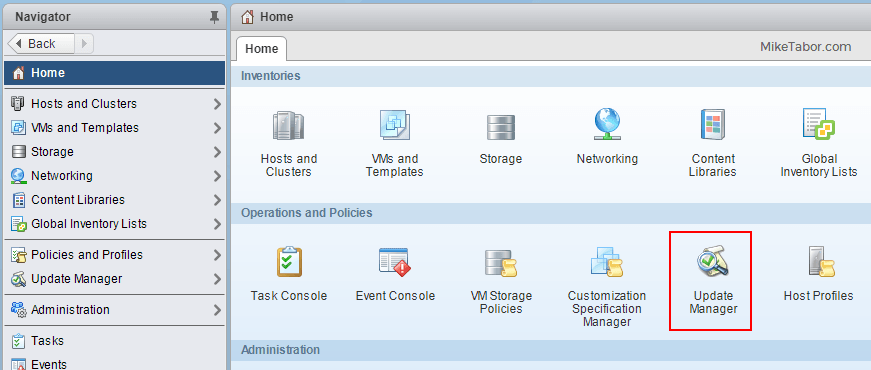
    VMware Update Manager
  2. Select the associated vCenter.
    Update Manager select vCenter
  3. Click on the Manage tab (A), then ESXi Images (B), click on Import ESXi image (C), and then browse (D) to where the download location of the ESXi 6.5 Update 1 ISO image.
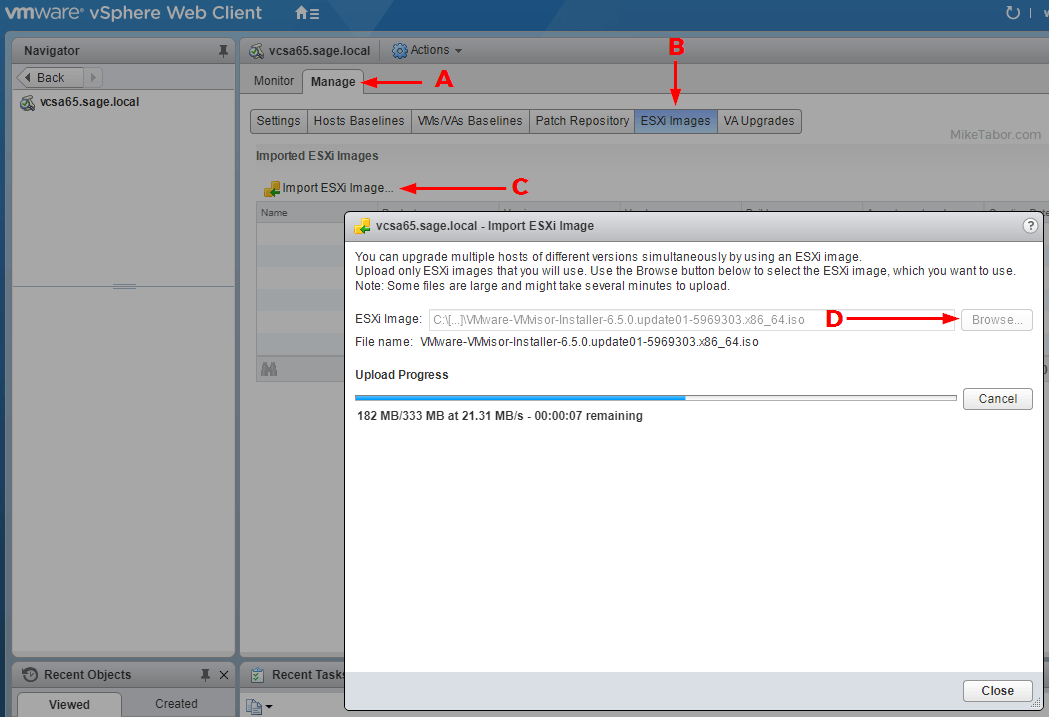
    VMware Update Manager import ESXi image
  4. Once the ISO finishes uploading, select the image and click on Create baseline.
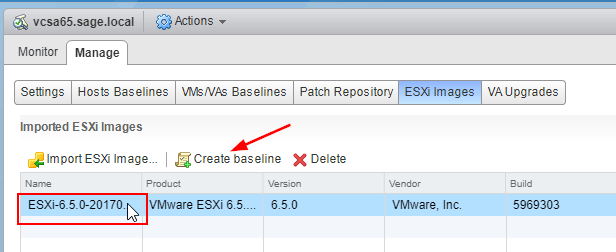
    Update Manager create baseline
  5. Give the new baseline a name then click on Ok.
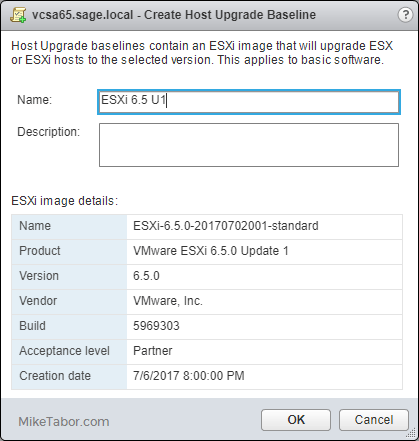
    Update Manager create host baseline
  6. Now we need to attach the new baseline to either a host, cluster or datacenter. In this case I’m attaching it to my cluster. Select your cluster, then the Update Manager tab and click on Attach Baseline…
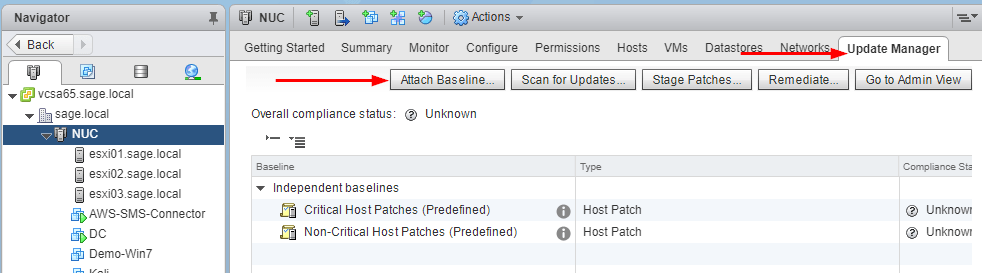
    Update Manager host view attach baseline
  7. Check the box next to the newly created baseline and click on OK.
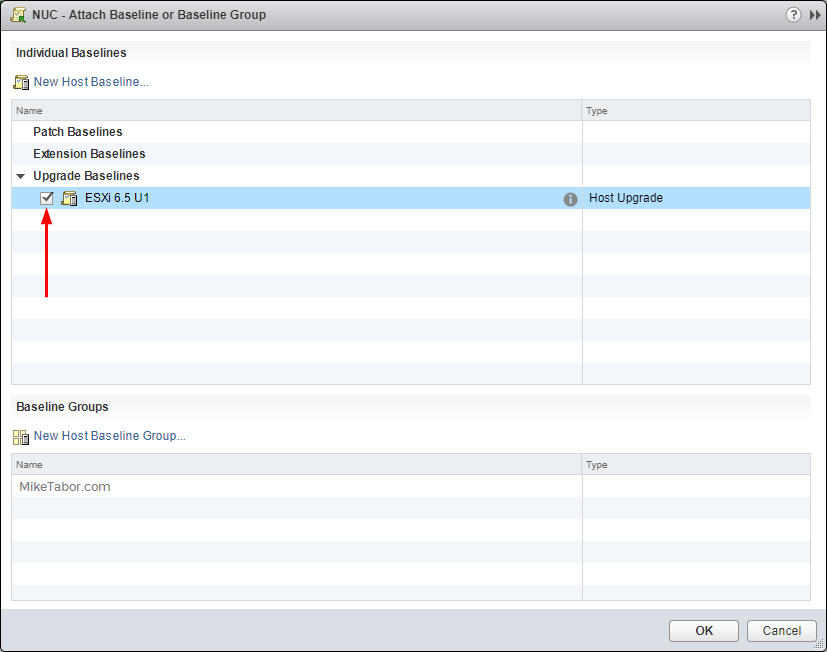
    Update Manager attach host baseline selection
  8. Next click on Scan for Updates… and check Upgrades and click on OK.
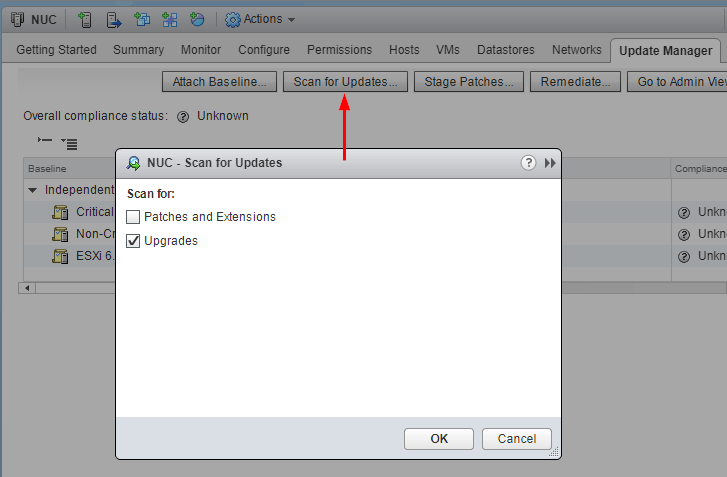
    Update Manager scan for updates
  9. Once the scan finishes, click on Remediate…
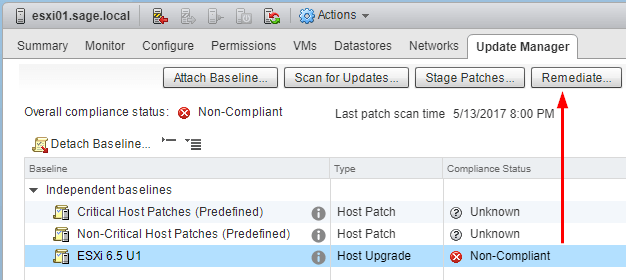
    Update Manager remediate
  10. Select Upgrade Baselines and your custom baseline and click on Next.
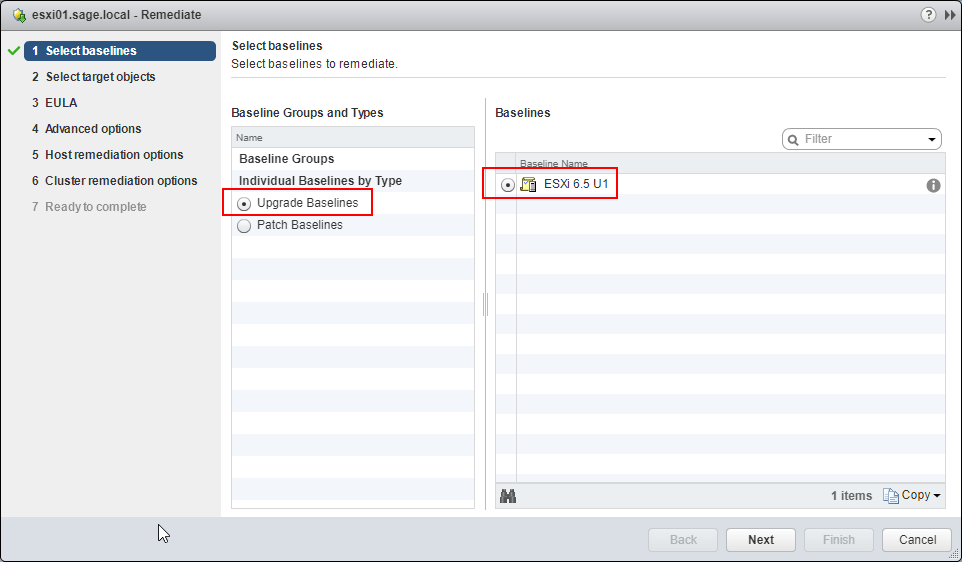
    Update Manager select baseline remediate
  11. Now select the host or hosts you want to have VMware Update Manager to update and click on Next.
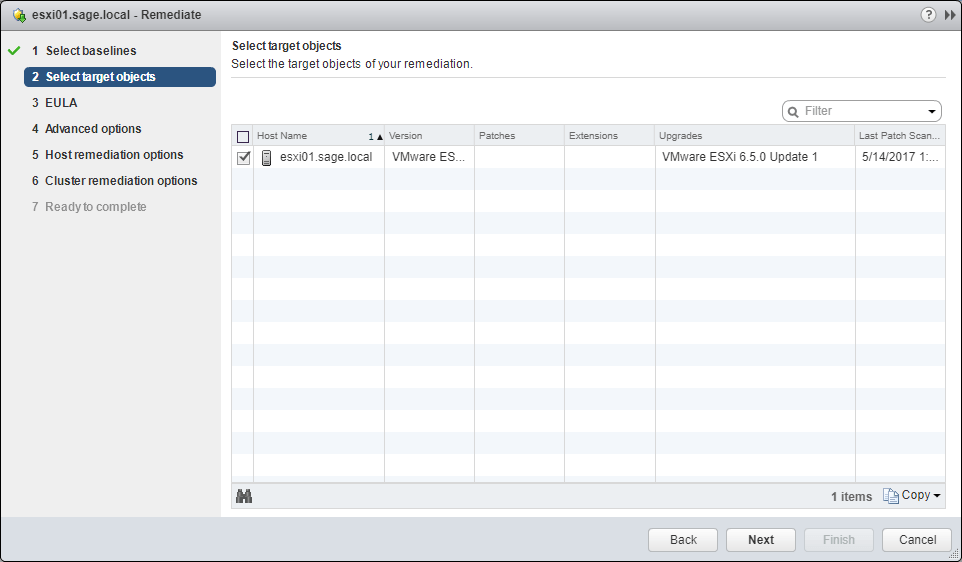
    Update Manager select targets
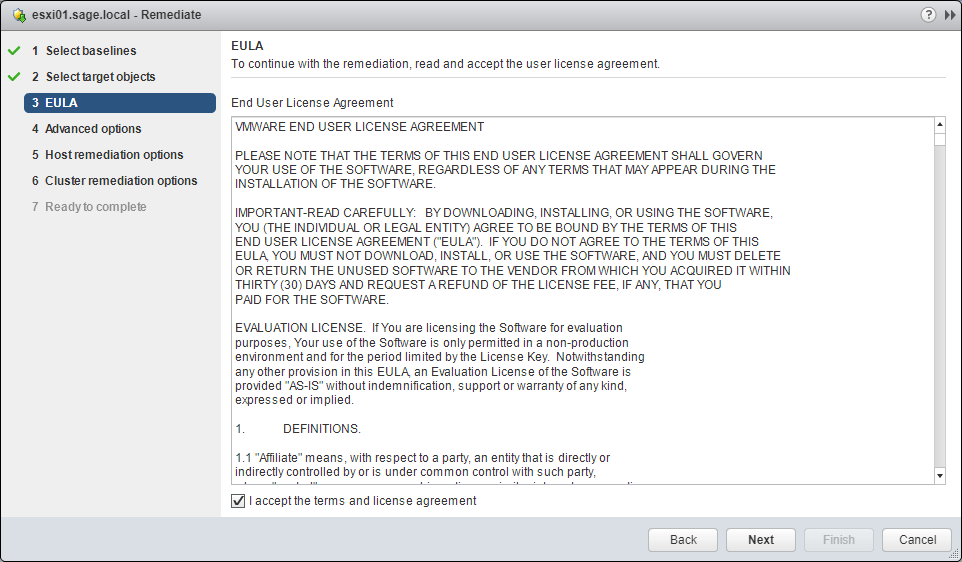
  12. Accept the EULA.
    Update Manager accept EULA
  13. The advanced options allow you to schedule the upgrade. In this case I’ll leave it unchecked to apply the update now.
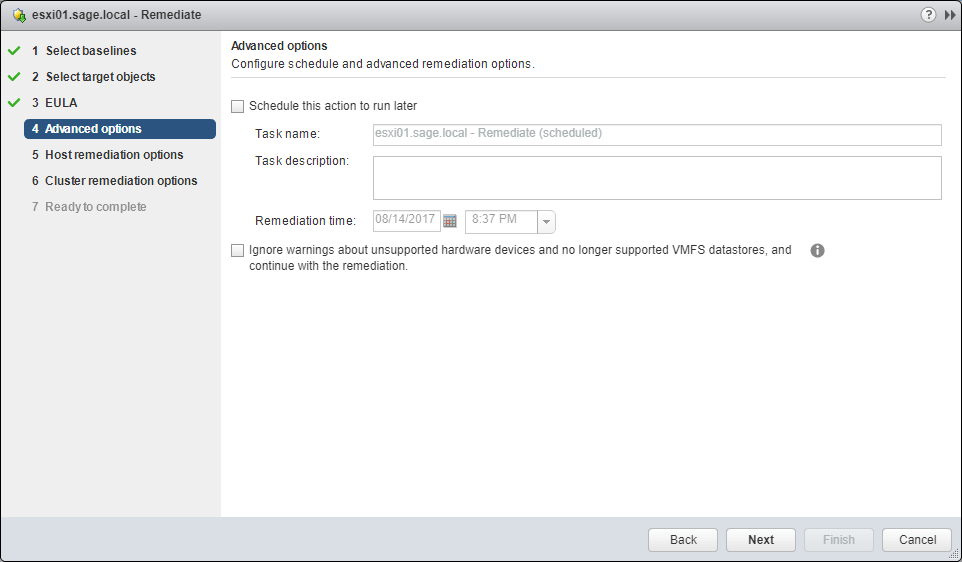
    Update Manager select schedule
  14. Set your host remediation options and click Next.
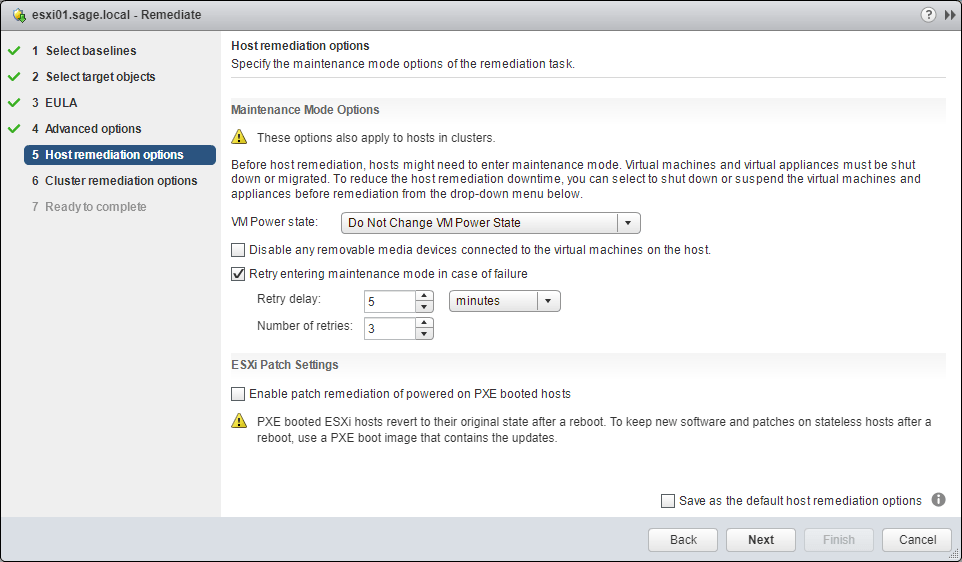
    Update Manager set host options
  15. Set cluster remediation options then click on Next.
    Update Manager set remediation options
  16. Finally, review the wizard and click on Finish.
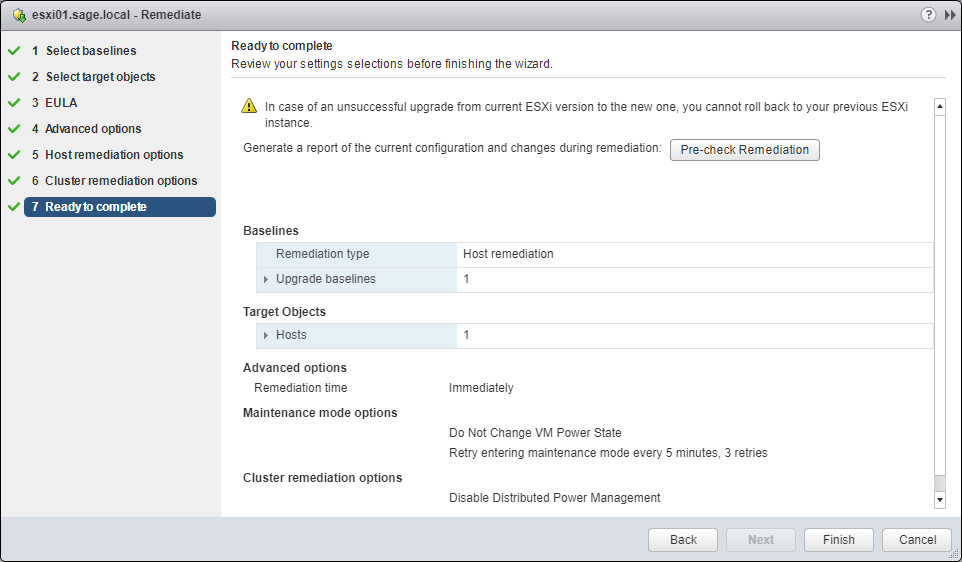
    Update Manager review and finish

At this point vCenter will migrate the VM’s on the host to another host (pending DRS is enabled on the cluster), place the host in maintenance mode automatically then upgrade the host, reboot it and then take it out of maintenance mode. If you’ve selected multiple host targets, it will then do the same to the next ESXI host after the first host is completed.
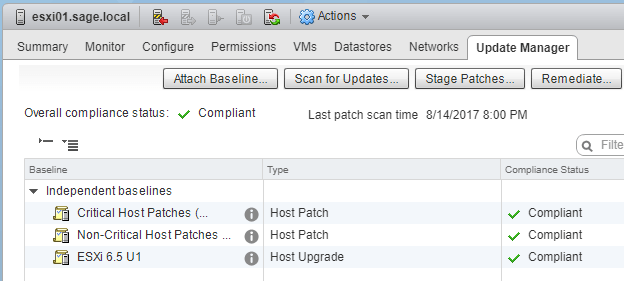

Update Manager host compliant

Similar Posts

  • Microsoft’s Convenience Update breaks VMware VMXNet3 vNICs

    Microsoft recently pushed out a “Convenience Update“, a sort of rollup of rollups for Windows Server 2008 R2 SP1 and Windows 7 machines. This “Convenience Update” however comes with an incompatibility issue with VMware virtual machines that are using VMXNet3 network adapters, which causes the network to become unresponsive.

    Read More “Microsoft’s Convenience Update breaks VMware VMXNet3 vNICs”

  • VMware View client now availabe for Android!

    VMware has announced that they have released a View Client for Android tablets available on the Android Market now. Here are just a few of the features found on the new client.

    • A new look and feel – The View Client for Android features the NEW blue look and feel of the VMware View clients!
    • Multiple broker support – If you have more than one VMware View broker in your organization, you can can easily access your desktop from all of them via the Android client
    • Desktop Shortcuts – Quickly connect with as many as four recent desktop via shortcuts
    • Virtual trackpad – Control your desktop on a granular level just like you would control the mouse on a laptop
    • Custom keyboard toolbar – Super easy access to all of the special keys not found on the Android default keynboard
    • Honeycomb 3.x support – Made from the ground up for the new generation of Android tablets
    • Custom gestures – Invoke keyboard, scrolling, etc are as easy as ever and simple to use
    • VMware View Security Server support (best experience) – No need to have VPN when you use VMware View Security Server
    • Background tasking – Switch between apps on your tablet and come right back
  • Improve Linux VM IO performance by disabling IO Scheduler

    For a little while now we’ve been seeing RedHat Linux virtual machines performing poorly. Tasks would take considerably longer on the Linux VM’s then other Windows VM’s. After digging around I eventually found that RedHat has it’s own IO scheduler that runs in the background. On a physical box this wouldn’t be a big deal, but as a virtual machine everything is already being processed by VMware hypervisor. The fix, disable the IO Scheduler!

    Read More “Improve Linux VM IO performance by disabling IO Scheduler”

  • VMware ESXi 5 fails to install on Intel NUC, “No Network Adapters” error

    If you use the VMware ESXi 5 ISO image and try to install it on an Intel NUC you’ll receive the following error during the install.

    No Network Adapters

    No network adapters were detected. Either no network adapters are physically connected to the system, or a suitable driver could not be located. A third party driver my be required.

    Ensure that there is at least one network adapter physically connected to the system before attempting installation. If the problem persists, consult the VMware Knowledge Base.

    The “No Network Adapters” on the Intel NUC error message during the ESXi install is because VMware removed a number of drivers (non-enterprise drivers) from their ESXi 5.x image and in order to use the Intel NUC as an ESXi host you need to create a customized ESXi image with the NIC drivers added to the image.

    Read More “VMware ESXi 5 fails to install on Intel NUC, “No Network Adapters” error”

  • VMware ESXi 6.0 CBT bug fix released

    VMware

    You may remember ESXi 4.x-5.x had a CBT bug, as mentioned here, that could potentially cause your backups to be pretty useless. Well it seems ESXi 6.0 isn’t without it’s own CBT bug which could cause the following to possibly occur:

    • Backing up a VM with CBT enabled fails.
    • Powering on virtual machines fails.
    • Expanding the size of a virtual disk fails.
    • Taking VM quiesced snapshots fails.

    Prior to the fix, the workaround was to disable CBT. Thankfully VMware has released a fix for the ESXi 6.0 CBT bug and it’s recommended that anyone who uses CBT apply this patch regardless if it was a clean install of VMware ESXi 6.0 or an upgrade to ESXi 6.0.

    Read More “VMware ESXi 6.0 CBT bug fix released”

  • VMware VCP5-DCV Delta Re-certification Exam

    VMware VCP DCV

    Looking to renew your VCP before the March 10th 2015 expiration date? Then the new VMware VCP5-DCV Delta (Exam Code VCP550D) is a cheaper way to renew your VCP without taking the full on exam or not just ready to tackle the VCAP. The new exam covers new material between the vSphere 5.0/5.1 and vSphere 5.5 exams – looking the the blueprints, most noticeably VSAN.

    While you still have to schedule the exam through Pearson VUE, you don’t have to take the course at a testing center and instead can take it online from any device!

    Read More “VMware VCP5-DCV Delta Re-certification Exam”

Leave a Reply to Tekena Orugbani Cancel reply

Your email address will not be published. Required fields are marked *

4 Comments

  1. Hi, which command i’ve to use to upgrade to latest build 6765664 using the path file ESXi650-201710001.zip uploaded on my datastore ?
    Thanks for help.. :)