Restore a VM using the {vm}-flat.vmdk file
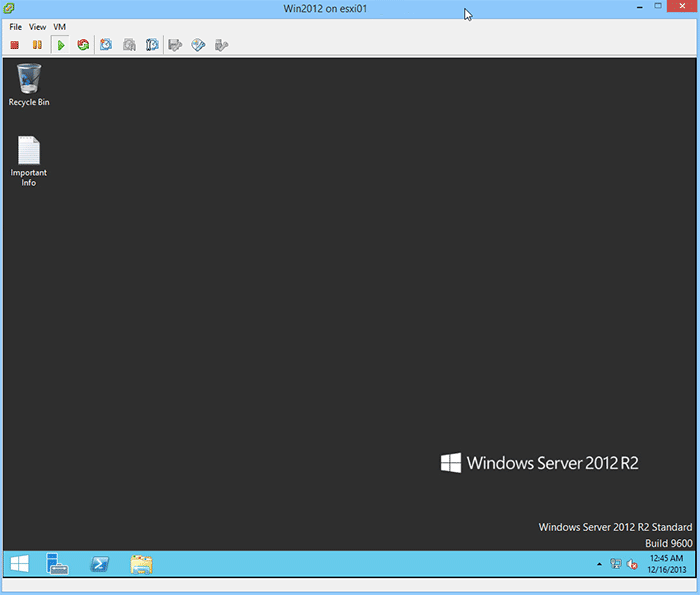
A couple days ago I was asked the question “An admin deleted the vmdk file associated with a VM, there are no snapshots or backups of the VM . Can we restore this VM somehow?“. I believe in backups, I like to have my VM’s backed up so that I can depend on them for events just like this very issue. At first I was stumped, until the {vm-name}.flat.vmdk was mentioned. That’s when I remembered a method to recover a VM using the vm-flat.vmdk file that I had actually done 2-3 years ago.
Example preparation
For this example I’ve created a Server 2012 virtual machine (called Win2012) and placed a text file on the desktop called “Important Info”. I then deleted all the files associated with that VM with the exception of the Win2012-flat.vmdk file, as seen in the image at top.
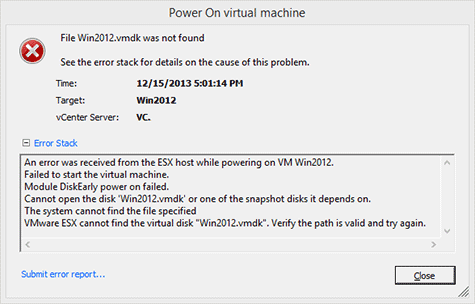
After the files had been deleted I tried to power up the VM knowing it would not and received this error.
Ok, now on to how to restore a VM with a missing .VMDK file.
How to Recover a VM using a vm-flat.vmdk file
- I created a new VM called Recovery with the same specs as my Win2012 server (2vCPU, 4GB RAM, 40GB HHD).
- Enable SSH on the host and logged in via PuTTy (or WinSCP) and verified the contents of Win2012 folder:
cd /vmfs/volumes/vmNFS02/Win2012/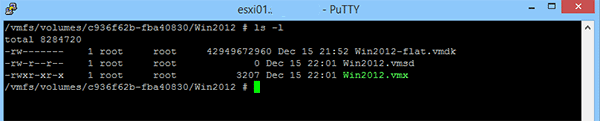
- Then navigate to the Recovery VM folder.
cd ../Recovery/ - Rename the original Recovery-flat.vmdk file to Recovery-flat.vmdk.bak
mv Recovery-flat.vmdk Recovery-flat.vmdk.bak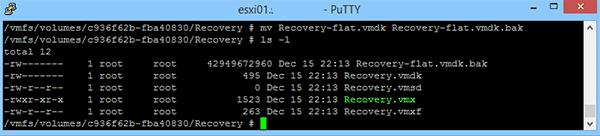
- Now just copy the Win2012-flat.vmdk file from the Win2012 folder over to the Recovery folder (Note: This step could take several minutes):
cp /vmfs/volumes/vmNFS02/Win2012/Win2012-flat.vmdk Recovery-flat.vmdk
- Finally, power up the new Recovery VM and your old VM (Win2012) should be back online good as new!
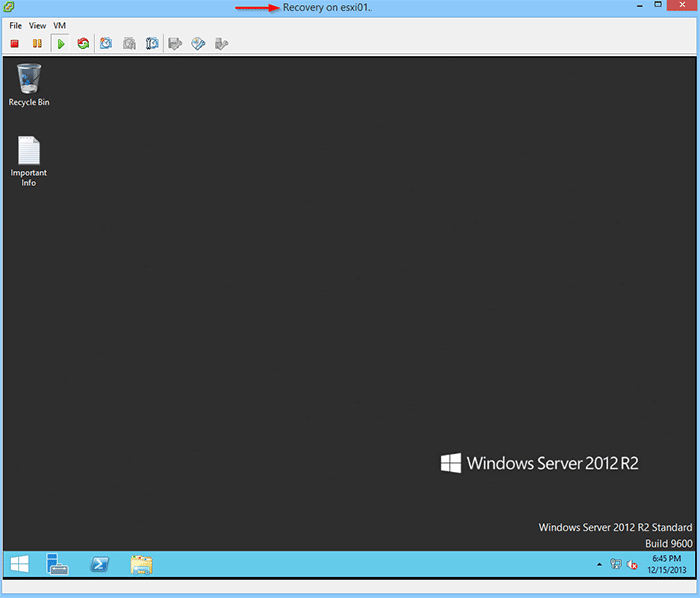
- You can also go back and delete the Recovery-flat.vmdk.bak file as it won’t be needed.
So even though restoring a VM from a -flat.vmdk file is pretty easy it isn’t my recommended method, you’re far better protected with good, reliable backups, then on hoping that the -flat.vmdk file is still laying around somewhere.


nice how to article….
Thank you!
Hi,
Thanks for the above post :)
I’m try your post in my home lab but I’m facing the below
issue . can you please help me to understand the concept .
I have created a new VM called win7 then logged into the ESXi 5.0 via SSH (putty ) I can view the win7-flat.vmdk
file but if I delete the win7.vmdk file I can’t see the win7-flat.vmdk . because
of this I’m not able to perform your post in my lab can you please help me understand
the concept please and please guide me if I’m wrong
viswa,
How are you deleting the .VMDK file? If
removing the VM from disk it will in fact remove all files and folder
associated with the VM. If you’re browsing the VM folder on the
datastore and delete the .VMDK file then the {vm}-flat.vmdk file should
still exist.
Hi Michael,
Thanks for your help :)
How are you deleting the .VMDK file?
Ans : I’m browsing the VM folder in data store and deleted the
win7.vmdk file . after that i’ve checked ssh to ESXi via putty i’m not able to view the both Vmdk and flat.vmdk files
viswa,
Sounds like you’re deleting it from the GUI datastore browser. I deleted the file from SSH. Not sure if that might be the issue or not, but i will try it when I get home this evening on my home lab as well.
If you want to test now you could spin up a new test VM, SSH to the VM folder and delete everything but the {vm}-flat.vmdk file and try the rest of the steps.
Hi Michael,
Let me try everything from SSH and give you an update .
what happens your files, you recoverd the files ?
the above is correct, I did the wrong, any possible do recover ?
Hi i have this problem in real VM , i do these note but my machine isn’t work.
i work with gui datastore browser.plz help me :(
Thank you very must you saved me, after the material virtual update 9 to 10, the DIsk 1 size take 0 MB (usual 50 GB)
In a friday (newer do a action on prod a friday ! -but the deadline – grrrrr)
Imagine I give a virtual Beer ;-) sluurps :)
From France.
Fabcool,
Glad to be of some help. Enjoy your weekend!
This worked like a charm! Thanks a million! This was a life saver. I was able to recover my Lync 2013 Server with no issues using these instructions. Straight forward and clear.
Hector,
Glad to have helped!
-Michael
Hi Mike, do you have an article I can use to get my Datastore (from Synology iSCSI Target) to show up on my VMware host again? I am able to connected successfully and see it mounted but I no longer see the Datastore from Synology showing up on my ESXi Hosts. Thanks!
Hector,
I don’t have an article for mounting iSCSI targets from Synology to VMware but wouldn’t mind creating one. If you’ve already had this configured at one time then it makes me wonder what has changed since? Also have you tried to do a storage rescan?
-Michael
hi mike, iam download vm files from one datastore to another data store, I notice that i click download from datastore on my local drive, file is downloading but file name appears on my local drive is myvm-flat.vmdk, why the flat added in it? how can i send you private message or skype? i want to share my screen shots with you
Life saver. Thank you
Glad to help Chris!
-Michael
Thank you, thank you, thank you
You saved my server, did not have any current backups because it was temporary, but SAP consultants never released it.
Great job and article
Glad to help Antonio!
-Michael
Thanks man! You saved my day!
thank you very much. It works for me!
You are welcome. Glad to help.
-Michael
How do you find the location of the VM to type it in the “cd /vmfs/volumes/vmNFS02/Win2012” command?
I am pretty new at this and somehow my vm server had a “bootstrap device not found” error, things got complicated from there — I tried recreating the VM and using the disks of the bad VM, but that gave me another error (bootmgr not found) and even then after using chkdsk tools it went worse.
I do have the flat.vmdk file for the original VM but nothing else – it seems it is the right size.
I am not sure how to find the location of that to type in the above command. PLEASE, help!
Thanks a lot.
Thank you so much for help !!
You’re most welcome. Glad to help.
-Michael
Thank you a lot for helpful article!
Glad to help!
-Michael
Ref: Hi mike, Im download vm files from one datastore to another data store, I notice that i click download from datastore on my local drive, file is downloading but file name appears on my local drive is (myvm-flat.vmdk) this is a backup file from in esxi virtual harddisk
Another way to save te info when we get a -flat.vmdk file, is with power iso, this app can open te file .vmdk as it was a .rar file and extract the needed files and folders.
Thanks to you and and other soulds that saved my day and night and 3years of works!
Thank you. It worked perfectly for me.
Done Sir ,
Thank you for your valueble solution….
very good practical, i have recovered data by this method