Fix VMware VCSA /storage/log filesystem out of disk space

This morning I ran into an issue where users were reporting the production VCSA 6.0 was not allowing them to connect into the web or thick client. Another administrator rebooted the VCSA which seemed to work only briefly. I then logged into the VCSA web management (https://<VCENTER_IP>:5480) and noticed the following health status right away:

The /storage/log filesystem is out of disk space or inodes
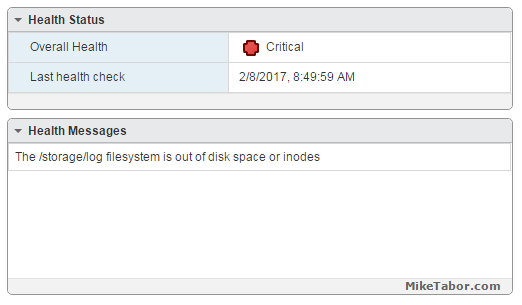
vcsa /storage/log full

So I opened up PuTTY and ran a df -h command and confirmed the issue:
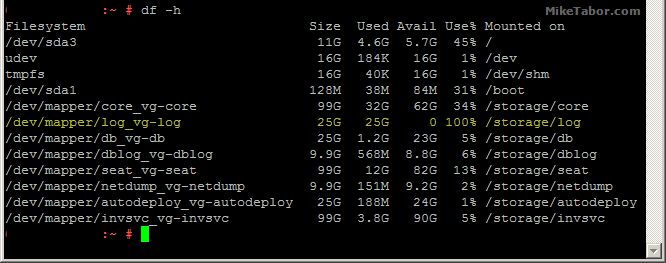
VMware VCSA storage log VMDK full

How to fix VCSA /storage/log filesystem out of disk space

Luckily the fix is rather easy, thanks to a blog post by @lamw that I found while looking for a solution, he mentions in VCSA 6.x you can now expand VMDK’s on the fly since the VCSA takes advantage of LVM.

  1. So open the vSphere client (web or thick) and expand the VMDK (see below table for which VMDK to expand)
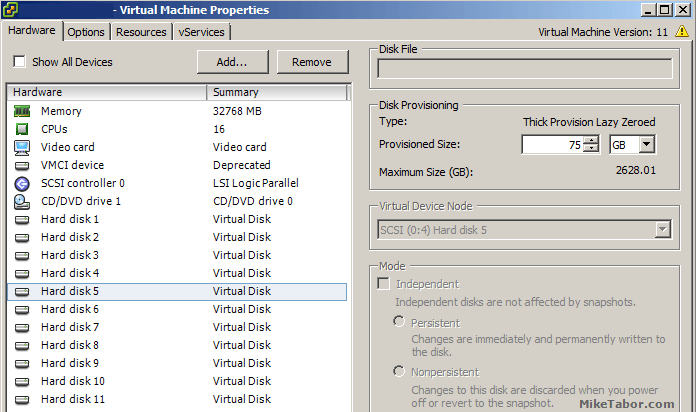
    VCSA /storage/log expand vmdk
  2. Next open PuTTY (or other terminal window) and run the following command on your VCSA
    vpxd_servicecfg storage lvm autogrow
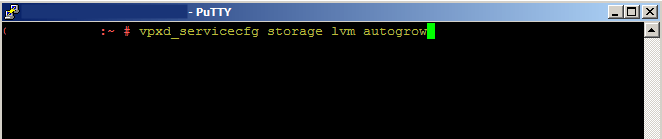
    VCSA /storage/log autogrow vmdk

And that is all there is to it, we now have a healthy VCSA again!
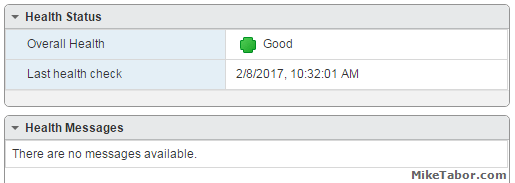
VMware VCSA healthy

VMWare VCSA 6.0 VMDK list and purpose

VMDK Disk Size Mount Point Purpose
VMDK1 12 GB / & /boot Boot
VMDK2 1.3 GB /tmp/mount Temp mount
VMDK3 25 GB SWAP Swap space
VMDK4 25 GB /storage/core Core dumps
VMDK5 10 GB /storage/log System logs
VMDK6 10 GB /storage/db Postgres DB location
VMDK7 5 GB /storage/dblog Postgres DB logs
VMDK8 10 GB /storage/seat Stats, events, and tasks (SEAT) for Postgres
VMDK9 1 GB /storage/netdump Netdump collector
VMDK10 10 GB /storage/autodeploy Auto Deploy repository
VMDK11 5 GB storage/invsvc Inventory service bootstrap and tomcat config

So in the issue above, VMDK disk 5 was expanded and then the autogrow command ran which resolved our issue.

Similar Posts

  • Install ESXi 5.1 from a USB Flash Drive

    Many servers already come with a DVD/CD-ROM drive or some kind of ability to virtually mount an ISO image from a network share onto your server to then install ESXi. However, not all do or you just want to have your ESXi image readily available. Here’s a quick step by step instructions on how to use a USB flash drive to install ESXi.

    1. Download ESXi 5.1 from VMware (if you haven’t already) as well as UNettbootin.
    2. Plug in your USB Flash Drive.
    3. Open UNetbootin and select “Diskimage”, set Type to “USB Drive”, select Drive letter of your USB flash drive, and set the path of your ESXi 5.1 ISO image. Then click on “OK”.
      unetbootin setup
    4. Read More “Install ESXi 5.1 from a USB Flash Drive”

  • Shrink a thin provisioned VMDK disk

    When maintaining a Horizon View environment I like to keep my parent images as small as possible and over time a thin provision disk can start to grow on you if you don’t watch it – be it from downloading installers, updates, or even running disk defrag. While there isn’t a simple, one click button in the View Administrator Console there is a fairly easy manual method using vmfkstools.

    Before we can use “vmkfstools” to shrink the VMDK file we must zero out any unused space on the thin provisioned disk. A simple way of doing this is by using a free utility called SDelete from Sysinternals.

    Read More “Shrink a thin provisioned VMDK disk”

  • Update vCenter Server Appliance 6.7 to 6.7 Update 1

    VMware has released vCenter Server 6.7 Update 1 and with comes with a number changes.

    One most notable change is the feature complete HTML5 vSphere client. The vSphere client in vCenter 6.7 Update 1 now includes the ability to manage:

    • Host profiles
    • Auto deploy
    • Full vSphere Update Manager (VUM)
    • A new dark theme
    • and vCenter High Availability.

    That’s no where near all of the changes though, there are many more changes and updates in the 6.7 Update 1 update. Be sure to read the full release notes here.

    In this post we’ll see just how easy it is to upgrade from VCSA 6.7 to VCSA 6.7 Update 1 in just a couple steps!

    Read More “Update vCenter Server Appliance 6.7 to 6.7 Update 1”

  • How to upgrade vCenter server appliance

    Prior to VMware vCenter Server Appliance 6.x, upgrading or patching vCSA was as simple as a few button clicks in the appliance UI. Gone are those days, as VMware has replaced the appliance UI with a DCUI and the web based install wizard during setup.

    The good news is, upgrading or patching the vCSA 6.x is still pretty simple via the command line!

    Read More “How to upgrade vCenter server appliance”

  • VMware Workstation 8.0.4 released

    VMware has just released it’s forth minor update for VMware Workstation 8, bringing it up to 8.0.4. The looks to contain mostly a few bug and security fixes.

    General Issues

    • Linux guests running the Linux kernel version 2.6.34 or later could not be pinged from the host via an IPv6 address.
    • On rare occasions, Linux guests would suddenly fail to Autofit or enter Unity.
    • Unity mode would exit if the title bar of an application contained certain non UTF-8 encoded extended ASCII characters.
    • On Windows hosts, the VMware Workstation user interface sometimes became unresponsive when minimized from full-screen mode if the suggestion balloon was being displayed.
    • On Windows hosts, the user interface sometimes became unresponsive if the application was rendered on an extended display that was abruptly disconnected.

    Read More “VMware Workstation 8.0.4 released”

  • vSphere 5.1 Release Date leaked, maybe?

    Looks like Sammy Bogaert over at Boerlowie’s Blog has possibly found the release date of vSphere 5.1… maybe?

    I was about to download vSphere Update Manager PowerCLI 5.0.

    I followed the main site and wanted to check the documentation first. So I clicked the Documentation button.

    vmware update manager

    This lead me to the Docs of Update Manager PowerCLI 5.1! That’s right, 5.1! With a release date of 10 September 2012.

    vsphere5.1 release date

    None of the links for 5.1 work, so no news on any new features…

    Guess somebody at VMware was a bit too fast to update the website

    Nice find Sammy, guess time will tell if the Sept. 10th date is the actual release date or not.

Leave a Reply to Roland Hugo Cancel reply

Your email address will not be published. Required fields are marked *

14 Comments

  1. Hey Mike, you might also want to investigate the cause of that full disk scenario. One such known condition I’ve seen multiple times is caused by incorrect log rotation settings in the sso filesystem. Have a look here to see if you might be suffering the same fate: https://kb.vmware.com/kb/2143565

  2. Total gold! Thanks for an easy explanation. I found that this error was preventing me from upgrading/patching VCSA .