Fix VMware VCSA /storage/log filesystem out of disk space
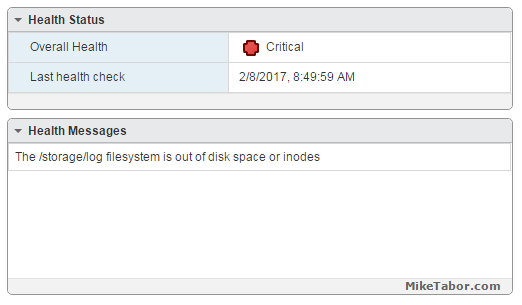
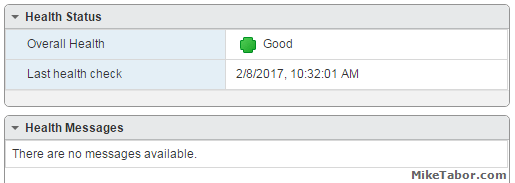
This morning I ran into an issue where users were reporting the production VCSA 6.0 was not allowing them to connect into the web or thick client. Another administrator rebooted the VCSA which seemed to work only briefly. I then logged into the VCSA web management (https://<VCENTER_IP>:5480) and noticed the following health status right away:
The /storage/log filesystem is out of disk space or inodes
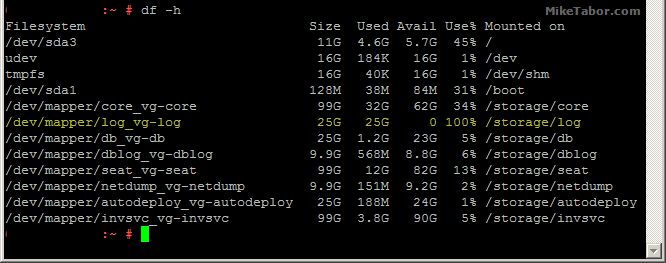
So I opened up PuTTY and ran a df -h command and confirmed the issue:
How to fix VCSA /storage/log filesystem out of disk space
Luckily the fix is rather easy, thanks to a blog post by @lamw that I found while looking for a solution, he mentions in VCSA 6.x you can now expand VMDK’s on the fly since the VCSA takes advantage of LVM.
- So open the vSphere client (web or thick) and expand the VMDK (see below table for which VMDK to expand)
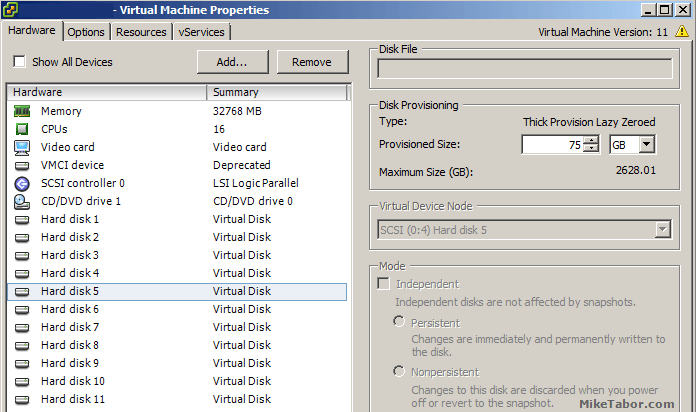
- Next open PuTTY (or other terminal window) and run the following command on your VCSA
vpxd_servicecfg storage lvm autogrow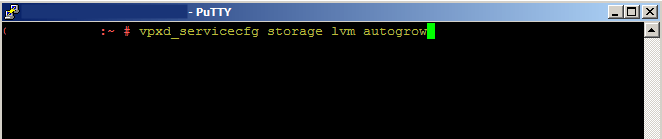
And that is all there is to it, we now have a healthy VCSA again!
VMWare VCSA 6.0 VMDK list and purpose
| VMDK Disk | Size | Mount Point | Purpose |
|---|---|---|---|
| VMDK1 | 12 GB | / & /boot | Boot |
| VMDK2 | 1.3 GB | /tmp/mount | Temp mount |
| VMDK3 | 25 GB | SWAP | Swap space |
| VMDK4 | 25 GB | /storage/core | Core dumps |
| VMDK5 | 10 GB | /storage/log | System logs |
| VMDK6 | 10 GB | /storage/db | Postgres DB location |
| VMDK7 | 5 GB | /storage/dblog | Postgres DB logs |
| VMDK8 | 10 GB | /storage/seat | Stats, events, and tasks (SEAT) for Postgres |
| VMDK9 | 1 GB | /storage/netdump | Netdump collector |
| VMDK10 | 10 GB | /storage/autodeploy | Auto Deploy repository |
| VMDK11 | 5 GB | storage/invsvc | Inventory service bootstrap and tomcat config |
So in the issue above, VMDK disk 5 was expanded and then the autogrow command ran which resolved our issue.

Hey Mike, you might also want to investigate the cause of that full disk scenario. One such known condition I’ve seen multiple times is caused by incorrect log rotation settings in the sso filesystem. Have a look here to see if you might be suffering the same fate: https://kb.vmware.com/kb/2143565
Thanks @chipzoller:disqus for the related KB, I’ll certainly take a look at those suggested steps this evening after hours. Much appreciated!
Great tip to extend the storage log but extending it seems to be a temp solution as the log will just fill up once again. We have implemented the steps here https://miketabor.com/fix-vmware-vcsa-storagelog-filesystem-out-of-disk-space/
however we did this some weeks ago BEFORE we increased its size so I guess we will see what happens and if it fills up. Thanks for the tip though…very helpful.
Glad to help!
-Michael
uu Mike, very nice and precise fix mate, thank you!!!
Article and comment much appreciated – thanks to all !
thank you, this was very helpful
Glad to help Max!
-Michael
Does this work with 7.0?
Gary,
I’m not running 7.0 at the moment, but I don’t see any reason why it would not work.
-Michael
Yes, it does. Just did it. So easy. Thank you so much!
Total gold! Thanks for an easy explanation. I found that this error was preventing me from upgrading/patching VCSA .
Glad to help.
-Michael
working good thanks
/Roland