Fix VMware VCSA /storage/log filesystem out of disk space

This morning I ran into an issue where users were reporting the production VCSA 6.0 was not allowing them to connect into the web or thick client. Another administrator rebooted the VCSA which seemed to work only briefly. I then logged into the VCSA web management (https://<VCENTER_IP>:5480) and noticed the following health status right away:

The /storage/log filesystem is out of disk space or inodes
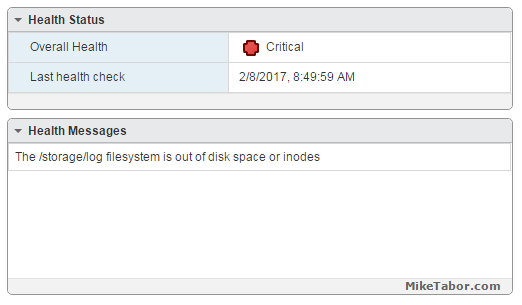
vcsa /storage/log full

So I opened up PuTTY and ran a df -h command and confirmed the issue:
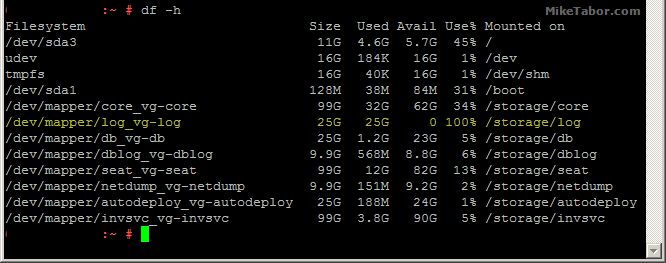
VMware VCSA storage log VMDK full

How to fix VCSA /storage/log filesystem out of disk space

Luckily the fix is rather easy, thanks to a blog post by @lamw that I found while looking for a solution, he mentions in VCSA 6.x you can now expand VMDK’s on the fly since the VCSA takes advantage of LVM.

  1. So open the vSphere client (web or thick) and expand the VMDK (see below table for which VMDK to expand)
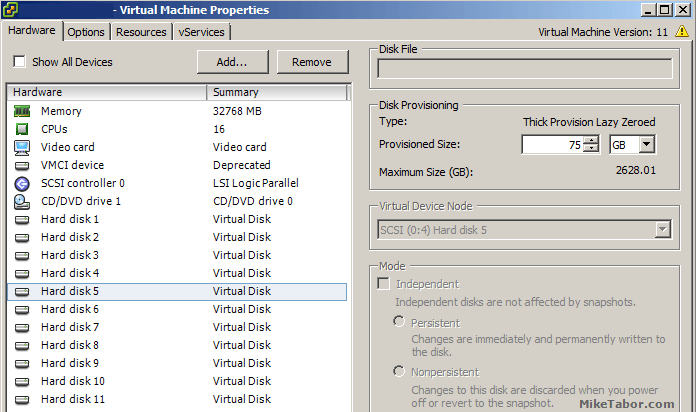
    VCSA /storage/log expand vmdk
  2. Next open PuTTY (or other terminal window) and run the following command on your VCSA
    vpxd_servicecfg storage lvm autogrow
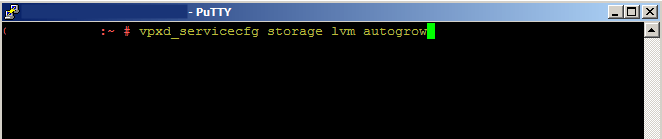
    VCSA /storage/log autogrow vmdk

And that is all there is to it, we now have a healthy VCSA again!
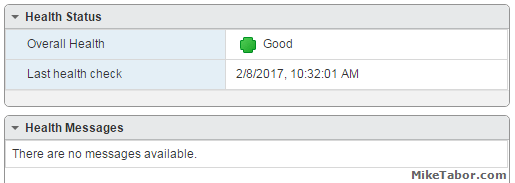
VMware VCSA healthy

VMWare VCSA 6.0 VMDK list and purpose

VMDK Disk Size Mount Point Purpose
VMDK1 12 GB / & /boot Boot
VMDK2 1.3 GB /tmp/mount Temp mount
VMDK3 25 GB SWAP Swap space
VMDK4 25 GB /storage/core Core dumps
VMDK5 10 GB /storage/log System logs
VMDK6 10 GB /storage/db Postgres DB location
VMDK7 5 GB /storage/dblog Postgres DB logs
VMDK8 10 GB /storage/seat Stats, events, and tasks (SEAT) for Postgres
VMDK9 1 GB /storage/netdump Netdump collector
VMDK10 10 GB /storage/autodeploy Auto Deploy repository
VMDK11 5 GB storage/invsvc Inventory service bootstrap and tomcat config

So in the issue above, VMDK disk 5 was expanded and then the autogrow command ran which resolved our issue.

Similar Posts

  • How to upgrade vCenter Server Appliance from 5.x to 6.0

    VMware vSphere 6.0 has finally been released as GA on March 12th and with it out of beta I hope to post several “how-to” posts, this being the first on how to upgrade your vCenter Server Appliance from 5.1/5.5 to vCSA 6.0. So lets get started…

    Prerequisites:

    • vCSA 6.0 ISO downloaded and mounted or burned to disc.
    • Installed Client Integration Plugin (located in the vcsa folder on the ISO).

    Read More “How to upgrade vCenter Server Appliance from 5.x to 6.0”

  • How to install VMware Workstation 10 on Linux Mint 17.1

    vmware workstation 10 linux mint

    Two goals that I would like to achieve this year is to learn how to program (likely Python) as well as learn more about Linux. So last week I completely wiped my HP laptop that used to run Windows 7 Pro and installed Linux Mint 17.1. However, I had a nested ESXi lab within VMware Workstation when I was running Windows and wanted to do the same on my new Linux install.

    I found this wasn’t just as simple as downloading an .exe and running the file, like it is in Windows. There are a few dependiences that are needed first, below is the steps I took to install VMware Workstation 10 on Linux Mint 17.1.

    Read More “How to install VMware Workstation 10 on Linux Mint 17.1”

  • Upgrade VCSA 6.5 to VCSA 6.7 Update 1

    VMware vCenter 6.7 U1 has recently been released. Last week I posted how to upgrade VCSA 6.7 to 6.7 Update 1, this post will walk you though upgrading VMware vCenter Server Appliance 6.5 to VCSA 6.7 Update 1!

    When doing a VCSA version upgrade the upgrade process is much different, than going from say 6.7 to 6.7 U1. When going from 6.5 to 6.7 the upgrade is actually broken up into two stages.

    The first stage involves deploying a brand new vCenter 6.7 appliance. Then the second stage will copy the data from your 6.5 VCSA into the newly deployed 6.7 VCSA from stage 1.

    Read More “Upgrade VCSA 6.5 to VCSA 6.7 Update 1”

  • How to Reset VMware vCenter Server Appliance Root Password

    Have you ever forgotten the root password on your VMware vCenter Server Appliance (VCSA) or let the password expire before changing it?

    This is exactly what happened to me in one of my lab environments and in this post I’ll show how to quickly and easily reset the VCSA root password.

    Read More “How to Reset VMware vCenter Server Appliance Root Password”

  • VMware View client now availabe for Android!

    VMware has announced that they have released a View Client for Android tablets available on the Android Market now. Here are just a few of the features found on the new client.

    • A new look and feel – The View Client for Android features the NEW blue look and feel of the VMware View clients!
    • Multiple broker support – If you have more than one VMware View broker in your organization, you can can easily access your desktop from all of them via the Android client
    • Desktop Shortcuts – Quickly connect with as many as four recent desktop via shortcuts
    • Virtual trackpad – Control your desktop on a granular level just like you would control the mouse on a laptop
    • Custom keyboard toolbar – Super easy access to all of the special keys not found on the Android default keynboard
    • Honeycomb 3.x support – Made from the ground up for the new generation of Android tablets
    • Custom gestures – Invoke keyboard, scrolling, etc are as easy as ever and simple to use
    • VMware View Security Server support (best experience) – No need to have VPN when you use VMware View Security Server
    • Background tasking – Switch between apps on your tablet and come right back
  • VMware vSphere 7 announced

    VMware vSphere 7

    Some pretty big news coming out of VMware today. The announcement of VMware vSphere 7 to become available May 1, 2020! One of the biggest item coming out of this news so far is that vSphere 7 will come in two options.

    The first being vSphere 7 as we all have known it to be for years and then the second being vSphere 7 with Kubernetes which will be available through VMware Cloud Foundation and is a new generation of vSphere for containerized applications.

    Other notables is that the flash based vSphere client is FINALLY no more! From here on out, only the HTML 5 will exist. vCenter Server on Windows will also finally be put to rest and new deployments of vCenter server will be done using the tried and tested vCenter Server Appliance (VCSA) based on PhotonOS linux.

    Read More “VMware vSphere 7 announced”

Leave a Reply to Ghost Cancel reply

Your email address will not be published. Required fields are marked *

14 Comments

  1. Hey Mike, you might also want to investigate the cause of that full disk scenario. One such known condition I’ve seen multiple times is caused by incorrect log rotation settings in the sso filesystem. Have a look here to see if you might be suffering the same fate: https://kb.vmware.com/kb/2143565

  2. Total gold! Thanks for an easy explanation. I found that this error was preventing me from upgrading/patching VCSA .