Fix VMware VCSA /storage/log filesystem out of disk space

This morning I ran into an issue where users were reporting the production VCSA 6.0 was not allowing them to connect into the web or thick client. Another administrator rebooted the VCSA which seemed to work only briefly. I then logged into the VCSA web management (https://<VCENTER_IP>:5480) and noticed the following health status right away:

The /storage/log filesystem is out of disk space or inodes
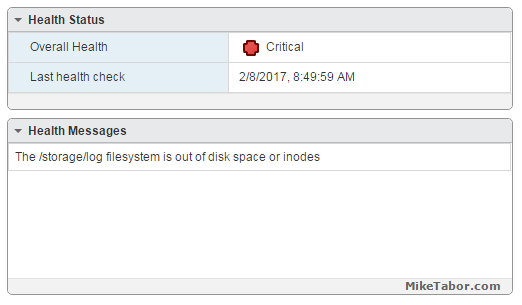
vcsa /storage/log full

So I opened up PuTTY and ran a df -h command and confirmed the issue:
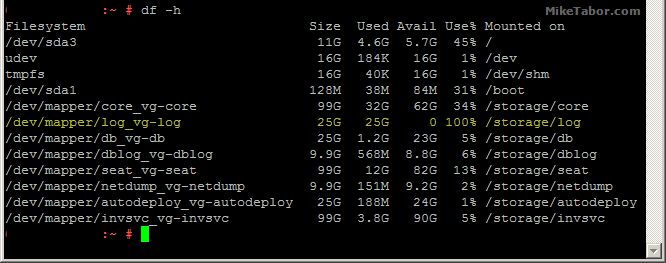
VMware VCSA storage log VMDK full

How to fix VCSA /storage/log filesystem out of disk space

Luckily the fix is rather easy, thanks to a blog post by @lamw that I found while looking for a solution, he mentions in VCSA 6.x you can now expand VMDK’s on the fly since the VCSA takes advantage of LVM.

  1. So open the vSphere client (web or thick) and expand the VMDK (see below table for which VMDK to expand)
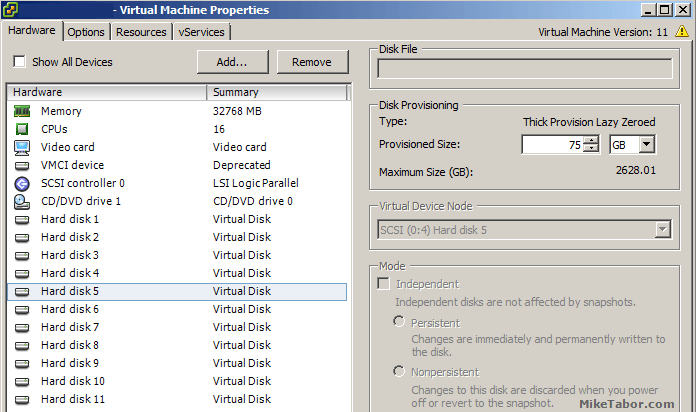
    VCSA /storage/log expand vmdk
  2. Next open PuTTY (or other terminal window) and run the following command on your VCSA
    vpxd_servicecfg storage lvm autogrow
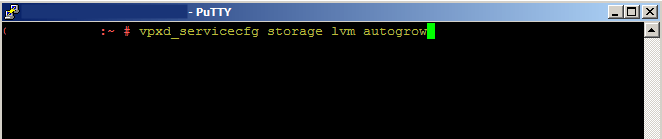
    VCSA /storage/log autogrow vmdk

And that is all there is to it, we now have a healthy VCSA again!
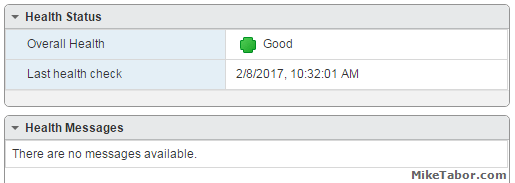
VMware VCSA healthy

VMWare VCSA 6.0 VMDK list and purpose

VMDK Disk Size Mount Point Purpose
VMDK1 12 GB / & /boot Boot
VMDK2 1.3 GB /tmp/mount Temp mount
VMDK3 25 GB SWAP Swap space
VMDK4 25 GB /storage/core Core dumps
VMDK5 10 GB /storage/log System logs
VMDK6 10 GB /storage/db Postgres DB location
VMDK7 5 GB /storage/dblog Postgres DB logs
VMDK8 10 GB /storage/seat Stats, events, and tasks (SEAT) for Postgres
VMDK9 1 GB /storage/netdump Netdump collector
VMDK10 10 GB /storage/autodeploy Auto Deploy repository
VMDK11 5 GB storage/invsvc Inventory service bootstrap and tomcat config

So in the issue above, VMDK disk 5 was expanded and then the autogrow command ran which resolved our issue.
Similar Posts

  • VMware Workstation 8.0.4 released

    VMware has just released it’s forth minor update for VMware Workstation 8, bringing it up to 8.0.4. The looks to contain mostly a few bug and security fixes.

    General Issues

    • Linux guests running the Linux kernel version 2.6.34 or later could not be pinged from the host via an IPv6 address.
    • On rare occasions, Linux guests would suddenly fail to Autofit or enter Unity.
    • Unity mode would exit if the title bar of an application contained certain non UTF-8 encoded extended ASCII characters.
    • On Windows hosts, the VMware Workstation user interface sometimes became unresponsive when minimized from full-screen mode if the suggestion balloon was being displayed.
    • On Windows hosts, the user interface sometimes became unresponsive if the application was rendered on an extended display that was abruptly disconnected.

    Read More “VMware Workstation 8.0.4 released”

  • VMware Workstation 11 released

    VMware Workstation 11 Unmatched OS Support

    At the start of October VMware announced Workstation 11, along with VMware Player 7 Pro and said both products would be available sometime in December. Well today is the day, VMware has now officially released VMware Workstation 11!

    Workstation 11 adds support for the latest version of Windows and Linux, as well as the latest processors and hardware, and also adds the ability to connect to VMware vCloud Air.

    Read More “VMware Workstation 11 released”

  • VMware’s Dual Persona smartphones now available at Verizon Wireless

    VMware Ready for Verizon

    VMware has announced that the Android running LG Intuition and Motorola Razr M can now both be purchased with VMWare Horizon Mobile software. The VMWare Horizon Mobile software separates the devices into isolated partitions that allow users to keep their work applications and data separate from their personal applications and data.

    Today, VMware and Verizon Wireless announced that the Android-based LG Intuition and Motorola Razr M can now be purchased with VMware’s Horizon Mobile software, which separates the device into isolated partitions that keep a user’s work applications and data separate from personal stuff. Licenses to Horizon Mobile start at $125 per user and can be purchased through local resellers of VMware and Verizon Wireless.

    Read More “VMware’s Dual Persona smartphones now available at Verizon Wireless”

  • How to easily add an ESXi SSH login message banner

    ESXi issues message

    Preparing for some upcoming audits, I noticed one of the checkpoints was to ensure each ESXi host was configured with a warning banner stating the machine is being monitored and audited when someone logs into the ESXi host via SSH. This type of message is something you see on most any company or government computer before you login.

    There are two message types that can be used to achieve this, the first being login banner (/etc/issue) and MOTD (/etc/motd). The difference between the two are where they are shown. The login banner is shown between the username and password inputs during login, while the MOTD is displayed after a user has successfully logged into SSH.

    Read More “How to easily add an ESXi SSH login message banner”

  • Increase incremental backup speed by enabling CBT

    In a recent VMware environment I was working in, we noticed that our incremental backups was taking a long time (like up to 7-8 hours) to complete. After digging around it was found that VMware actually has a feature built-in since version 4 called Change Block Tracking (CBT). CBT will track any blocks that were changed since the last backup and tag them and stores the information in a -CTK file. The obvious benefit is that now the third party software only backs up the changed block and not the entire VM each time, reducing the amount of data being backed thus speeding up backups and even lowers the CPU utilization on the VM host.

    CBT is disabled by default though there are some backup tools that will enable it automatically or you can enable it manually which can easily be done following these steps:

    Read More “Increase incremental backup speed by enabling CBT”

  • How to convert VMDK to OVF file format

    Here is a quick and easy way to convert a VMDK to OVF file format using the OVF Tool from VMware.

    1. First download and install the VMware OVF Tool for your operating system.
    2. Open a command prompt as Administrator and navigate to the OVF Tool install directory:
      
      cd C:\Program Files\VMware\VMware OVF Tool
      

      vmdk to ovf command prompt

    3. Next, type in the following command to convert VMDK to OVF:
      
      ovftool.exe \virtualmachine.vmx \virtualmachine.ovf
      

      convert vmdk to ovf command

    After a few minutes time you should you should see a “Transfer Completed, Completed successfully” message and your VMDK to OVF file conversion is complete and ready for use.
    convert vmdk to ovf complete

Leave a Reply to Chip Zoller Cancel reply

Your email address will not be published. Required fields are marked *

14 Comments

  1. Hey Mike, you might also want to investigate the cause of that full disk scenario. One such known condition I’ve seen multiple times is caused by incorrect log rotation settings in the sso filesystem. Have a look here to see if you might be suffering the same fate: https://kb.vmware.com/kb/2143565

  2. Total gold! Thanks for an easy explanation. I found that this error was preventing me from upgrading/patching VCSA .