How-to fix VMware Converter error FAILED: Unable to find the system volume, reconfiguration is not possible.

I was recently tasked with migrating a Hyper-V machine to our VMware environment. However, each time VMware Converter was ran, the task would fail at 97% with an error “FAILED: Unable to find the system volume, reconfiguration is not possible.“.
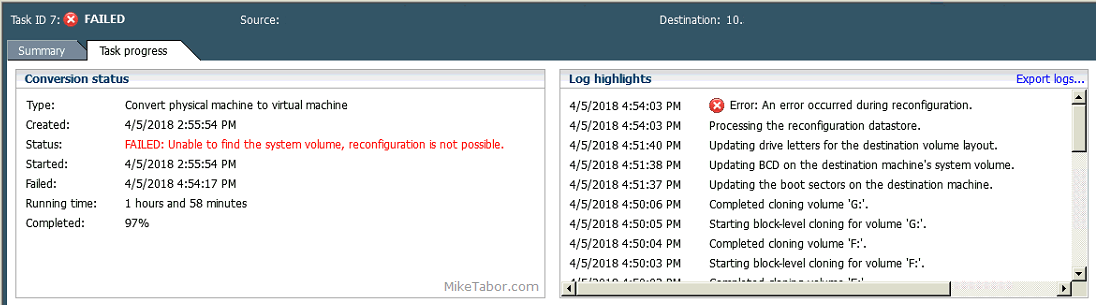
FAILED: Unable to find the system volume, reconfiguration is not possible

Looking further into the virtual machine there were a number of concerns I had on the VM. One such issue which I believe might be causing the above error, is that the system volume drive was on drive 0 while the “C:” drive was on drive 1. Whereas these are typically on the same drive in most Windows installs.

Below are the steps I took to fix this VM and made the migration from Hyper-V to VMware a success.

Rebuild boot record to resolve, FAILED: Unable to find the system volume, reconfiguration is not possible.

  1. Attach the server .ISO to the newly migrated virtual machine in VMware and boot from that image. You may need to change the boot order, in order for the VM to boot from the ISO.
  2. Now click on Next at the language, time, keyboard prompt.
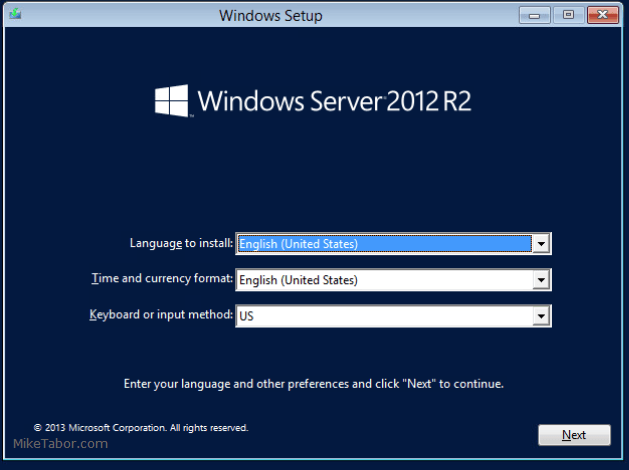
    select language, time, keyboard
  3. Then, click Repair your computer in the lower left corner.
    select repair computer
  4. Next, select Troubleshoot.
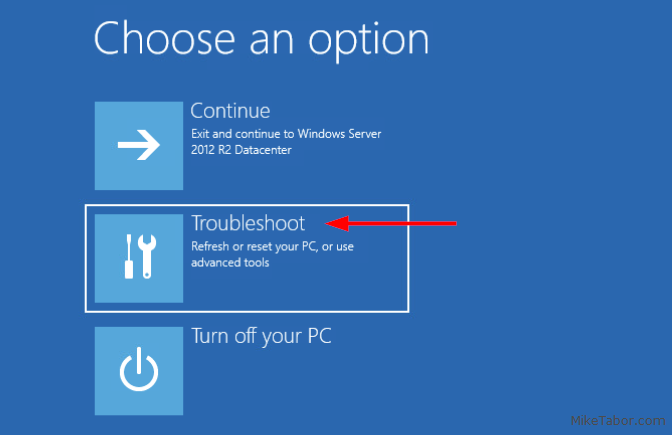
    choose an option troubleshoot
  5. Now click on Command Prompt under Advanced options.
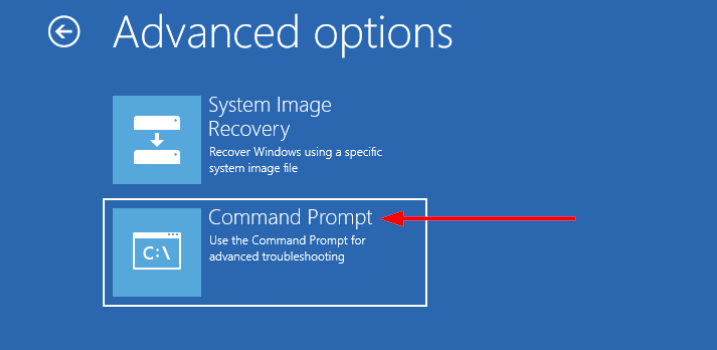
    advanced options command prompt
  6. In the command prompt, type in the following commands:
    Bootrec /fixmbr
    Bootrec /fixboot
    Bootrec /scanos
    Bootrec /rebuildbcd
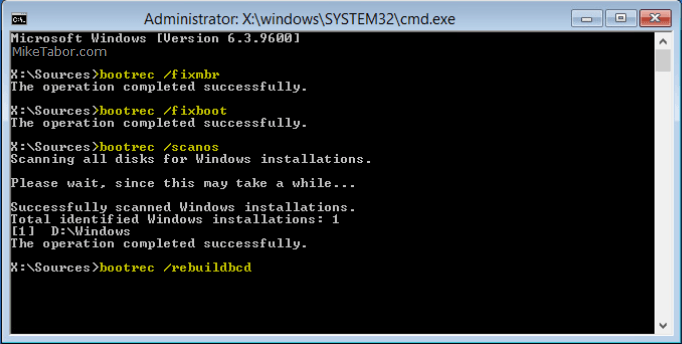
    restore commands

  7. Finally, type EXIT in the command prompt and restart the virtual machine.

After the virtual machine rebooted, Windows Server loaded without issue and I was able to complete the migration by re-IPing the VM and updating DNS records.
Similar Posts

  • Become a VMware Certified Associate for FREE!

    During the San Francisco VMworld 2013, VMware announced the start of their new VMware Certified Associate certifications.

    There’s no training class requirement for the new exams although VMware offers a free self-paced e-learning course which is recommended to help you prepare for the exams. The exams normally run $120.00 but VMware is currently running a $60.00 discount for those who take the exam in 2013. NTPRO.nl has an additional coupon code (VCA13ICS) to take the remaining $60.00 off making the exam FREE!

    VCA Exam for free

    The VCA13ICS coupon code expires on October 30, 2013!

    Update:
    Global Knowledge also has a coupon code (VCA13GKN) which does not expire until January 31, 2014. Limit one free exam per individual!

  • How to manually delete NetApp SnapMirror snapshots

    The other day, one of our volumes in the lab environment filled up. This volume has a couple large VM’s on it, coupled with a couple different Veeam backup jobs running using the native Veeam backup methods as well as using NetApp snap mirror to snapshot the volume and then using Veeam to ship it out to Azure.

    At any rate the volume filled up to the point where vCenter wasn’t allowing me to migrate VM’s off the datastore. I really didn’t want to expand the volume just so I could move VM’s off of it.

    Instead, I decided to delete some of the older proof of concept snapshots from SnapMirror. Below are the quick and easy steps to clear up some un-used snapshots and free up some space on the datastore.

    Read More “How to manually delete NetApp SnapMirror snapshots”

  • Install ESXi 5.1 from a USB Flash Drive

    Many servers already come with a DVD/CD-ROM drive or some kind of ability to virtually mount an ISO image from a network share onto your server to then install ESXi. However, not all do or you just want to have your ESXi image readily available. Here’s a quick step by step instructions on how to use a USB flash drive to install ESXi.

    1. Download ESXi 5.1 from VMware (if you haven’t already) as well as UNettbootin.
    2. Plug in your USB Flash Drive.
    3. Open UNetbootin and select “Diskimage”, set Type to “USB Drive”, select Drive letter of your USB flash drive, and set the path of your ESXi 5.1 ISO image. Then click on “OK”.
      unetbootin setup
    4. Read More “Install ESXi 5.1 from a USB Flash Drive”

  • How to upgrade vCenter server appliance

    Prior to VMware vCenter Server Appliance 6.x, upgrading or patching vCSA was as simple as a few button clicks in the appliance UI. Gone are those days, as VMware has replaced the appliance UI with a DCUI and the web based install wizard during setup.

    The good news is, upgrading or patching the vCSA 6.x is still pretty simple via the command line!

    Read More “How to upgrade vCenter server appliance”

  • ESXi 5.5 free edition removes 32GB memory limit

    There have been a ton of exciting announcements coming out of VMword 2013, one of which is vSphere 5.5 and all of it’s improvements and additions. Along that note, VMware has changed ESXi 5.5 free version to remove the physical RAM limit which was limited to only 32GB in version 5.1.

    The new virtual hardware, version 10, we can now grow our home labs into more powerful VM’s as most all configuration maximums have been doubled:

    Read More “ESXi 5.5 free edition removes 32GB memory limit”

  • Thank you VMware Community!

    VMware vExpert 2014

    So far, 2014 has been a very rewarding year for a number of reasons, two of which has happened in just a week or two span. First, Eric Siebert (@ericsiebert) announced on March 27th, this years results of the 2014 Top VMware & Virtualization Blog voting. My first year entered into voting and made it to 71st place! A huge thanks goes out to not only Eric but just as much so to everyone who voted for me!

    To top it off, yesterday VMware announced 2014’s first quarter VMware vExpert list. While vExpert isn’t a technical certification or even a general measure of VMware expertise. The VMware judges selected people who were engaged with their community and who had developed a substantial personal platform of influence in those communities. There were a lot of very smart, very accomplished people, even VCDXs, that weren’t named as vExpert this year. VMware awarded this title to 754 people this year and on that list of many impressive names you’ll find yours truly, Michael Tabor!

    I’m both honored and humbled by both lists. It’s a great feeling to be recognized by not only my peers through the voting in the Top vBlog but also by VMware themselves through the vExpert title.

    So again THANK YOU very much to the entire VMware community, a spectacular community indeed, and congratulations to everyone else that made the Top vBlog and vExpert lists!

Leave a Reply to Mike Satta Cancel reply

Your email address will not be published. Required fields are marked *

3 Comments

  1. Do you mean to run this on the existing source VM, not on the failed target VM? I’m not 100% clear on what you mean when you say “Attach the server .ISO to the newly migrated virtual machine in VMware and boot from that image.” How do you perform this if the conversion failed and the destination VM cannot boot?

    1. Mike,

      You are doing exactly as I’ve pointed out “Attach the server .ISO to the newly migrated virtual machine in VMware and boot from that image” this is because the transfer is done using VMware Converter however the boot loader on the transferred machine is busted. Thus the need to mount the ISO on said VM and repair it.

      Hope this helps!

      -Michael

  2. I’m running into this for the first time. I have a set of two test and two production physical HP servers to convert. The two test HP servers converted normally. However, the two production servers are having this Failure. No amount of Option changes in the conversion wizard have resolved it. I’ll be trying again today and trying the options that Mike listed here and report back.

    Thank you for the article!

    -Chad