How to setup NFS on Synology NAS for VMware ESXi lab

Synology

I’ve been asked several times how and why I setup my home lab to use NFS on my Synology NAS and thought a post detailing the steps would be best. First the why, when I purchased my Synology DS412+ about two years I recall seeing several people stating NFS was out performing iSCSI (like this post) on the Synology. It was strictly from reading other peoples findings that I started with NFS and have continued to use NFS without any issue. In fact I’ve been very happy with my DS412+ in a RAID 10 setup.

How I setup NFS on the Synology for my ESXi homelab is pretty simple as well.

Configuring Synology NFS access

  1. Log into the Synology DiskStation and go to: Control Panel > File Services – located under “File Sharing”.
  2. NFS is disabled by default so we need to enable it first. Expand NFS Services and check “Enable NFS” and click on Apply.
    synology enable nfs
  3. From the Synology control panel to go “Shared Folder”. A name is the only required step, but I like to give it a description and hide the shared folder from my network places as well as hide files from users without permission. Then click on Ok.
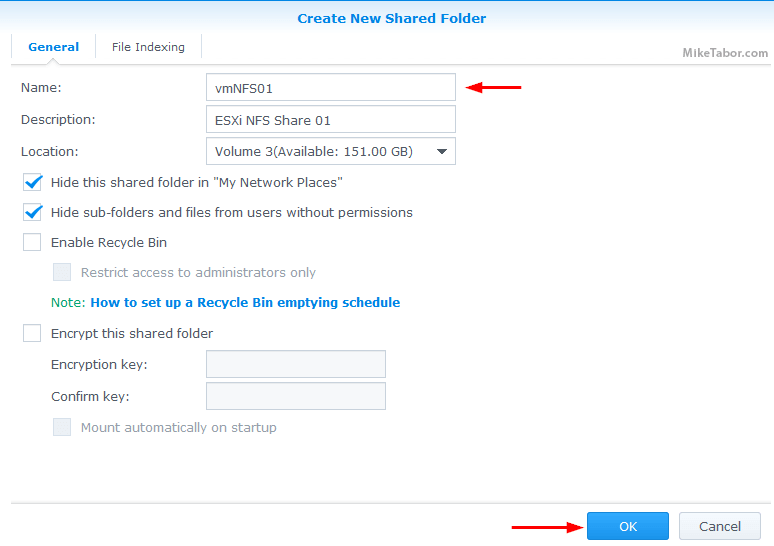
    synology create shared folder
  4. Once your folder has been created, go to the “Permissions” tab and change all users except your admin account to have “No Access“.
  5. Then change to the “NFS Permission” and click on Create and type the hostname or IP address of your ESXi host, then click Ok.
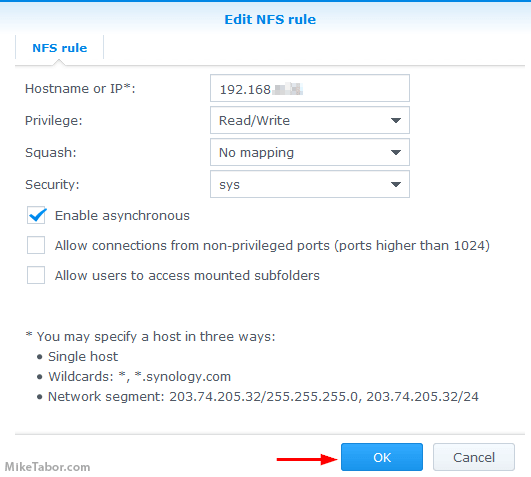
    synology nfs rule
  6. After you have clicked on “Ok” from the step above you will be taken back to the “Edit Shared Folder (FOLDER NAME)”, you can either click on “Create” to add permissions for another ESXi host if needed or click on “Ok” if not, before clicking on “Ok” to close the window be sure to make note of the “Mount Path“.
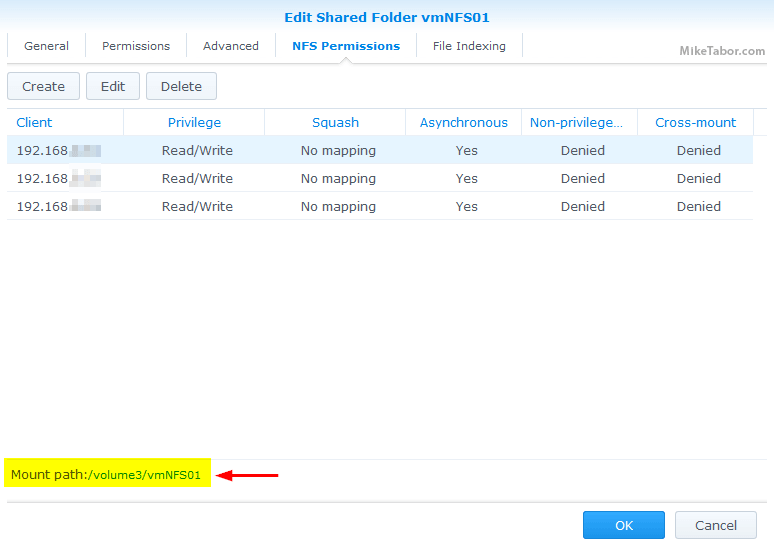
    synology nfs mount path

That completes the steps on the Synology side of things. You will want to repeat Steps 3 – 6 for each additional NFS share you wish to create. Next we need to add the datastore to the ESXi host.

Note: The above steps was completed using DSM version 5.1-5022 Update 1, your steps may vary if running a different version.

Add NFS datastore(s) to your VMware ESXi host

  1. Log into the VMware Web Client.
  2. Under Inventors click on “Hosts and Clusters”.
  3. Right click on your cluster name and select “New Datastore“.
    vmware new datastore
  4. For Type, select “NFS” then click on Next.
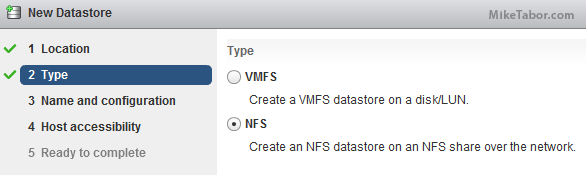
    vmware nfs datastore
  5. Give the NFS datastore a name, type in the IP of your Synology NAS, and for folder type in the “Mount Path” you took note of from step 6 above then press Next.
    vmware nfs name config
  6. Under Host accessibility, select which host(s) you want to add the new NFS datastore then press Next.
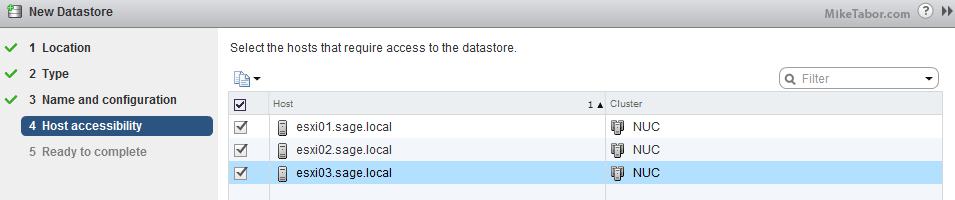
    vmware datastore host accessibility
  7. Finally press Finish.

That’s it, quick and easy!

You will may also want to install the Synology NFS VAAI plugin if you haven’t already. This will enable the ability to create thick disks as well as improve cloning tasks.

Similar Posts

  • How to schedule CrashPlan on Synology NAS

    CrashPlan Backup

    This is a continuation of the previous article, how to install CrashPlan on Synology NAS, by default CrashPlan is always running after the install which prevents your Synology NAS from entering sleep mode.

    Below are the steps to schedule when CrashPlan runs in order to allow the NAS to go into sleep mode, thus conserving energy while still being backed up.

    Read More “How to schedule CrashPlan on Synology NAS”

  • Thank you VMware Community!

    VMware vExpert 2014

    So far, 2014 has been a very rewarding year for a number of reasons, two of which has happened in just a week or two span. First, Eric Siebert (@ericsiebert) announced on March 27th, this years results of the 2014 Top VMware & Virtualization Blog voting. My first year entered into voting and made it to 71st place! A huge thanks goes out to not only Eric but just as much so to everyone who voted for me!

    To top it off, yesterday VMware announced 2014’s first quarter VMware vExpert list. While vExpert isn’t a technical certification or even a general measure of VMware expertise. The VMware judges selected people who were engaged with their community and who had developed a substantial personal platform of influence in those communities. There were a lot of very smart, very accomplished people, even VCDXs, that weren’t named as vExpert this year. VMware awarded this title to 754 people this year and on that list of many impressive names you’ll find yours truly, Michael Tabor!

    I’m both honored and humbled by both lists. It’s a great feeling to be recognized by not only my peers through the voting in the Top vBlog but also by VMware themselves through the vExpert title.

    So again THANK YOU very much to the entire VMware community, a spectacular community indeed, and congratulations to everyone else that made the Top vBlog and vExpert lists!

  • VMware’s Dual Persona smartphones now available at Verizon Wireless

    VMware Ready for Verizon

    VMware has announced that the Android running LG Intuition and Motorola Razr M can now both be purchased with VMWare Horizon Mobile software. The VMWare Horizon Mobile software separates the devices into isolated partitions that allow users to keep their work applications and data separate from their personal applications and data.

    Today, VMware and Verizon Wireless announced that the Android-based LG Intuition and Motorola Razr M can now be purchased with VMware’s Horizon Mobile software, which separates the device into isolated partitions that keep a user’s work applications and data separate from personal stuff. Licenses to Horizon Mobile start at $125 per user and can be purchased through local resellers of VMware and Verizon Wireless.

    Read More “VMware’s Dual Persona smartphones now available at Verizon Wireless”

  • How to manually delete NetApp SnapMirror snapshots

    The other day, one of our volumes in the lab environment filled up. This volume has a couple large VM’s on it, coupled with a couple different Veeam backup jobs running using the native Veeam backup methods as well as using NetApp snap mirror to snapshot the volume and then using Veeam to ship it out to Azure.

    At any rate the volume filled up to the point where vCenter wasn’t allowing me to migrate VM’s off the datastore. I really didn’t want to expand the volume just so I could move VM’s off of it.

    Instead, I decided to delete some of the older proof of concept snapshots from SnapMirror. Below are the quick and easy steps to clear up some un-used snapshots and free up some space on the datastore.

    Read More “How to manually delete NetApp SnapMirror snapshots”

  • How to upgrade Synology DS1815+ to 16GB RAM

    Synology DS1815+ upgraded to 16GB

    Just last week I replaced my Synology DS412+ to with a Synology DS1815+, which has twice the drive bays with the addition of supporting two expansion units, a much more powerful CPU, and 2GB RAM out of the box.

    I’ve seen some people mention with very mixed results that both the Synology DS1515+ and Synology DS1815+ can be upgraded to 16GB of RAM, the biggest issue seems to be around what memory modules to use. So I figured I’d document how I upgraded my DS1815+ to 16GB RAM and what memory I used with success.

    Read More “How to upgrade Synology DS1815+ to 16GB RAM”

  • My VMware View Windows 7 Optimization Guide

    These are the few steps I do when creating a new "Golden" image. Luckily I don’t have to do these steps all the time as I’ll create the "Golden" image when there is a new upgrade such as when we went from View 4.6 to View 5.0.1. I like to have a new fresh machine using new virtual hardware from the start. You could certainly just upgrade the virtual hardware on the "Golden" image, I just prefer to start clean.

    At any rate, here’s my list. Hopefully someone might find it somewhat useful and maybe even others can improve upon it.

    Preparing a new virtual machine

    1. Create New Virtual Machine – FILE > NEW > VIRTUAL MACHINE (CTRL+N)
    2. Under Configuration select CUSTOM.
    3. Select a Name, Folder, Host, Cluster, and Storage.
    4. Under Guest Operating System select Windows and then Windows 7 32bit under the Version drop down.
    5. Select which Network (VLAN) and under Adapter select VMXNET 3.
    6. Configure disk size to 30GB THIN provisioned.

    Read More “My VMware View Windows 7 Optimization Guide”

Leave a Reply to cyberk Cancel reply

Your email address will not be published. Required fields are marked *

12 Comments

  1. good post, thanks!

    Fwiw, i had issues with step 5 (NFS permissions). Ended up having to use * rather than separate individual rules for my two host IPs.

    1. big problem for me as well. I can’t get anything other than * for hosts to get vsphere to mount. This is a security concern I have not been able to find a workaround for.

  2. When I try to add an NFS volume I get “33389)WARNING: NFS41: NFS41ExidNFSProcess:2022: Server doesn’t support the NFS 4.1 protocol” – Looks like vSphere 6U2 uses NFS 4.1 and from what I’m reading Synology doesn’t support that. Has anyone had luck getting it to work or do you end up using NFS3?

    1. Hi Matt, I’m in the same boat. vSphere6.5 and DSM 6.0.2-8451 Update 9. I’m receiving error: “NFS41ExidNFSProcess:2053: Server doesn’t support the NFS 4.1 protocol”. No solution here, I’m backing down to NFS3 until Synology gets their act together or someone finds a proper solution.

  3. I’m trying to created a content library via nfs, getting the following error, any advice would be appreciated
    Content Library Service does not have write permission on this storage backing. This might be because the user who is running Content Library Service on the system does not have write permission on it.

    I’m using vcenter appliance 6.5 btw

  4. It keeps failing for me, I get “Failed to mount NFS datastore SynoDS1 – NFS mount 192.168.0.1:/volume1/ESXi failed: Unable to connect to NFS server. ” despite the fact that I keep telling it the server IP is 192.168.0.250

  5. Mike – I am not getting very far here.

    vCenter is ver 6.5, Synology running DSM 6.1.4 update 1

    I have added 10GB PCI NICs to my RS3617 . The built in NICs are on a 10.0.5.x network at 1GB, the 10GB NICs are on a physically separated 10.0.4.x network. The host is able to ping both the 10GB ports and the 1GB ports on the Synology. I have one volume set up and running with iSCSI connections, and it works, but performance is lacking, and I get a lot of dropped heartbeats which sometimes cause severe problems.

    I have tried to connect a second volume with NFS share set up per your write up, but the operation fails complaining it is “unable to complete Sysinfo operation”.

    I have been trying many combinations of VMFS versions, host IP address, and permissions without any happy faces.

    If you are still monitoring this thread I could use some guidance.

  6. How about performance? Is it actually outperforming iSCSI?
    Can you show some test results?
    And how would you setup iSCSI with multipathing?