VMware vCenter Service Appliance Update

Update vCenter Server Appliance 6.7 to 6.7 Update 1

VMware has released vCenter Server 6.7 Update 1 and with comes with a number changes.

One most notable change is the feature complete HTML5 vSphere client. The vSphere client in vCenter 6.7 Update 1 now includes the ability to manage:

  • Host profiles
  • Auto deploy
  • Full vSphere Update Manager (VUM)
  • A new dark theme
  • and vCenter High Availability.

That’s no where near all of the changes though, there are many more changes and updates in the 6.7 Update 1 update. Be sure to read the full release notes here.

In this post we’ll see just how easy it is to upgrade from VCSA 6.7 to VCSA 6.7 Update 1 in just a couple steps!

Prep work before upgrading to VCSA 6.7 Update 1

Before you do any VMware update I highly recommend checking out the VMware Interoperability Matrices to check compatibility of other VMware products.

It’s also a good idea to check the VMware Compatibility Guide for compatibility of the hardware in your environment.

Once you’ve done that, lets begin!

How to update VCSA 6.7 to 6.7 Update 1

  1. Log into your VCSA VAMI by opening your browser and going to: https://FQDN-of-VCSA:5480 and entering your root credentials.
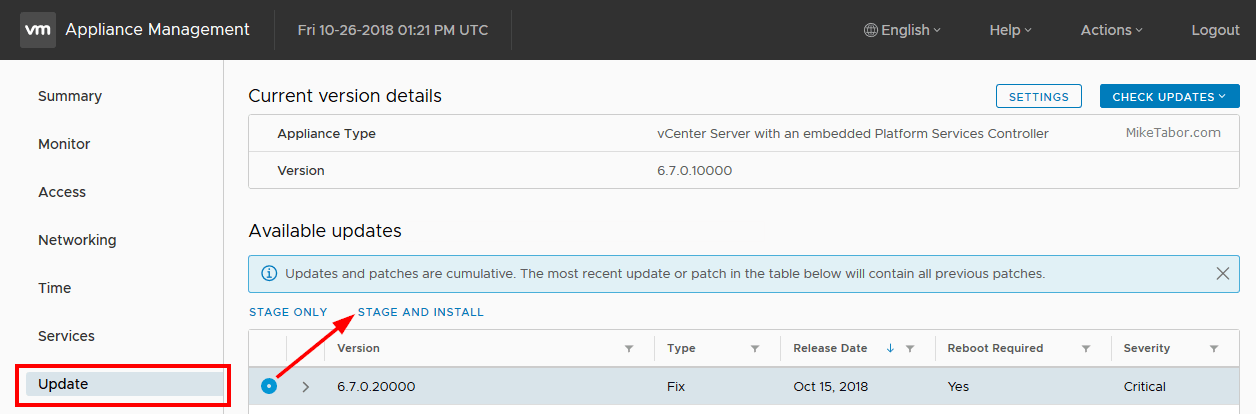
  2. From the left side menu, click on Update. This will automatically check for and display any available updates. Select 6.7.0.20000 and click on “Stage and Install“.
    VMware vCenter Service Appliance Update
  3. Next accept the EULA, join the CEIP (or not) and finally check “I have backed up vCenter Server and its associated databases.” and click on Finish.
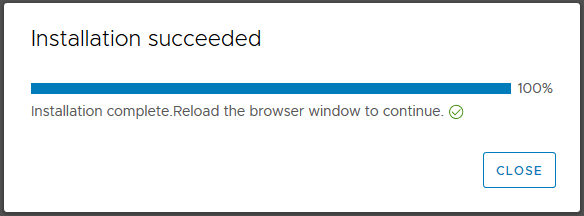
  4. After a few minutes, depending on the size of your environment, the VCSA 6.7 Update 1 update will complete. Simply click on Close.
    VCSA 6.7u1 update complete
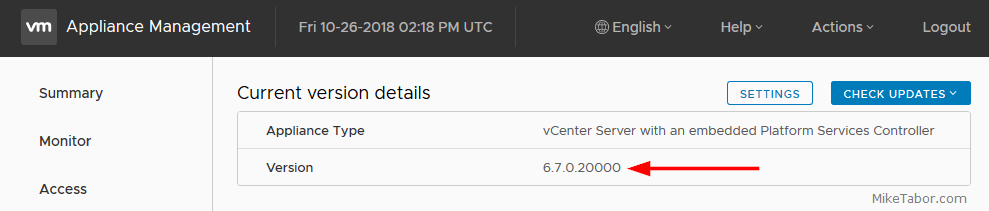
  5. You’ll be taken back to the VAMI update screen which should show your running version as 6.7.0.2000. If so, you are now running VMware vCenter Service Appliance 6.7 Update 1. Enjoy!
    vmware vcsa update 6.7u1

That’s it. You should now be running VMware vCenter Server Appliance 6.7 U1 and now ready to upgrade the remaining items in your environment, such as upgrading your ESXi hosts to ESXi 6.7 U1.

Similar Posts

  • VMware View client now availabe for Android!

    VMware has announced that they have released a View Client for Android tablets available on the Android Market now. Here are just a few of the features found on the new client.

    • A new look and feel – The View Client for Android features the NEW blue look and feel of the VMware View clients!
    • Multiple broker support – If you have more than one VMware View broker in your organization, you can can easily access your desktop from all of them via the Android client
    • Desktop Shortcuts – Quickly connect with as many as four recent desktop via shortcuts
    • Virtual trackpad – Control your desktop on a granular level just like you would control the mouse on a laptop
    • Custom keyboard toolbar – Super easy access to all of the special keys not found on the Android default keynboard
    • Honeycomb 3.x support – Made from the ground up for the new generation of Android tablets
    • Custom gestures – Invoke keyboard, scrolling, etc are as easy as ever and simple to use
    • VMware View Security Server support (best experience) – No need to have VPN when you use VMware View Security Server
    • Background tasking – Switch between apps on your tablet and come right back
  • VMware ESXi 6.0 CBT bug fix released

    VMware

    You may remember ESXi 4.x-5.x had a CBT bug, as mentioned here, that could potentially cause your backups to be pretty useless. Well it seems ESXi 6.0 isn’t without it’s own CBT bug which could cause the following to possibly occur:

    • Backing up a VM with CBT enabled fails.
    • Powering on virtual machines fails.
    • Expanding the size of a virtual disk fails.
    • Taking VM quiesced snapshots fails.

    Prior to the fix, the workaround was to disable CBT. Thankfully VMware has released a fix for the ESXi 6.0 CBT bug and it’s recommended that anyone who uses CBT apply this patch regardless if it was a clean install of VMware ESXi 6.0 or an upgrade to ESXi 6.0.

    Read More “VMware ESXi 6.0 CBT bug fix released”

  • How to change vCenter Operations Manager session timeout

    I’ve been using vCenter Operations Manager for a while now at work for all the great information that can be found about our environment so I tend to log into vCOp at the start of the morning and then come back to as I may or may not need it thoughout the day. One thing that has kind of annoyed me is having to constantly log into the standard UI multiple times a day due to the default 30 minute timeout value.

    Luckily, with a bit of SSH and a few commands we can increase this timeout to anything we like or even disable it all together!

    Read More “How to change vCenter Operations Manager session timeout”

  • VMware Workstation 8.0.4 released

    VMware has just released it’s forth minor update for VMware Workstation 8, bringing it up to 8.0.4. The looks to contain mostly a few bug and security fixes.

    General Issues

    • Linux guests running the Linux kernel version 2.6.34 or later could not be pinged from the host via an IPv6 address.
    • On rare occasions, Linux guests would suddenly fail to Autofit or enter Unity.
    • Unity mode would exit if the title bar of an application contained certain non UTF-8 encoded extended ASCII characters.
    • On Windows hosts, the VMware Workstation user interface sometimes became unresponsive when minimized from full-screen mode if the suggestion balloon was being displayed.
    • On Windows hosts, the user interface sometimes became unresponsive if the application was rendered on an extended display that was abruptly disconnected.

    Read More “VMware Workstation 8.0.4 released”

  • Become a VMware Certified Associate for FREE!

    During the San Francisco VMworld 2013, VMware announced the start of their new VMware Certified Associate certifications.

    There’s no training class requirement for the new exams although VMware offers a free self-paced e-learning course which is recommended to help you prepare for the exams. The exams normally run $120.00 but VMware is currently running a $60.00 discount for those who take the exam in 2013. NTPRO.nl has an additional coupon code (VCA13ICS) to take the remaining $60.00 off making the exam FREE!

    VCA Exam for free

    The VCA13ICS coupon code expires on October 30, 2013!

    Update:
    Global Knowledge also has a coupon code (VCA13GKN) which does not expire until January 31, 2014. Limit one free exam per individual!

  • vSphere 5.1 currently not compatible with any VMware View version

    Before you go updating your vSphere to the new 5.1 version that was just released, VMware had just released this alert yesterday (9/12) that vSphere 5.1 is currently NOT compatible with any version of VMware View.

    vSphere 5.1 is in the process of being certified against VMware View. We recommend that you do not upgrade vSphere above the supported versions listed in the VMware View 5.1 Release Notes.

    For further updates and more information on this alert, refer to KB article:
    vSphere 5.1 is not compatible with any versions VMware View (2035268).

    If you don’t use VMware View, and are ready to upgrade to vSphere 5.1 be sure to check out the Installing vCenter Server 5.1 best practices from VMware.

Leave a Reply

Your email address will not be published. Required fields are marked *

2 Comments