VMware vCenter Server 5.5 Update 1b released
vCenter Server 5.5 Update 1b released

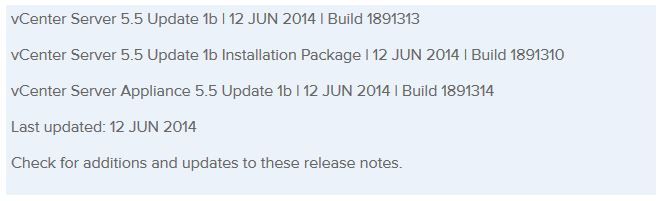
VMware released vCenter Server 5.5 Update 1b today. The release does not bring any new features but instead patches a few bugs and possible security issues such as the heartbleed fix and most recent OpenSSL as mentioned in CVE-2014-0224. vCenter 5.5 Update 1b now includes the OpenSSL library which has been updated to versions openssl-0.9.8za, openssl-1.0.0m, and openssl-1.0.1h.

Resolved Issues

Security

  • Update to OpenSSL library addresses security issues
    OpenSSL libraries have been updated to versions openssl-0.9.8za, openssl-1.0.0m, and openssl-1.0.1h to address CVE-2014-0224.

Server Configuration

  • Host profile answer file might not be applied when you reboot the ESXi host
    After you restart the vCenter services, if you use Auto Deploy to reboot a stateless ESXi host, the host profile answer file might not be applied to the ESXi host and the host configuration might fail. This issue occurs if the reference host is not available. This issue is resolved in this release.

Virtual SAN

  • Under certain conditions, Virtual SAN storage providers might not be created automatically after you enable Virtual SAN on a cluster
    When you enable Virtual SAN on a cluster, Virtual SAN might fail to automatically configure and register storage providers for the hosts in the cluster, even after you perform a resynchronization operation. This issue is resolved in this release. You can view the Virtual SAN storage providers after resynchronization. To resynchronize, click the synchronize icon in the Storage Providers tab.

Download vCenter 5.5 U1b bits here, and read the release notes here.
Similar Posts

  • Install ESXi 5.1 from a USB Flash Drive

    Many servers already come with a DVD/CD-ROM drive or some kind of ability to virtually mount an ISO image from a network share onto your server to then install ESXi. However, not all do or you just want to have your ESXi image readily available. Here’s a quick step by step instructions on how to use a USB flash drive to install ESXi.

    1. Download ESXi 5.1 from VMware (if you haven’t already) as well as UNettbootin.
    2. Plug in your USB Flash Drive.
    3. Open UNetbootin and select “Diskimage”, set Type to “USB Drive”, select Drive letter of your USB flash drive, and set the path of your ESXi 5.1 ISO image. Then click on “OK”.
      unetbootin setup
    4. Read More “Install ESXi 5.1 from a USB Flash Drive”

  • My VMware View Windows 7 Optimization Guide

    These are the few steps I do when creating a new "Golden" image. Luckily I don’t have to do these steps all the time as I’ll create the "Golden" image when there is a new upgrade such as when we went from View 4.6 to View 5.0.1. I like to have a new fresh machine using new virtual hardware from the start. You could certainly just upgrade the virtual hardware on the "Golden" image, I just prefer to start clean.

    At any rate, here’s my list. Hopefully someone might find it somewhat useful and maybe even others can improve upon it.

    Preparing a new virtual machine

    1. Create New Virtual Machine – FILE > NEW > VIRTUAL MACHINE (CTRL+N)
    2. Under Configuration select CUSTOM.
    3. Select a Name, Folder, Host, Cluster, and Storage.
    4. Under Guest Operating System select Windows and then Windows 7 32bit under the Version drop down.
    5. Select which Network (VLAN) and under Adapter select VMXNET 3.
    6. Configure disk size to 30GB THIN provisioned.

    Read More “My VMware View Windows 7 Optimization Guide”

  • How to shadow a VMware Horizon View desktop

    Ever work on a View 5.x Desktop issue and needed access to the desktop it self while in use? While not a feature that is easily enabled say via the vmTools or the View Administrator console – it can however be easily enabled via Group Policy, similar to some other settings that I mention in the Windows 7 Optimization Guide.

    Enable PCoIP Shadowing

    • Import the pcoip.adm GPO Template.
    • Navigate to: Computer Configuration > Administrative Templates > Classic Administrative Templates (ADM) > PCoIP Session Variables.
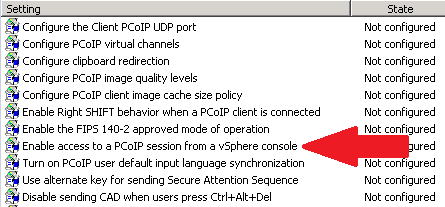
    • Enable “Enable access to PCoIP session from a vSphere console”.
    • Link the GPO to the OU where your View Desktops reside.

    shadow pcoip policy

    Read More “How to shadow a VMware Horizon View desktop”

  • Installing VMware vCenter Server Appliance 6.5

    VMware has announced that VMware vSphere 6.5 has gone general available this week. Now installing VMware vCenter Server Appliance 6.5 (VCSA) is even easier as the requirement for the client integration plugin has been removed and now the VCSA appliance is delivered via an ISO image with an installation wizard that’s been broken up into two stages.

    The VCSA 6.5 ISO offers two types of installation methods, CLI and GUI install – both availalbe for Windows, Mac and Linux machines. In this guide I’ll walk through the steps of installing VCSA 6.5 using the Windows GUI install.

    Read More “Installing VMware vCenter Server Appliance 6.5”

  • vSphere 5.1 Release Date leaked, maybe?

    Looks like Sammy Bogaert over at Boerlowie’s Blog has possibly found the release date of vSphere 5.1… maybe?

    I was about to download vSphere Update Manager PowerCLI 5.0.

    I followed the main site and wanted to check the documentation first. So I clicked the Documentation button.

    vmware update manager

    This lead me to the Docs of Update Manager PowerCLI 5.1! That’s right, 5.1! With a release date of 10 September 2012.

    vsphere5.1 release date

    None of the links for 5.1 work, so no news on any new features…

    Guess somebody at VMware was a bit too fast to update the website

    Nice find Sammy, guess time will tell if the Sept. 10th date is the actual release date or not.

  • VMUG EVALExperience, the new VMware VMTN

    VMUG EVALExperience

    Long ago VMware offered a program called VMware Technology Network (VMTN) which was very similar to Microsoft’s TechNet, which allowed you to download and run various VMware software within your home lab for a small yearly fee. Just like the Microsoft TechNet, the VMware VMTN program was eventually closed. From the time the VMTN program closed many people have begged and pleaded with VMware to bring the program back, there is even a long forum thread asking VMware to bring VMTN back. Though it never did… until now.

    Read More “VMUG EVALExperience, the new VMware VMTN”

Leave a Reply

Your email address will not be published. Required fields are marked *