How to Upgrade PowerShell 7 to latest version

Have you opened a Windows Terminal and seen a highlighted message stating “A new PowerShell stable release is available …“?
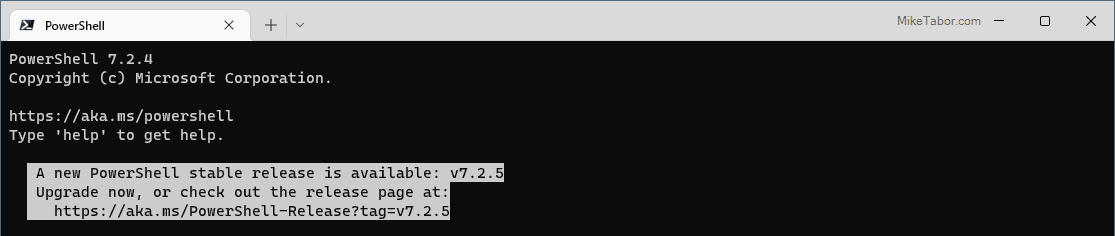
powershell 7 upgrade prompt

Well you could go to the link provided in the prompt, download the upgrade and then run it on your machine, or you can quickly and easily upgrade PowerShell 7 directly from the terminal by typing the following command.

Invoke-Expression "& { $(Invoke-Restmethod https://aka.ms/Install-PowerShell.ps1) } -UseMSI"

This will automatically download and run the latest version of PowerShell 7 and run the installer for you. See quick and easy!
Similar Posts

  • Install Synology NFS VAAI Plug-in for VMware

    Synology

    In the recent DSM update (5.1), Synology added VMware VAAI support for NFS volumes using two primitives which are Full File Clone and Reserve Space. What do these VAAI primitives offer?

    • Full File Clone enables virtual disks to be cloned by the NAS albeit while the machine is powered off.
    • Reserve Space allows you can create a thick VMDK file. However Reserve Space does not off-load the work to the array. The benefit of thick VMDKs is that many use eager-zero for high I/O performance needs.

    On the Synology side of things you just need to update to DSM 5.1, but in order to take advantage of VAAI you still need to install the VIB plugin on your ESXi 5.5 hosts.

    Read More “Install Synology NFS VAAI Plug-in for VMware”

  • VMware ESXi 5 home lab upgrade

    In the past I’ve been using a single server to run my VMware ESXi home lab. it was slow, old, big and loud. I’ve been meaning to upgrade my home lab for a while and just never got around to it, until now! When looking for new hardware I wanted the servers to be as compact as possible, quiet, and low energy usage as possible while still having some horsepower.

    I debated on going the whitebox solution as I build all my own desktops anyway, I also looked at several other solutions such as the HP ML310e server, Shuttle XH61V barebones machine, but ultimately decided to go with two Intel NUC i5’s.

    Intel NUC i5 and 16GB ram

    Intel NUC i5 DC53427HYE Features:

    • Uses very little energy
    • Completely quiet
    • Supports up to 16GB RAM
    • A dual core CPU that scores nearly 3,600 in PassMark benchmarking
    • Includes vPro which allows me to easily run both NUC’s headless
    • Extremely small, nearly 4 1/2″ inch square footprint

    Read More “VMware ESXi 5 home lab upgrade”

  • Crucial 16GB memory, perfect for Intel NUC

    crucial 16gb 204pin memory

    I’m a huge fan the of Intel NUC‘s for a VMware home lab. In fact I just recently picked up my third Intel NUC to give me more head room for a small VMware Horizon (View) environment at home.

    I typically use G.Skill memory in my NUC’s as I’ve had great luck with the brand in my desktop and laptop for years. However G.Skill has been increasing in price which made me look around for alternatives and came across Crucial DDR3 204-pin memory for less money, but days after I purchased it they too went up in price. However they are now back on sale and cost about $50 less then the G.Skill memory I have been using in my first two NUC’s.

    I’ve been using the Crucial memory now for the last several months without any problems and even though they are rated at a lower voltage I can’t say I really see any difference in power savings or consumption compared to the G.Skill 1.5V. If you’re looking to upgrade now might be a good time to take advantage of the sale price.

  • Use Pi-Hole to block ads on all devices in your network

    Sure ad blockers have been around for a long while now, but those are typically only available for your web browsers and not ever device allows you to install them such as cell phones, media players, smart TV’s, etc. I came across a neat project that allows you to block web ads on every device in your network, called Pi-Hole.

    In a nutshell Pi-Hole was developed to run on a Raspberry Pi, but will run on most any Debian based distro, and will act as a DNS server to which you point your devices or router to use as the DNS server so that all requests are filtered through Pi-Hole. Pi-Hole then blocks 100’s of thousands ad domains. All without having to use a single browser extension and for FREE!

    Read More “Use Pi-Hole to block ads on all devices in your network”

  • Secure your Synology NAS, install a SSL certificate

    I’ve been using the default setup on my Synology DS412+ with HTTPS enabled for a while now but knew it really wasn’t all that secure without a proper SSL certificate and creating a self-signed certificated isn’t all the much better and can be easily forged. I decided it was about time I used a “real” certificate to better secure the NAS.

    Prerequisites before starting

    • You need to own a domain name, for example MikeTabor.com and be able to receive email from the domain name.
      If you don’t already have a webhost for the domain, I’d suggest BlueHost.

    • You also need a DDNS service setup. In this case and for my use, I simply use the Synology DDNS service they offer for free.
    • With those two setup, you will also want to add a CNAME DNS forward from your domain (or subdomain if you wish to go that route) to your DDNS service.
    • Finally you’ll want to make sure Port Forwarding has been configured on your router.

    Read More “Secure your Synology NAS, install a SSL certificate”

Leave a Reply

Your email address will not be published. Required fields are marked *