Easy upgrade ESXi 6.5 via command line

VMware has recently released ESXi 6.5 and last week I posted on how to Install VCSA 6.5 as well as how to upgrade VCSA 6.0 to 6.5, now we’re going to look at how to easily and quickly perform an ESXi 6.5 upgrade via command line.

How to Upgrade ESXi 6.6 via command line using VMware Online Depot

Using the VMware Online Depot is a simple way to upgrade if you only have 1 or 2 ESXi hosts to do, perfect for a small home lab setup.

  1. Place the host you want to upgrade into Maintenance Mode.
  2. Open PuTTY (or any other SSH client) and SSH into your host.
  3. Type the following command to open the firewall for outgoing HTTP requests:
    esxcli network firewall ruleset set -e true -r httpClient
  4. Type the following command to download and upgrade to the latest version of ESXi 6.5
    esxcli software profile update -d https://hostupdate.vmware.com/software/VUM/PRODUCTION/main/vmw-depot-index.xml -p ESXi-6.5.0-20170404001-standard
  5. Now disable the HTTP firewall rule by typing:
    esxcli network firewall ruleset set -e false -r httpClient
  6. And finally, reboot the ESXi host to complete the upgrade.
    reboot
  7. Doesn’t hurt to also disable SSH when you’re done for security purposes.

That’s it, your ESXi host has how been upgraded to the latest ESXi 6.5 build, as of April 19, 2017!

This works perfect in a small environment with a few hosts or home lab. Those with tens or hundreds of hosts I would suggest using VMware Update Manager to perform the upgrades.

Similar Posts

  • Fix VMware VCSA /storage/log filesystem out of disk space

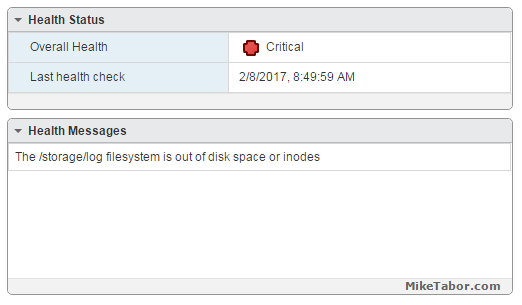
    This morning I ran into an issue where users were reporting the production VCSA 6.0 was not allowing them to connect into the web or thick client. Another administrator rebooted the VCSA which seemed to work only briefly. I then logged into the VCSA web management (https://<VCENTER_IP>:5480) and noticed the following health status right away:

    The /storage/log filesystem is out of disk space or inodes

    vcsa /storage/log full

    Read More “Fix VMware VCSA /storage/log filesystem out of disk space”

  • Clone VMware ESXi USB boot drive to another USB flash drive

    A few days ago one of my hosts in my home lab was displaying an alarm message:

    Lost connectivity to the device

    Lost connectivity to the device mpx.vmhbaXX:XX:XX:XX backing the boot filesystem /vmfs/devices/disks/mpx.vmhbaXX:XX:XX:XX. As a result, host configuration changes will not be saved to persistent storage.

    The last part of the message (“persistent storage”) made me think it might have something to do with the USB drive due to the fact that a similar message appeared when setting up the home lab on the Intel NUC’s. After some research it appears my assumption was correct and that the USB flash drive I was using to boot from was indeed starting to fail.

    Read More “Clone VMware ESXi USB boot drive to another USB flash drive”

  • How to upgrade ESXi 6.5 to ESXi 6.7

    VMware released ESXi 6.7 a little while ago, but it’s only been here recently have I started deploying it in my home and work lab environments. Below are two ways to easily upgrade your ESXi 6.5 hosts to ESXi 6.7 using the command line or by using the VMware ESXi offline bundle.

    Read More “How to upgrade ESXi 6.5 to ESXi 6.7”

  • Intel NUC i5 5th Generation an ESXi lab improvement

    Intel NUC BLKNUC5I5MYHE 5th gen

    For the past year and a half I’ve been using the Intel i5 3rd Gen NUC’s in my ESXi home lab with great success. In this time several people have asked if I recommend anything newer, and while Intel had a few 4th gen models I wasn’t really sold on them as most CPU benchmarks put them the same as my 3rd gen or lower and only added support for a 2.5″ drive which at the time I didn’t need but then Intel released news about several Intel NUC 5th generation models!

    Read More “Intel NUC i5 5th Generation an ESXi lab improvement”

  • VMware ESXi 5 home lab upgrade

    In the past I’ve been using a single server to run my VMware ESXi home lab. it was slow, old, big and loud. I’ve been meaning to upgrade my home lab for a while and just never got around to it, until now! When looking for new hardware I wanted the servers to be as compact as possible, quiet, and low energy usage as possible while still having some horsepower.

    I debated on going the whitebox solution as I build all my own desktops anyway, I also looked at several other solutions such as the HP ML310e server, Shuttle XH61V barebones machine, but ultimately decided to go with two Intel NUC i5’s.

    Intel NUC i5 and 16GB ram

    Intel NUC i5 DC53427HYE Features:

    • Uses very little energy
    • Completely quiet
    • Supports up to 16GB RAM
    • A dual core CPU that scores nearly 3,600 in PassMark benchmarking
    • Includes vPro which allows me to easily run both NUC’s headless
    • Extremely small, nearly 4 1/2″ inch square footprint

    Read More “VMware ESXi 5 home lab upgrade”

  • VMware View client now availabe for Android!

    VMware has announced that they have released a View Client for Android tablets available on the Android Market now. Here are just a few of the features found on the new client.

    • A new look and feel – The View Client for Android features the NEW blue look and feel of the VMware View clients!
    • Multiple broker support – If you have more than one VMware View broker in your organization, you can can easily access your desktop from all of them via the Android client
    • Desktop Shortcuts – Quickly connect with as many as four recent desktop via shortcuts
    • Virtual trackpad – Control your desktop on a granular level just like you would control the mouse on a laptop
    • Custom keyboard toolbar – Super easy access to all of the special keys not found on the Android default keynboard
    • Honeycomb 3.x support – Made from the ground up for the new generation of Android tablets
    • Custom gestures – Invoke keyboard, scrolling, etc are as easy as ever and simple to use
    • VMware View Security Server support (best experience) – No need to have VPN when you use VMware View Security Server
    • Background tasking – Switch between apps on your tablet and come right back

Leave a Reply to Michael Cancel reply

Your email address will not be published. Required fields are marked *

3 Comments

  1. Thanks for the article. can we somehow download the offlinebundle.zip or it”s contents in a folder via ssh?